Deploying a VCF Operations Orchestrator Cluster

Most sizing conversations start with a dropdown. This one does not, and that is the first thing worth knowing before you plan a VCF Operations Orchestrator deployment.
The sizing question has a short answer
There is no Small, Medium or Large for VCF Operations Orchestrator. The appliance ships with one set of requirements and that is what you get.
| Resource | Per node |
|---|---|
| vCPU | 4 |
| Memory | 12 GB, of which 8 GB must stay free |
| Disk | 200 GB |
That "8 GB must stay free" line is the one people skim past. It is not 12 GB of headroom, it is 12 GB with a floor underneath it, so an aggressively overcommitted management cluster will hurt you here.
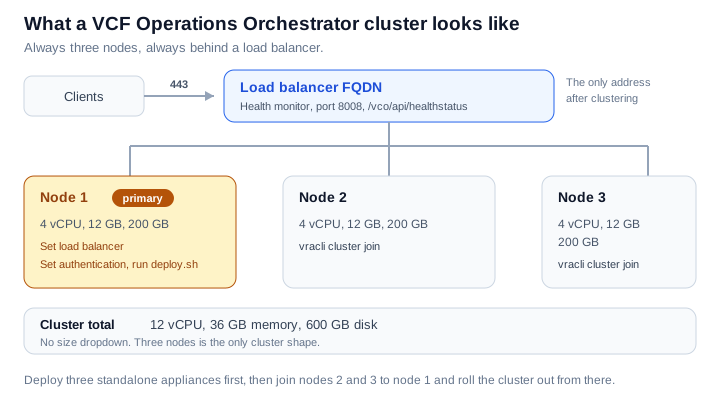
For high availability the answer is just as short. A cluster is three nodes. Not two, not five. You deploy three standalone appliances and then join them together.
So the whole sizing exercise is one multiplication:
| Per node | Three-node cluster | |
|---|---|---|
| vCPU | 4 | 12 |
| Memory | 12 GB | 36 GB |
| Disk | 200 GB | 600 GB |
Before you start
Get these in place first. Every one of them is something that will stop you halfway through if it is missing.
- Three OVA deployments worth of capacity, per the table above.
- A load balancer, configured and reachable. This is not optional for a cluster. Once the cluster is built you reach Orchestrator through the load balancer FQDN and nowhere else.
- Forward and reverse DNS for all three nodes and for the load balancer FQDN. Reverse is the one that gets forgotten.
- IPv4 with an FQDN. The appliance expects this.
- Root passwords for all three nodes, and you will need the primary's root password again when the secondaries join.
- Your certificate, PEM encoded, if you are not using the generated one.
- An authentication provider you can point at. VCF Automation, vSphere and VCF SSO are the supported options, and your licensing is provisioned through whichever one you choose.
Deploy the three appliances
Nothing exotic here, it is a standard OVF deployment done three times from the vSphere Client. Two choices in the wizard are worth slowing down for.
Storage format. Pick Thick Provisioned Eager Zeroed. The default is Lazy Zeroed, and eager zeroed is the format called out as supporting clustering. This is the single easiest thing to get wrong, because the default is the wrong answer for what you are building.
Kubernetes CIDRs. The appliance runs its services on an internal Kubernetes cluster and asks for two ranges:
| Setting | Default |
|---|---|
| Cluster CIDR | 10.244.0.0/22 |
| Service CIDR | 10.244.4.0/22 |
The mask must be 22 or lower. Check these against your real network before you accept them. If either range overlaps something you actually route to, you will get to debug it later from inside a broken appliance, which is a bad place to debug from.
Then set the root password, the network details and the FQDN, and let it deploy. Do that three times.
Before going further, confirm each node resolves both ways and its pods are up:
kubectl get pods -A
Configure the load balancer
Do this before you build the cluster, because the first command you run on the primary tells Orchestrator what its load balancer is.
| Purpose | Port | Detail |
|---|---|---|
| Client traffic | 443 | HTTPS to the three nodes |
| Health monitor | 8008 | /vco/api/healthstatus |
The health check is worth testing by hand before you trust the load balancer with it:
curl -k https://<node_fqdn>/vco/api/healthstatus
You are looking for a RUNNING state:
{"state":"RUNNING","health-status":{"state":"OK","time":1615296823325},"instance-id":"your_orchestrator_FQDN"}
Build the cluster
Five commands, and the order matters. Everything below is over SSH as root.
On the primary node, point it at the load balancer and set the authentication provider:
vracli load-balancer set <load_balancer_FQDN>
vracli vro authentication set
vracli vro authentication set takes an optional --fqdn if you need to add the load balancer FQDN to the authentication configuration.
On each secondary node, join it to the primary. You will be prompted for the primary's root password:
vracli cluster join <primary_node_FQDN_or_IP>
Run that on the second node, let it finish, then run it on the third. One at a time.
Back on the primary, check that all three nodes are present before you roll anything out:
kubectl -n prelude get nodes
All three should be listed and ready. Only once they are, deploy the cluster:
/opt/scripts/deploy.sh
This one takes a while. Let it finish.
Verify
From the primary:
kubectl get pods -n prelude
Then, through the load balancer rather than a node:
curl -k https://<load_balancer_FQDN>/vco/api/healthstatus
You want RUNNING again, this time answering on the load balancer FQDN. Cluster status is also on the System tab of the Orchestrator dashboard.
Things worth knowing
The load balancer FQDN becomes the address. After the cluster is built, that is how you reach Orchestrator. Bookmarks pointing at individual node names stop being the right answer.
Certificates are a before, not an after. If the primary uses a custom certificate, set it on the appliance or generate a new one before you build the cluster. The chain has to be PEM encoded.
The database is PostgreSQL and it checkpoints. Workflow state, running processes and configuration are held there, with checkpointing so a restart does not lose in flight work. That is what makes three nodes worth the resources rather than just three copies of the same thing.
Failover is already configured. The cluster comes up with automatic failover in place, so there is no separate HA step to perform after deploy.sh.
Sources
Never miss a post
New guides on VMware Cloud Foundation, Aria Suite, and infrastructure automation. Follow the blog in your feed reader and new posts show up as soon as they are published.
Using a different reader? Copy the feed URL and add it there.