Increasing /storage/log partition size inside a vRealize Automation appliance

Follow below steps to successfully increase existing partition size of /storage/log of a vRealize Automation appliance
Pre-Requisites
Full backup or clone of vRA nodes
This activity must not be performed during business hours or weekdays. Downtime has to be taken and perform under a scheduled change
Note : If you have a HA setup, then start this activity on a secondary nodes
Procedure
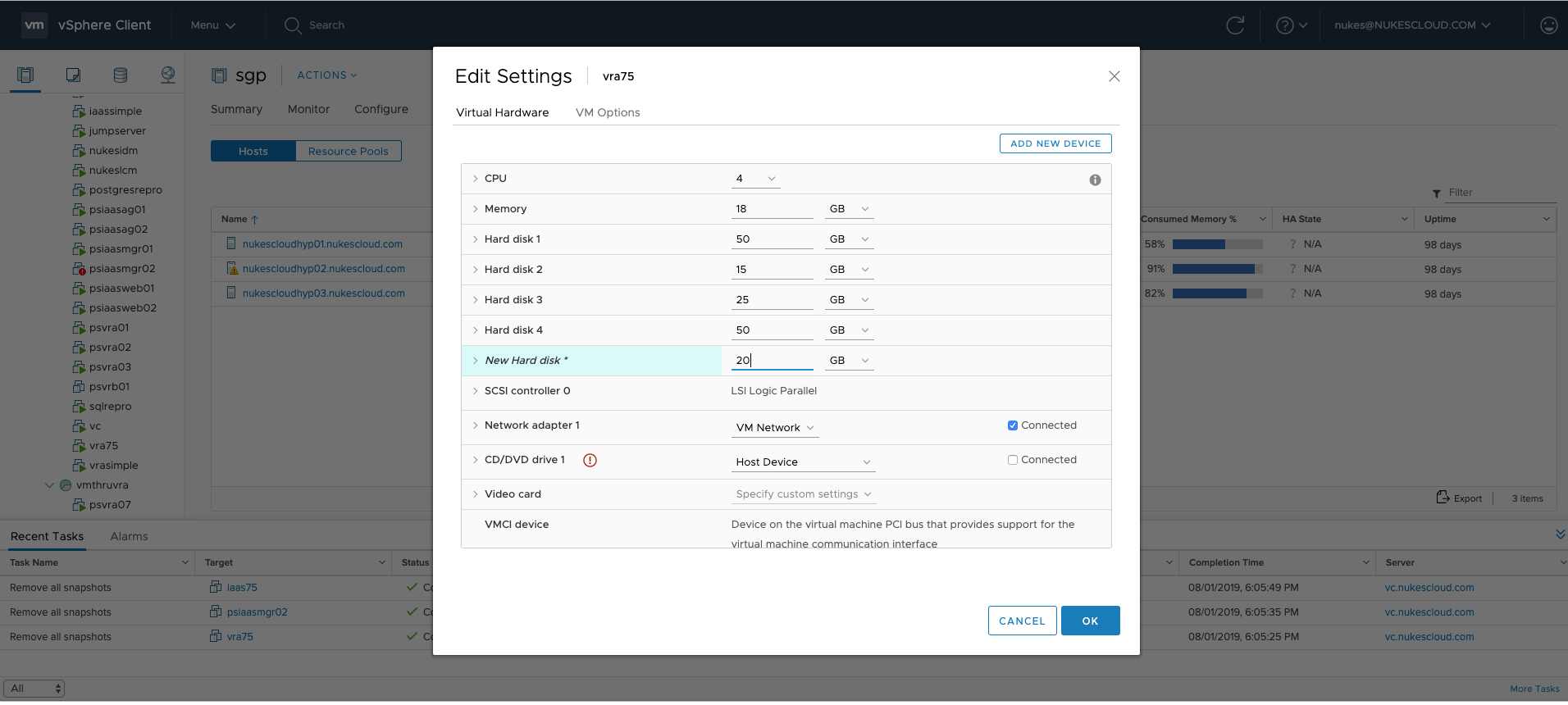
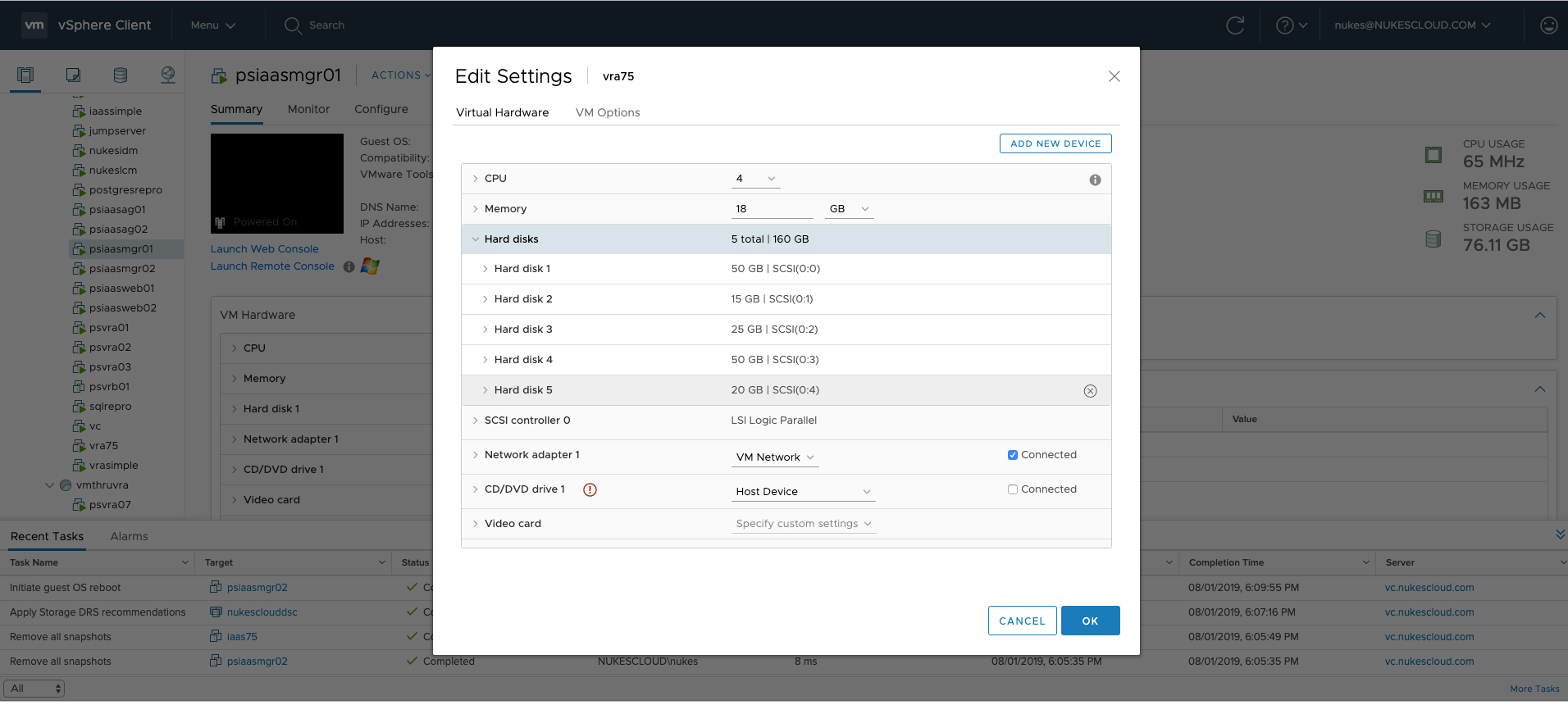
Select vRA appliance using vSphere Client and add an additional disk
I am adding a 20 GB disk for this example
Run df -h and make a note of existing /storage/log partition name , if you go by defaults it must be /dev/sdb1
Run this command to manually scan for a new device
echo "- - -" > /sys/class/scsi_host/host0/scan
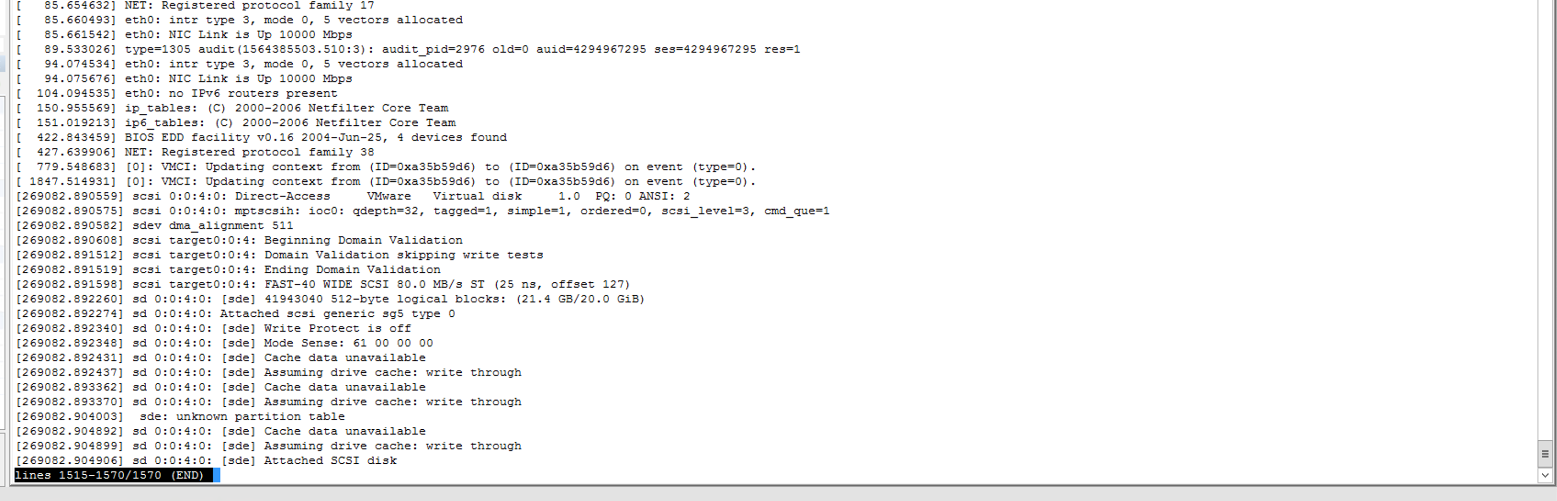
Check if new disk is seen in the VM by running command "dmesg"
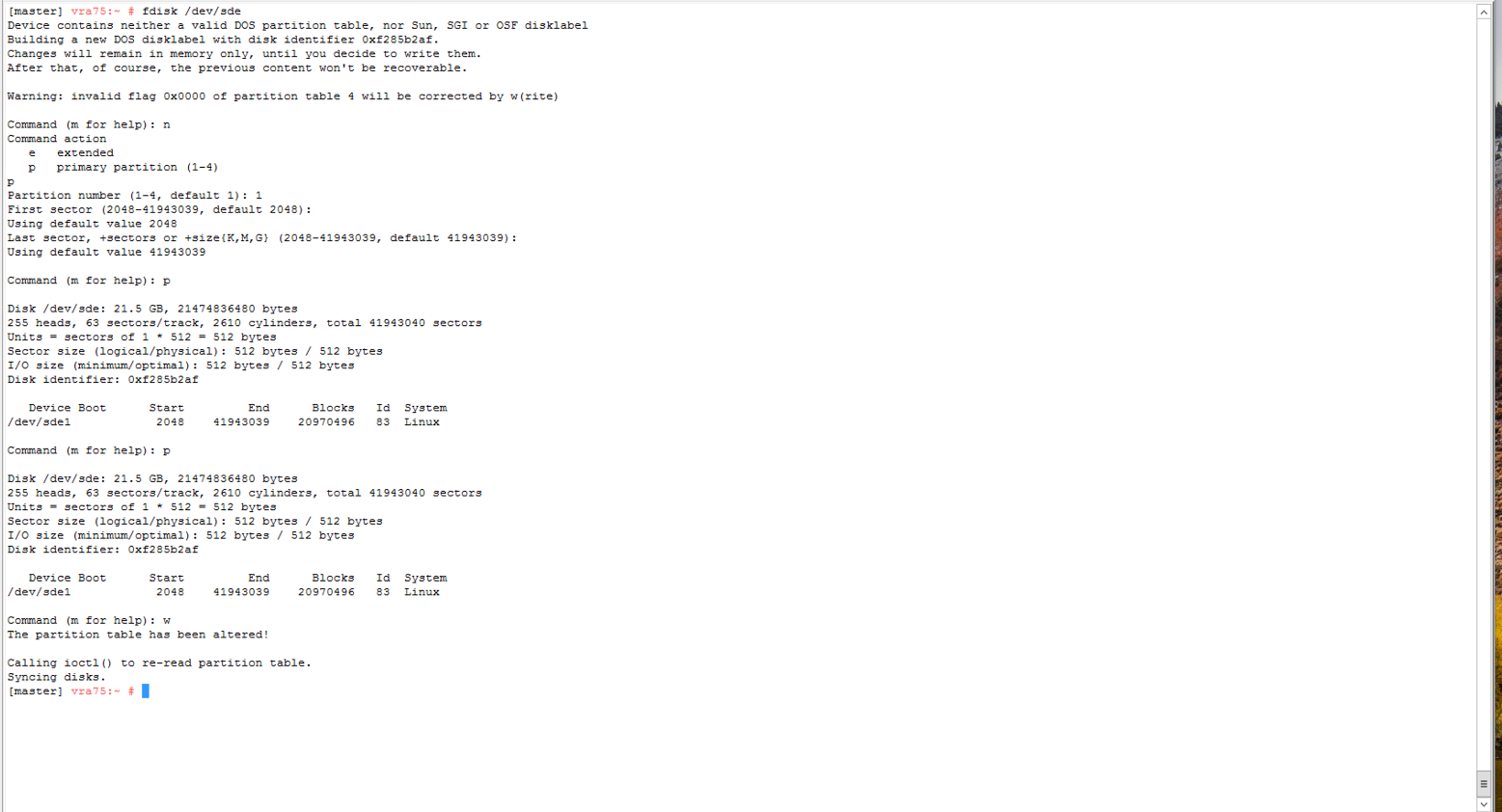
Run fdisk /dev/sde (considering /dev/sde) and start recreating the partition following the
example shown in the screeshot
Once above step has been completed , execute command " partprobe " , This would commit any changes made to kernel

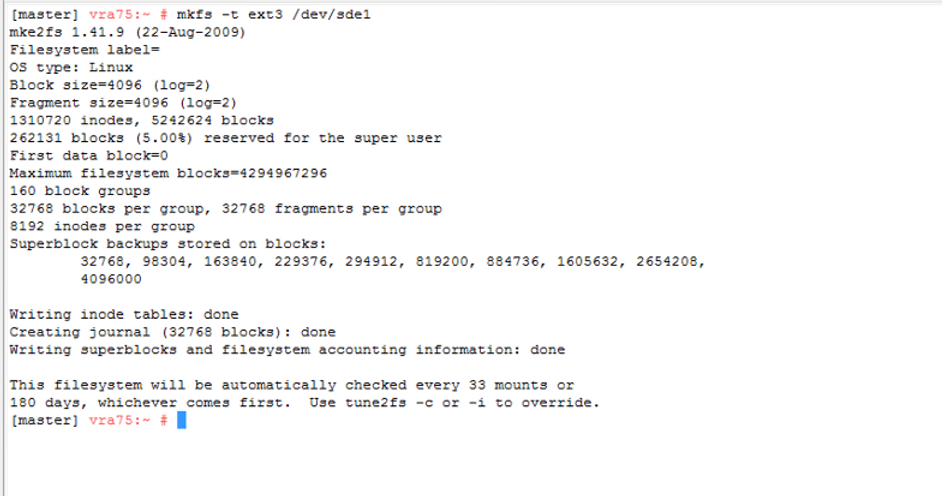
Now create a filesystem executing
mkfs -t ext3 /dev/sde1
( In my case it's /dev/sde1 , it might vary if you have added additional disks to vRA appliance previously )
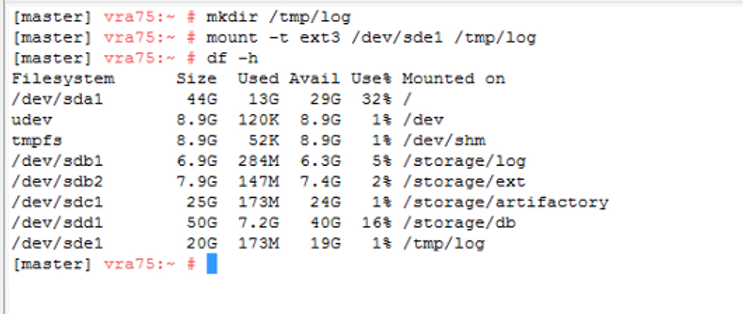
Execute following command
mkdir /tmp/log/
mount -t ext3 /dev/sde1 /tmp/log/
df -h
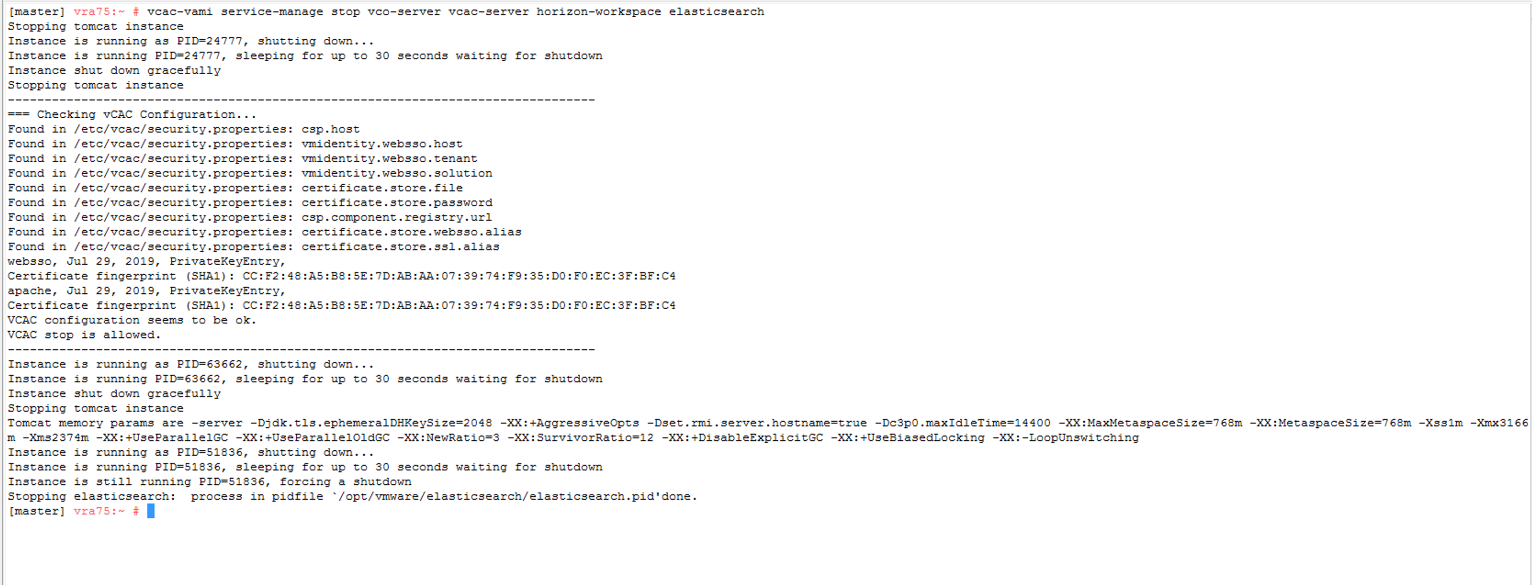
Stop all services using commands
vcac-vami service-manage stop vco-server vcac-server horizon-workspace elasticsearch
service vpostgres stop
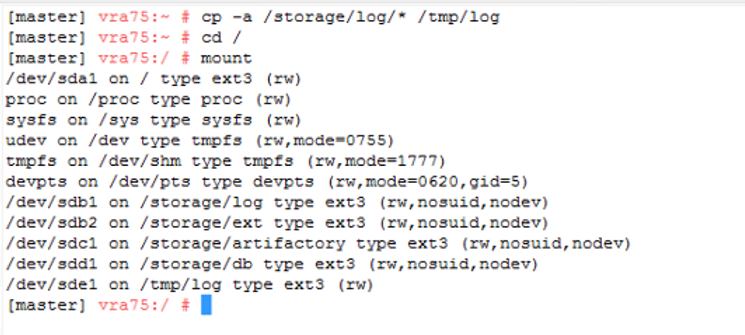
Then execute
cp -a /storage/log/* /tmp/log
cd /
mount
Post that execute command
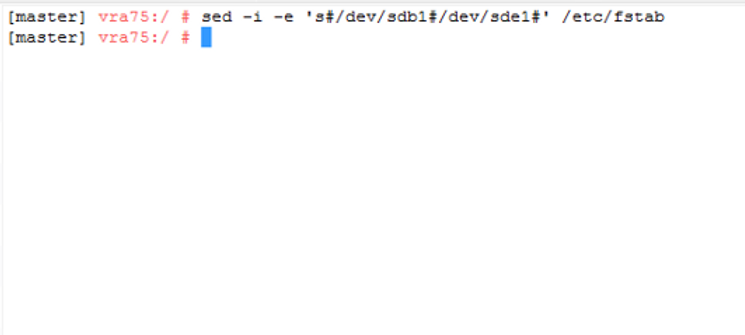
sed -i -e 's#/dev/sdb1#/dev/sde1#' /etc/fstab
(Make sure you use the correct Filesystem here)
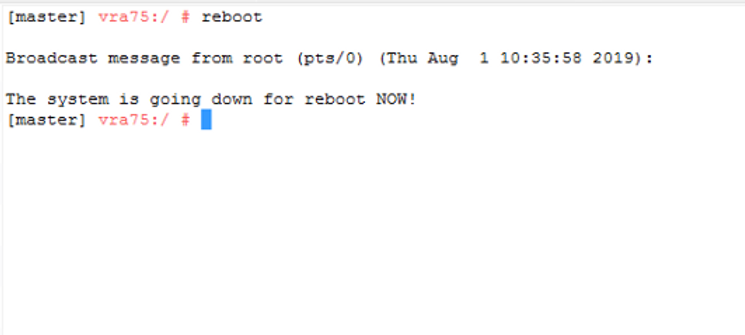
Now reboot vRA appliance
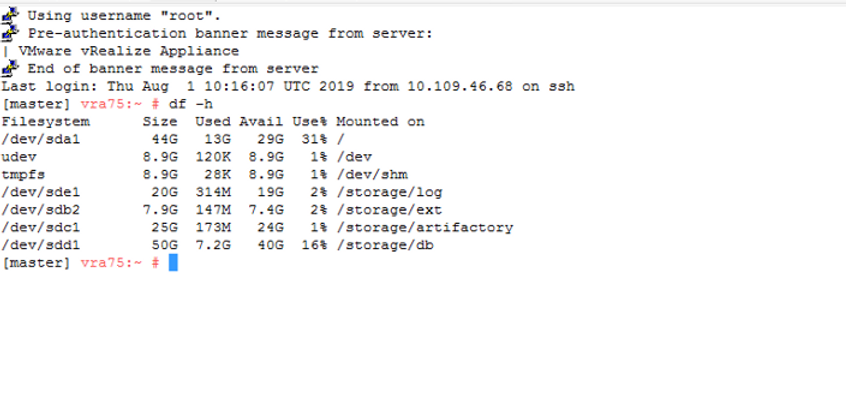
Validate /storage/log partition once and check if application logging is working as expected
!! Hope this helps !!
Never miss a post
New guides on VMware Cloud Foundation, Aria Suite, and infrastructure automation. Follow the blog in your feed reader and new posts show up as soon as they are published.
Using a different reader? Copy the feed URL and add it there.