Moving VMware Aria Operations from one VMware Aria Suite Lifecycle to another

Arun Nukula
6 min read
Usecase
Explaination of the steps taken if one wants to move VMware Aria Operations which is integrated with vIDM or Globalenvironment from one Suite Lifecycle to another
Note: VMware Aria Suite Lifecycle on both Source and Destination should be same , include policy
Environment
Here are the details of the environment we have on source and destination. The domain names taken here are an example and does not represent any organization
| Type | Source | Destination |
| VMware Aria Suite Lifecycle | devvasl.cap.org | vasl.cap.org |
| VMware Aria Operations Master | lvrops1.cap.org | lvrops1.cap.org |
| VMware Aria Operations Replica | lvrops2.cap.org | lvrops2.cap.org |
| VMware Aria Operations Cloud Proxy | lvrops3.cap.org | lvrops3.cap.org |
| VMware Identity Manager | vidm.cap.org | vidmlb.cap.org |
Product UI
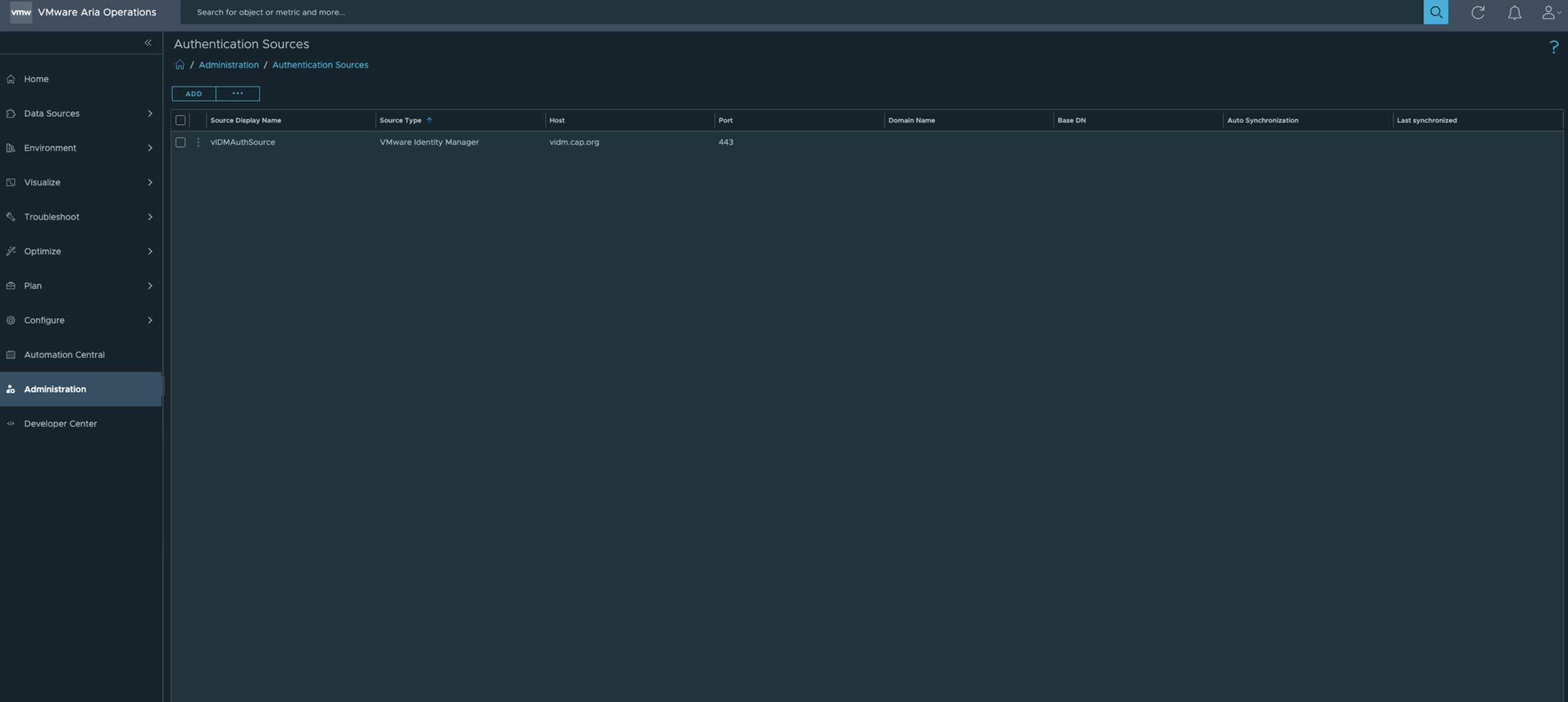
- The product has 2 auth sources Local Users and vIDMAuthSource
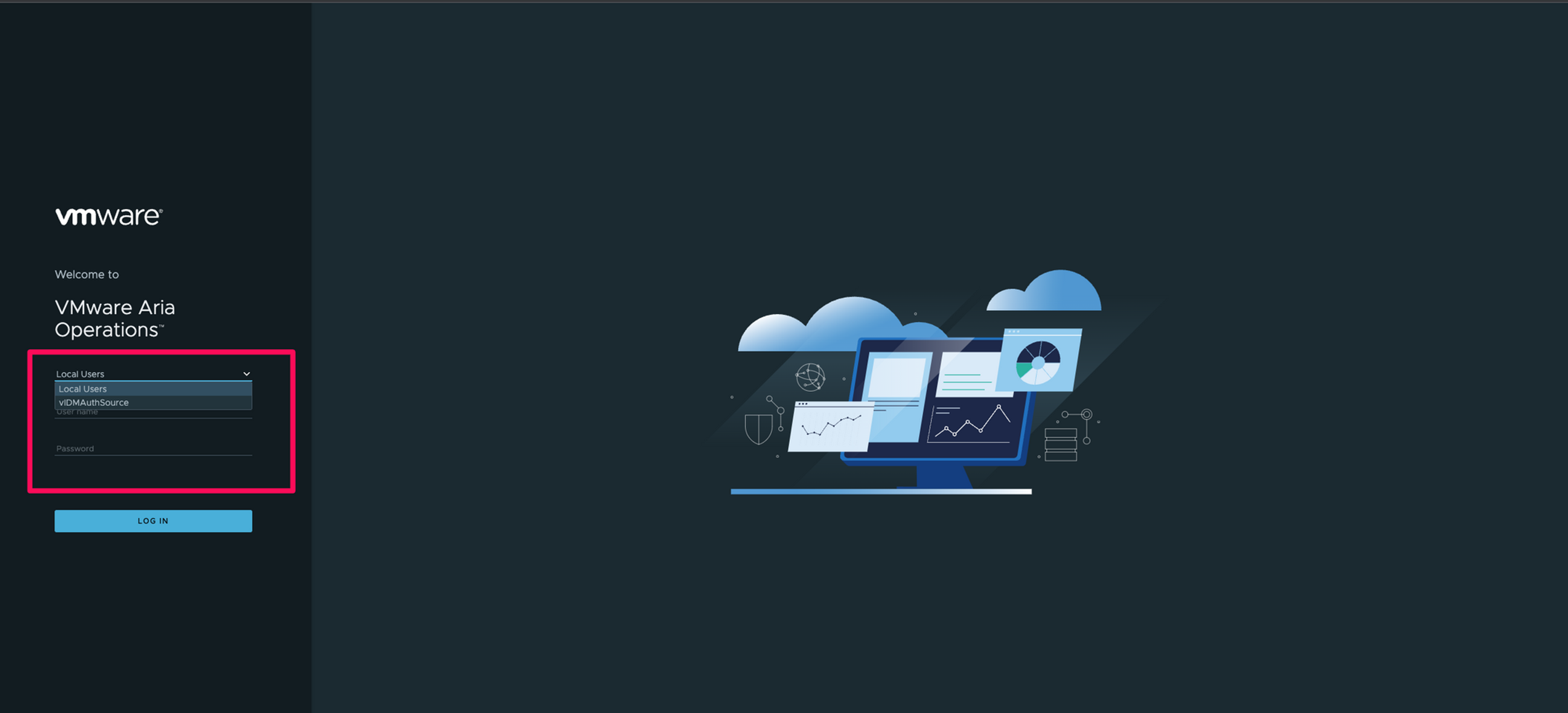
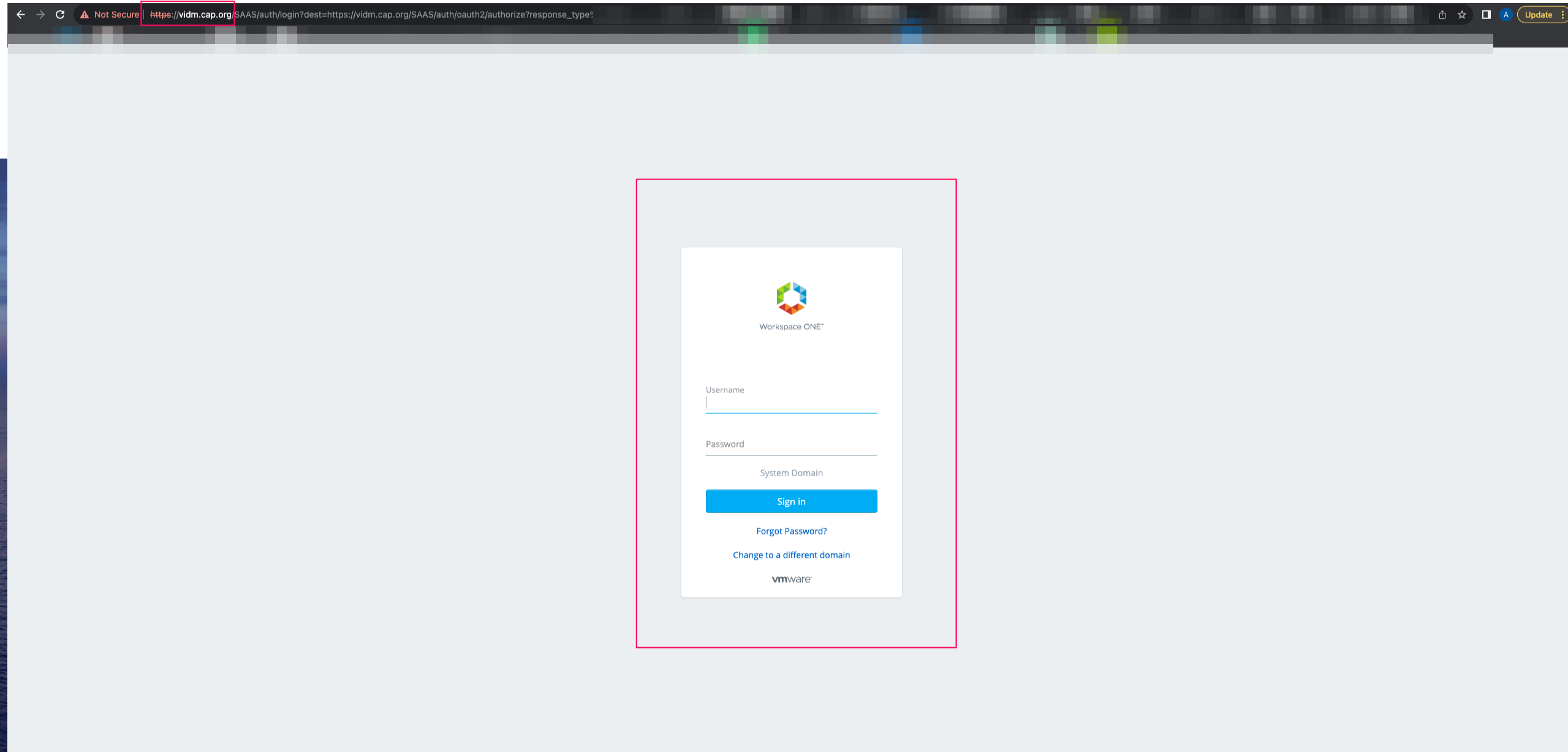
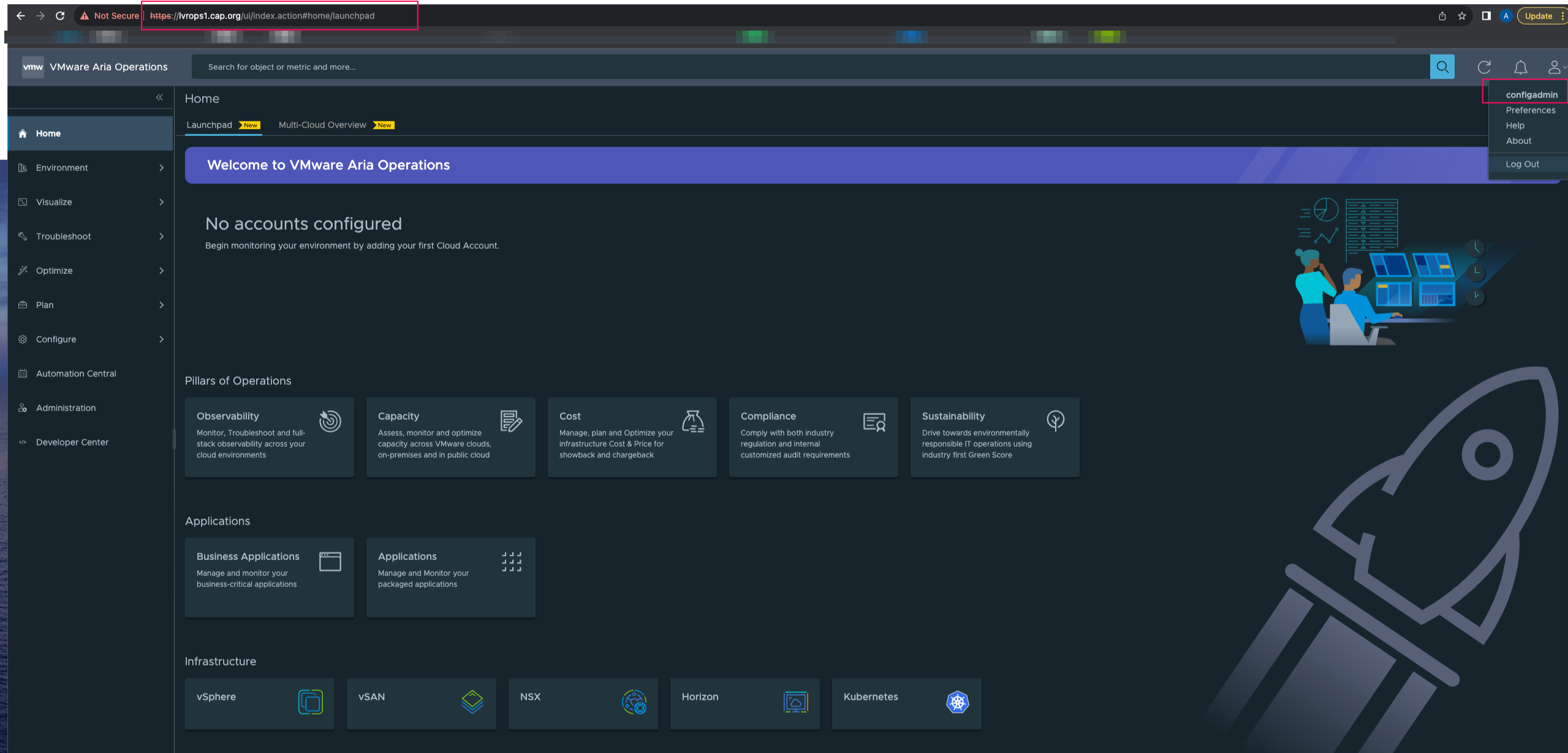
- You can see when we select vIDMAuthSource , it does redirect it to vIDM and we can login using configadmin which is my local vIDM based auth account
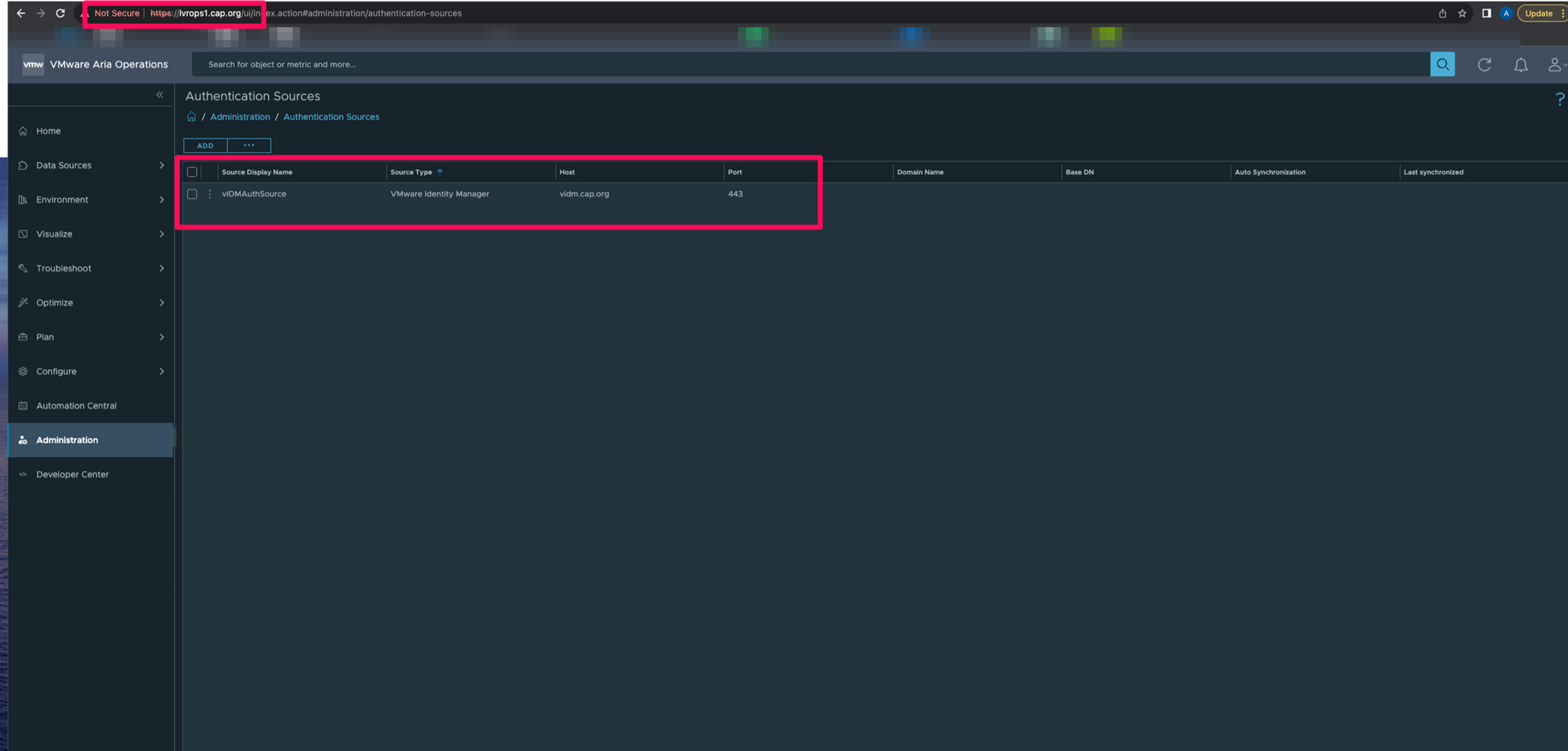
- Auth Source is configured to vidm as shown below
Procedure
Phase 1 : Removal from Source VMware Aria Suite Lifecycle
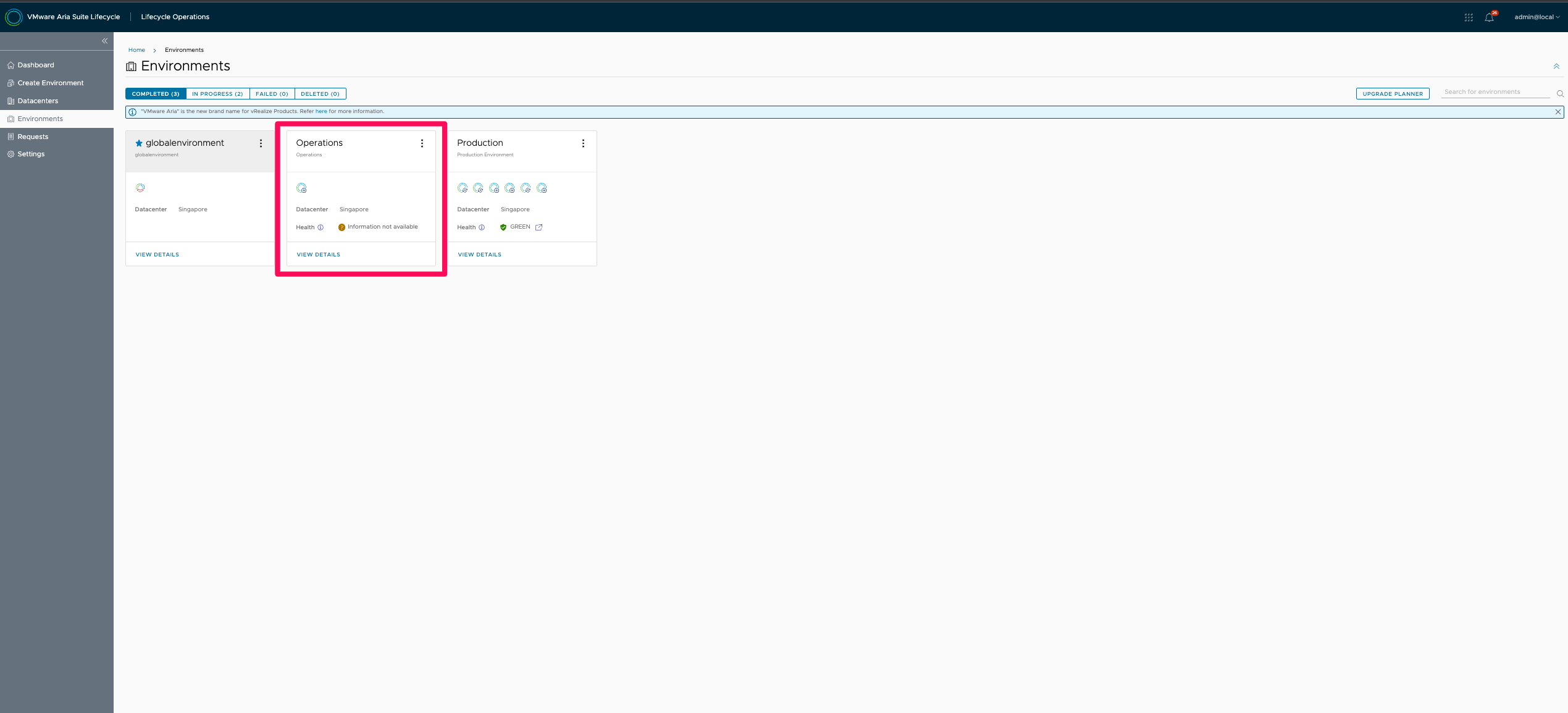
- Here's the Operations instance which i'd like to move it to a different Suite Lifecycle
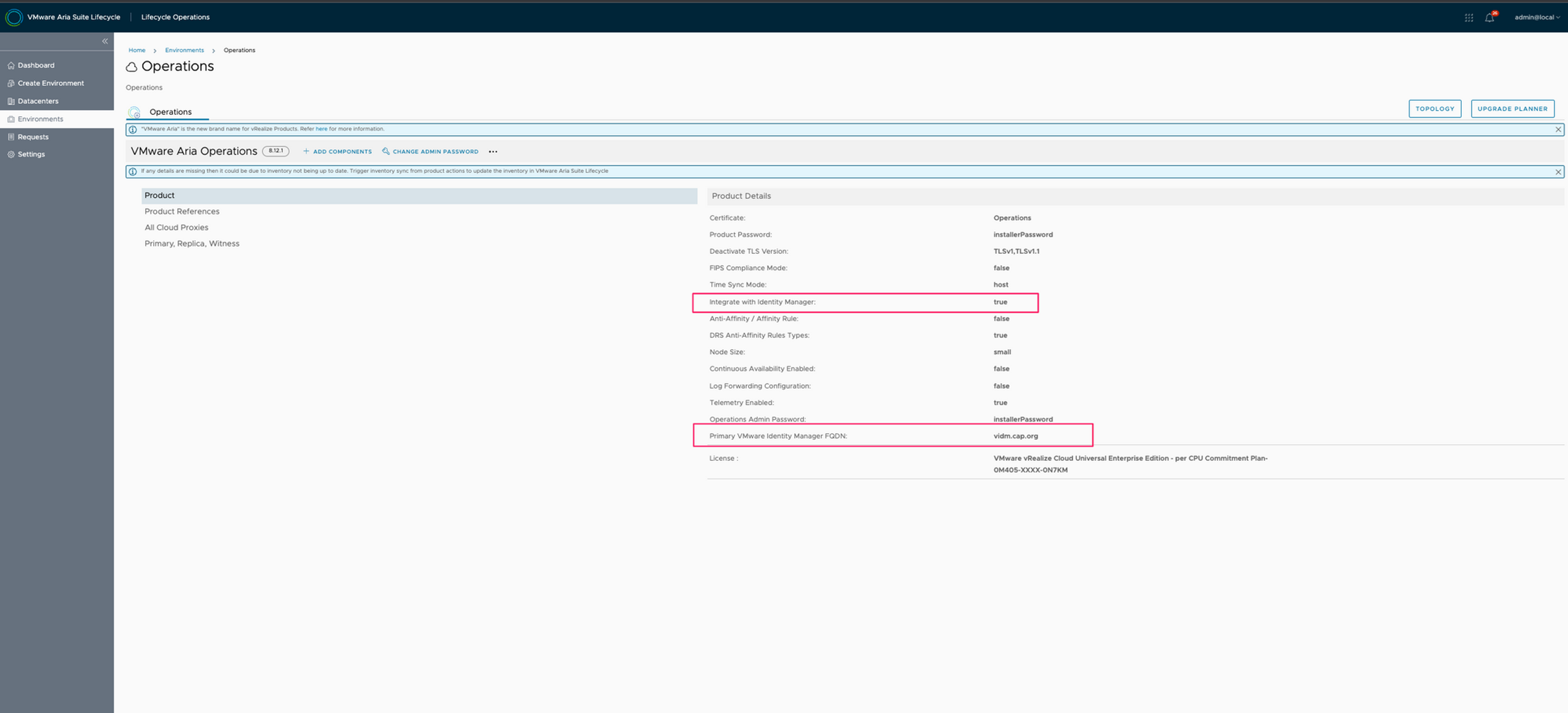
- We may see that the Operations instance is integrated with VMware Identity Manager
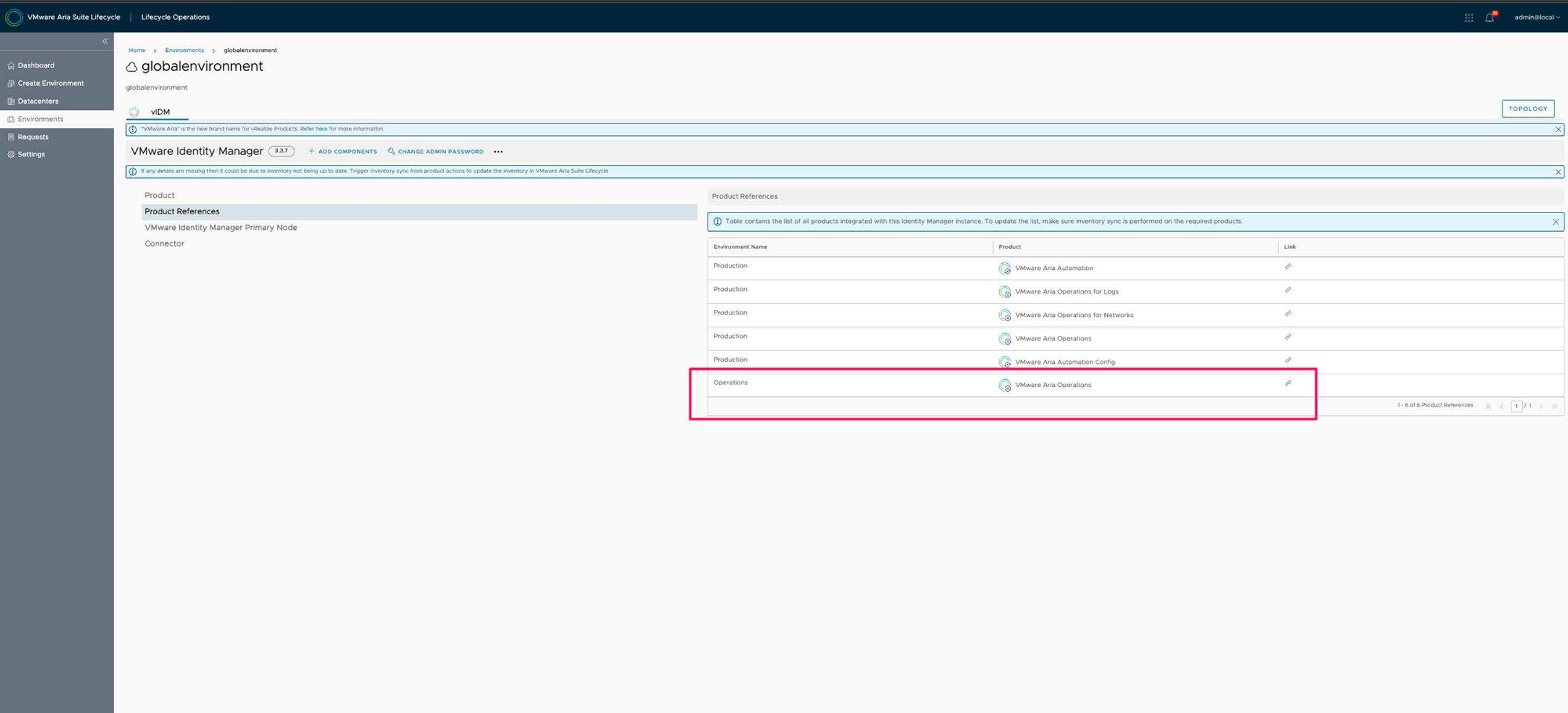
- On globalenvironment or VMware Identity Manager we can see this environment as a reference
- In order to move this Operations instance to a different VMware Aria Suite Lifecycle instance, i'll have to remove this from Suite Lifecycle's inventory
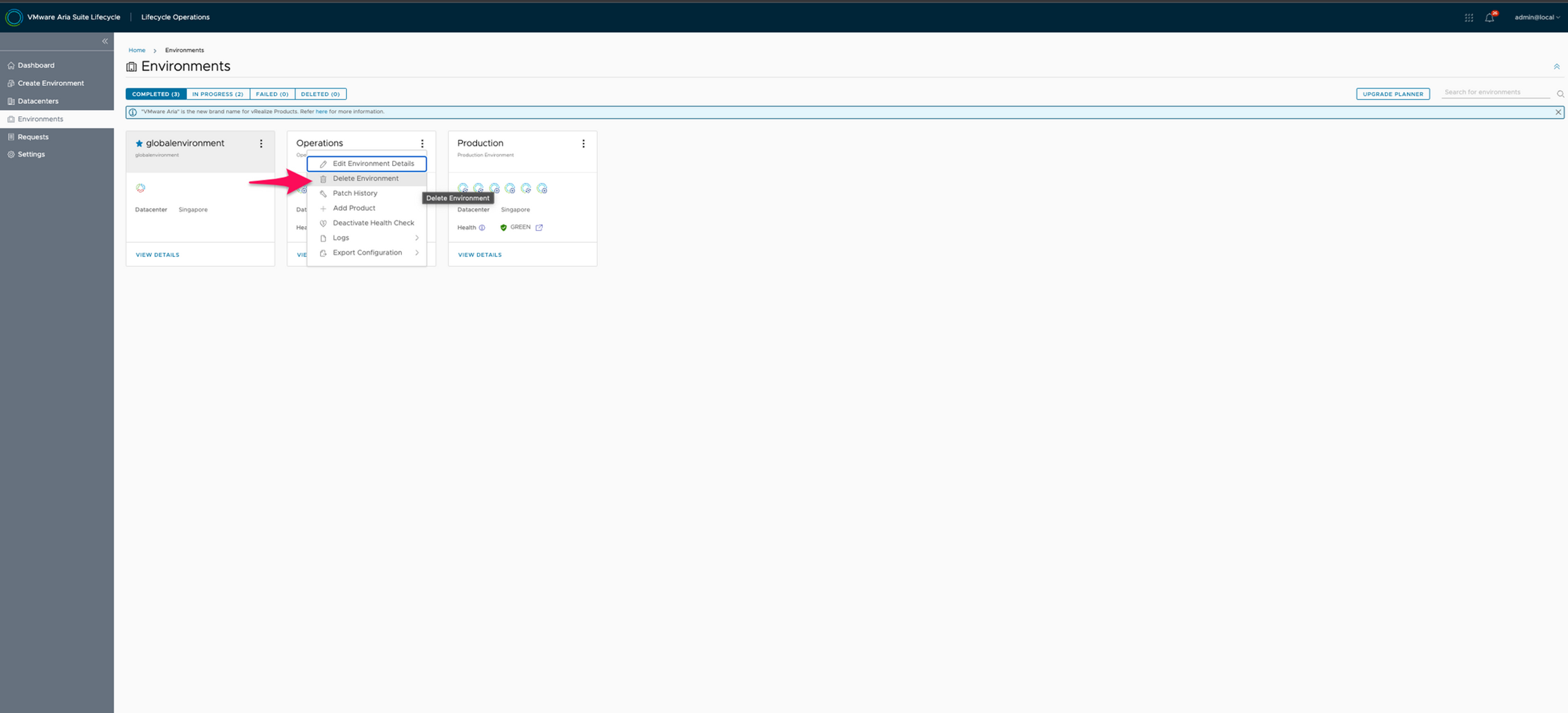
- Remember, I am deleting environment because this is the only product in the environment. If i have multiple products in an environment as shown in the next pane , then i would only delete that specific product
- Delete environment will present me with the following screen. I shall select the first option where it removes the environment / product from VMware Aria Suite Lifecycle and not from vCenter. If we select "Delete associated VMs from vCenter" it would delete all associated virtual machines/appliances from the vCenter causing an outage.
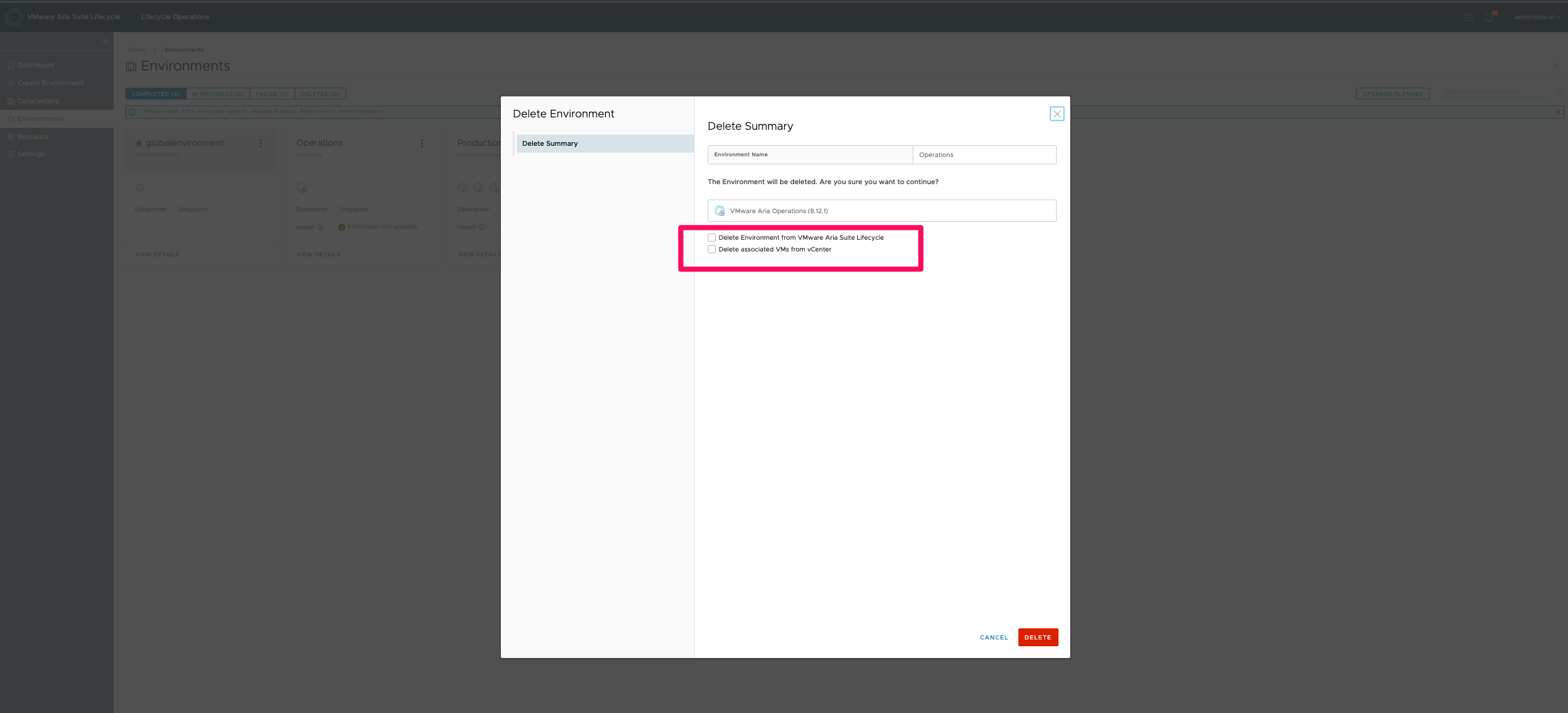
- So let's select the first option to delete the environment from just VMware Aria Suite Lifecycle and submit the request
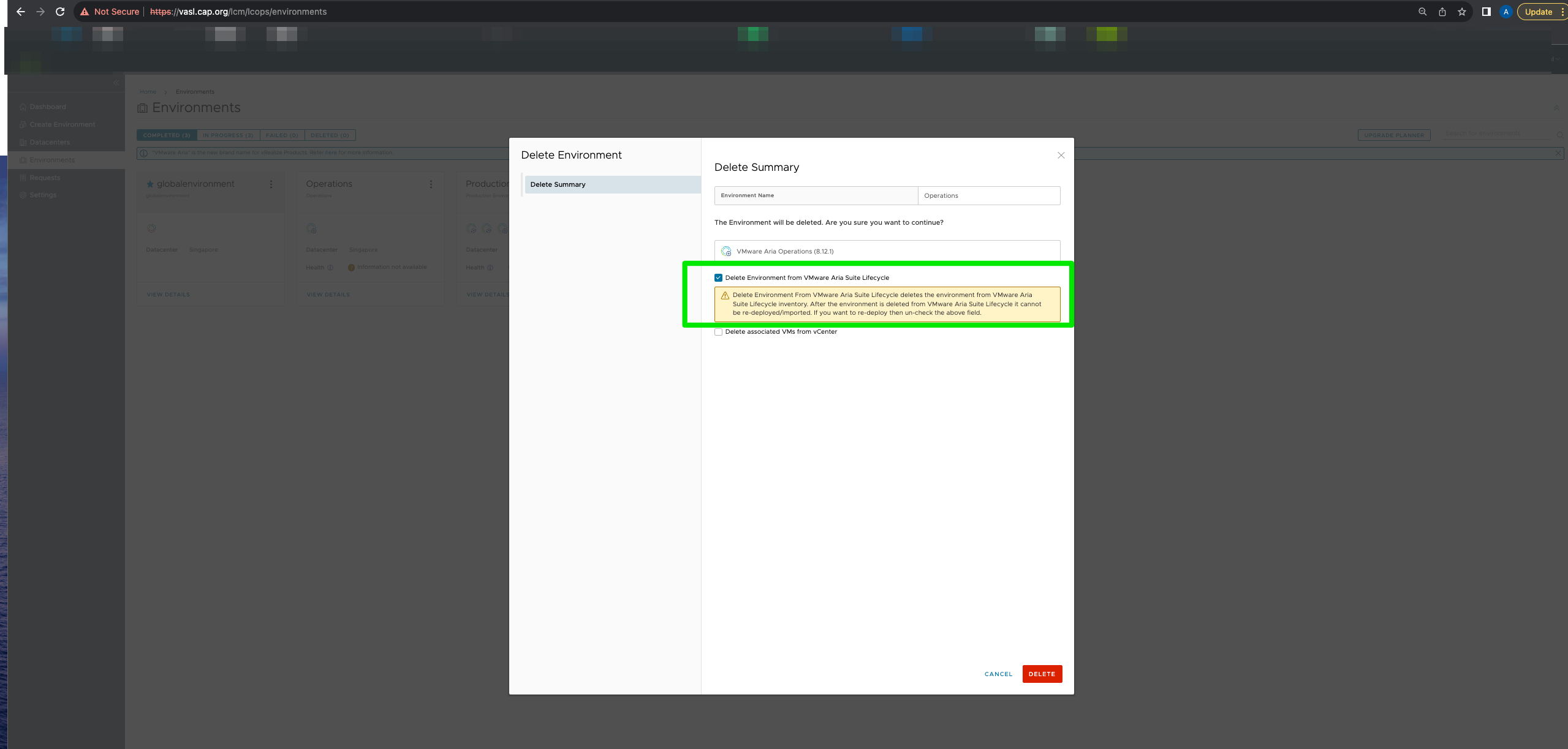
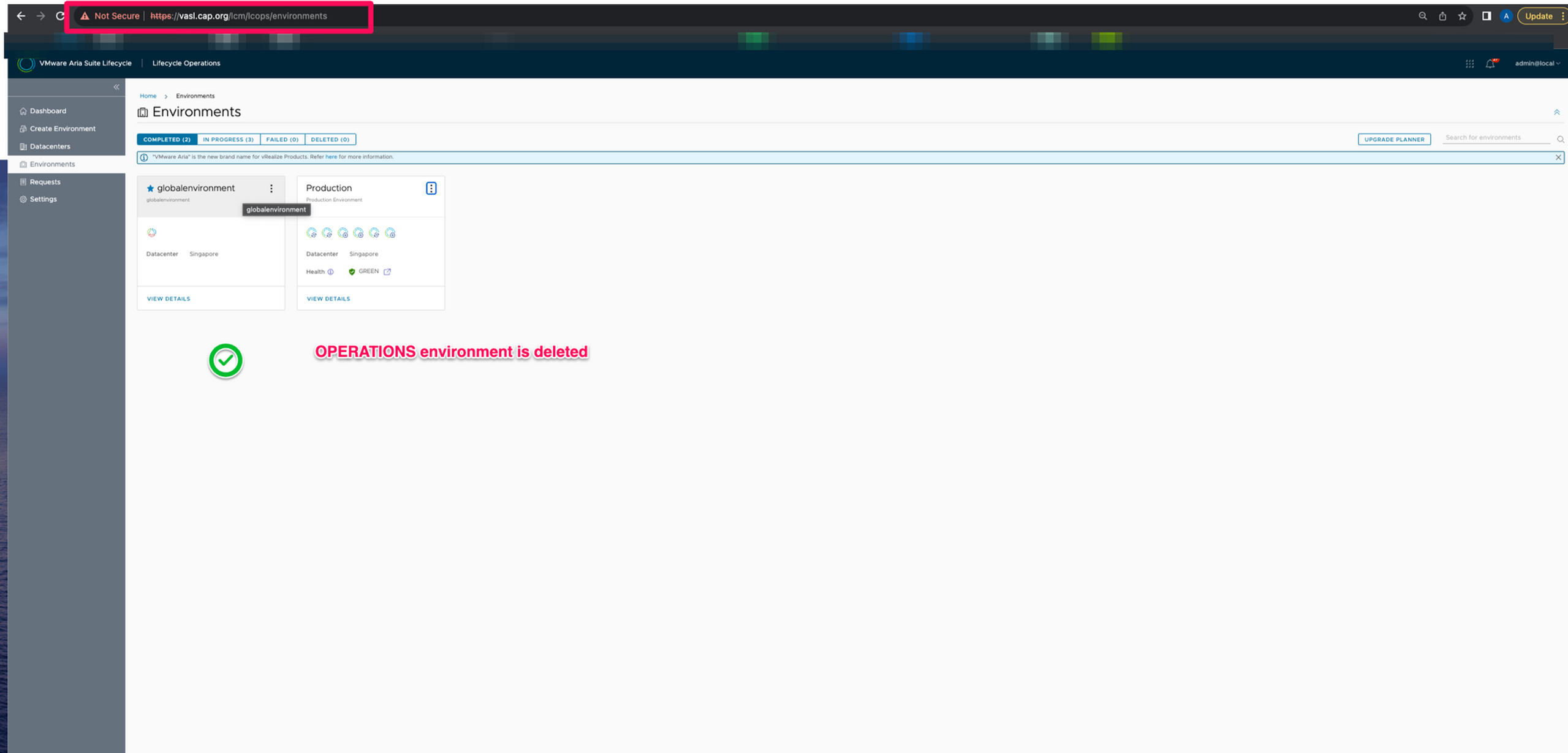
- Environment is deleted from VMware Aria Suite Lifecycle
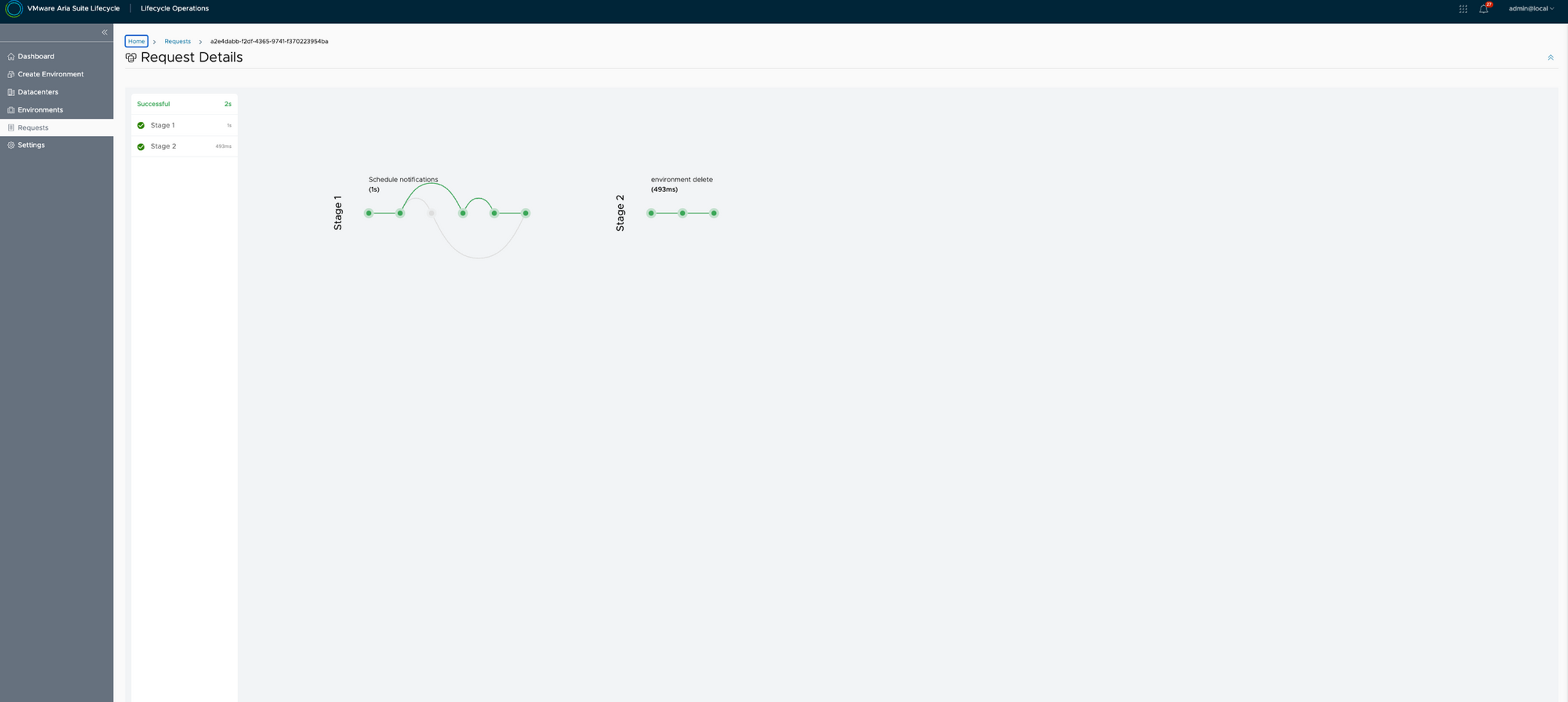
- The request is now complete
- The references in globalenvironment is removed too
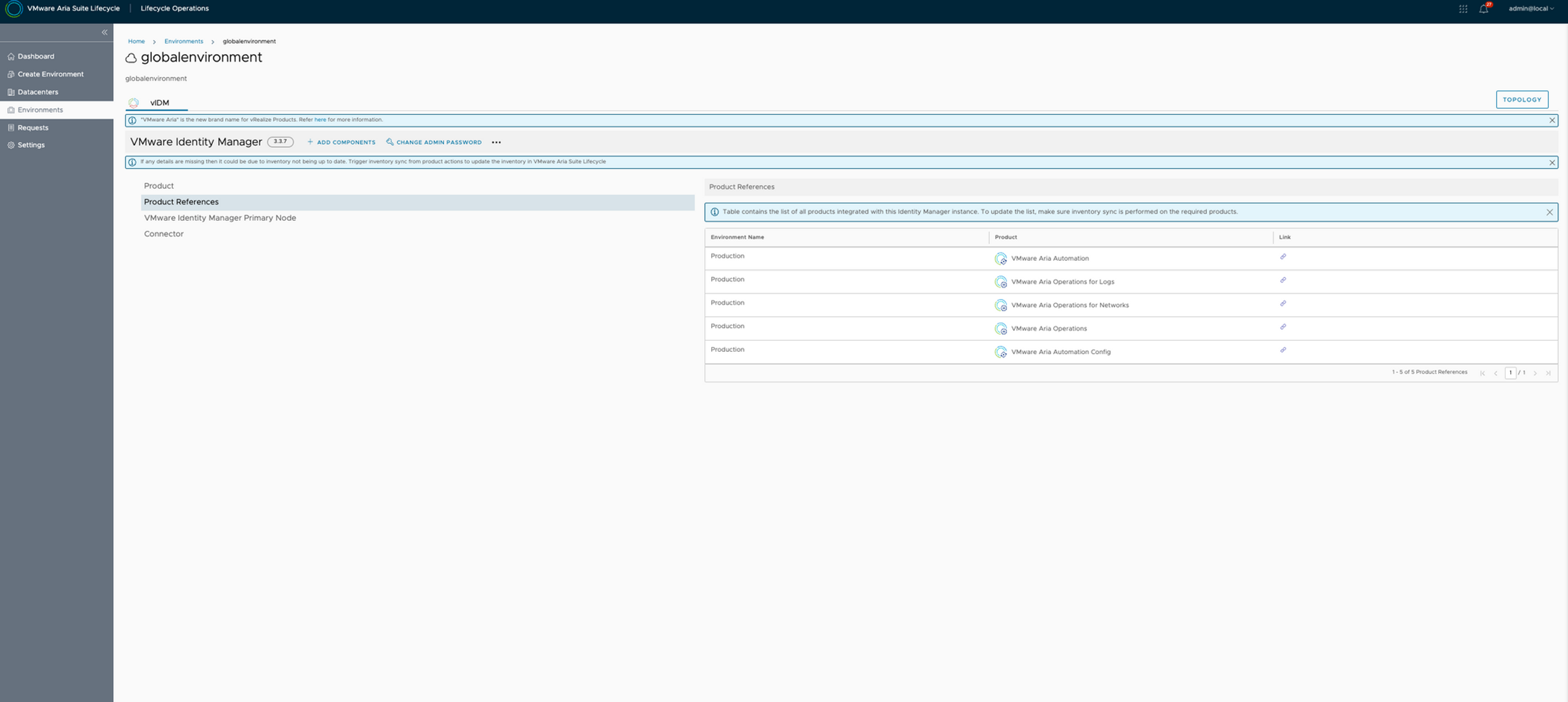
- This does not mean it will delete the integration it has with the vIDM whcih it had before that shall still remain
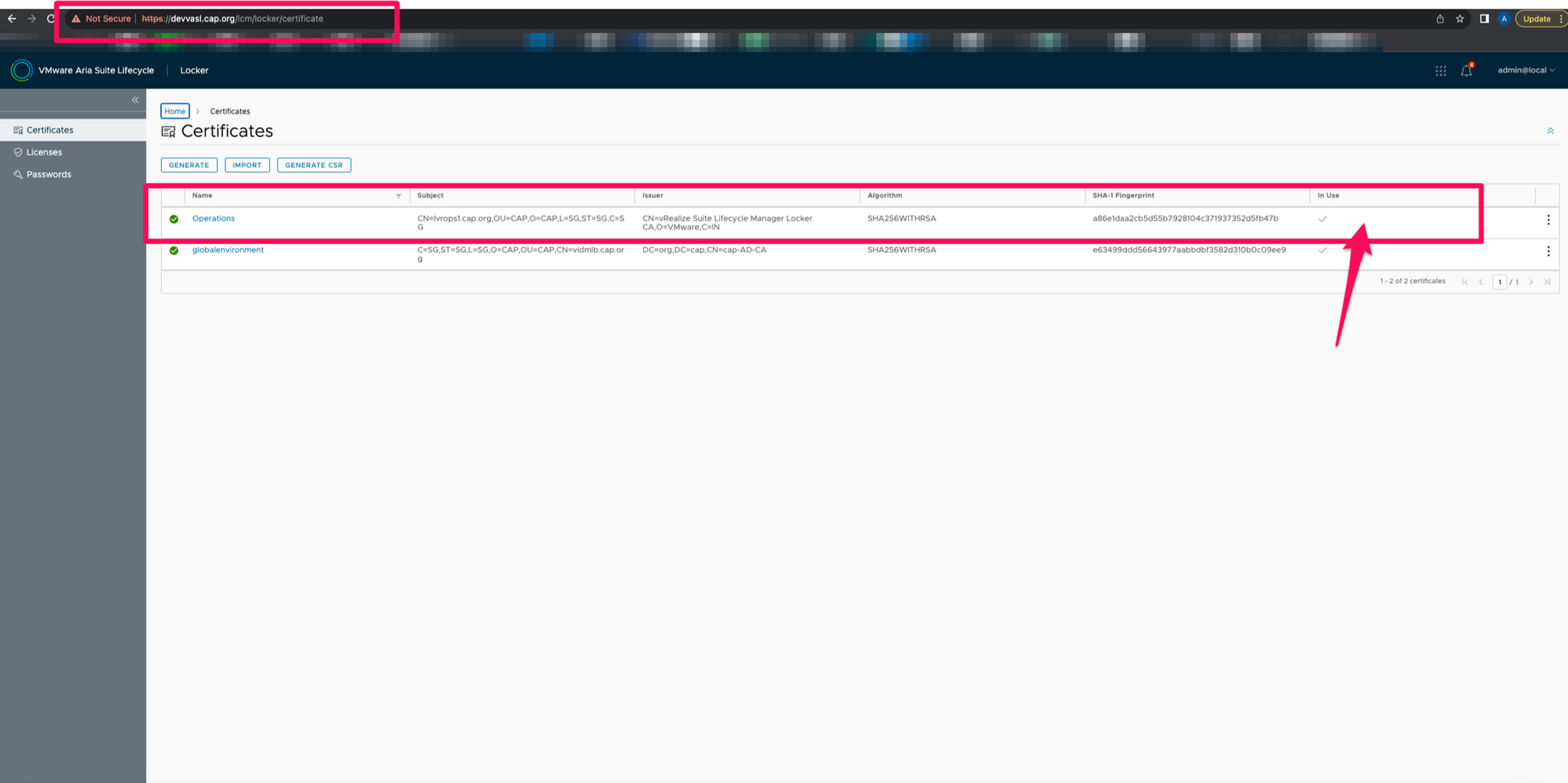
- Before moving to the destination Suite Lifecycle, i shall download the certificate being consumed by Operations in the Source Suite Lifecycle and keep it aside to be imported into the destination Suite Lifecycle
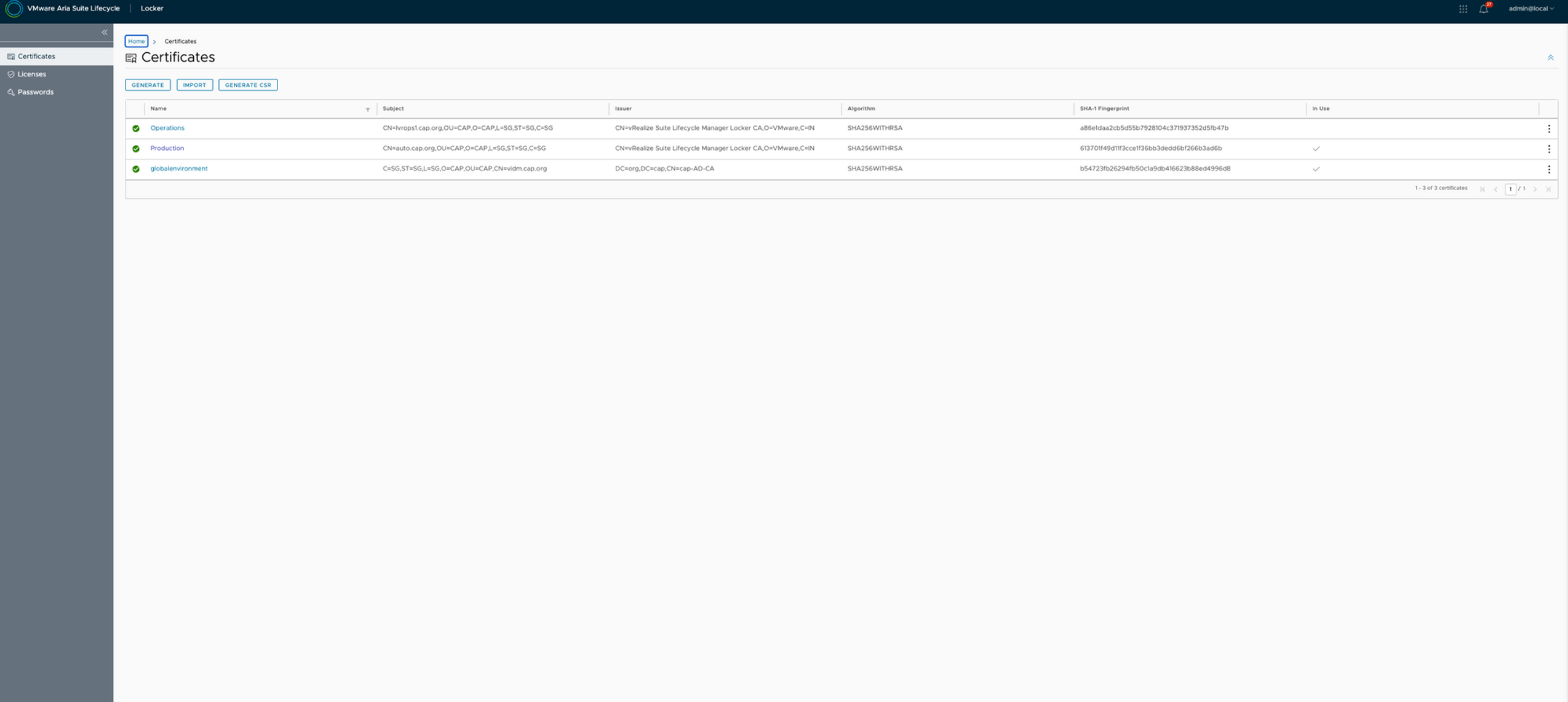
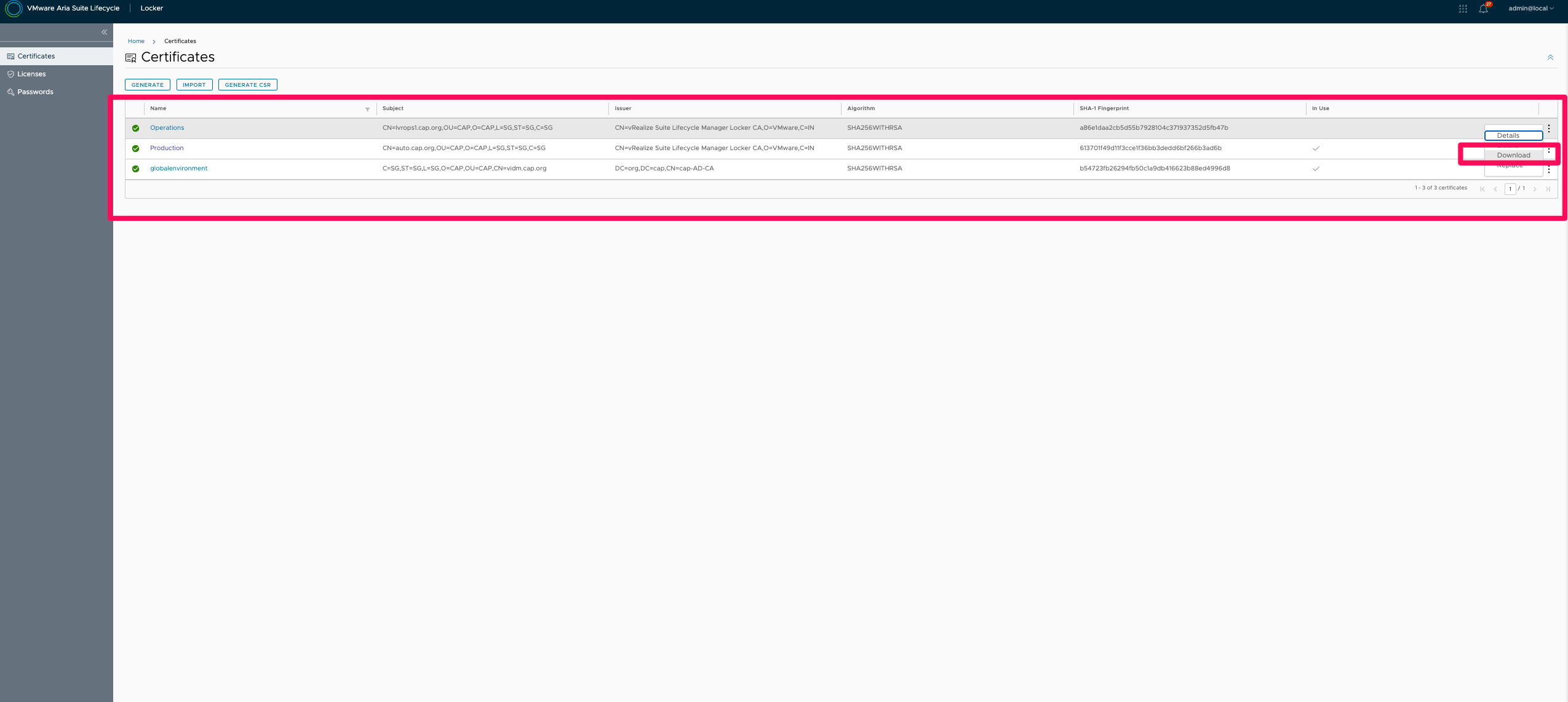
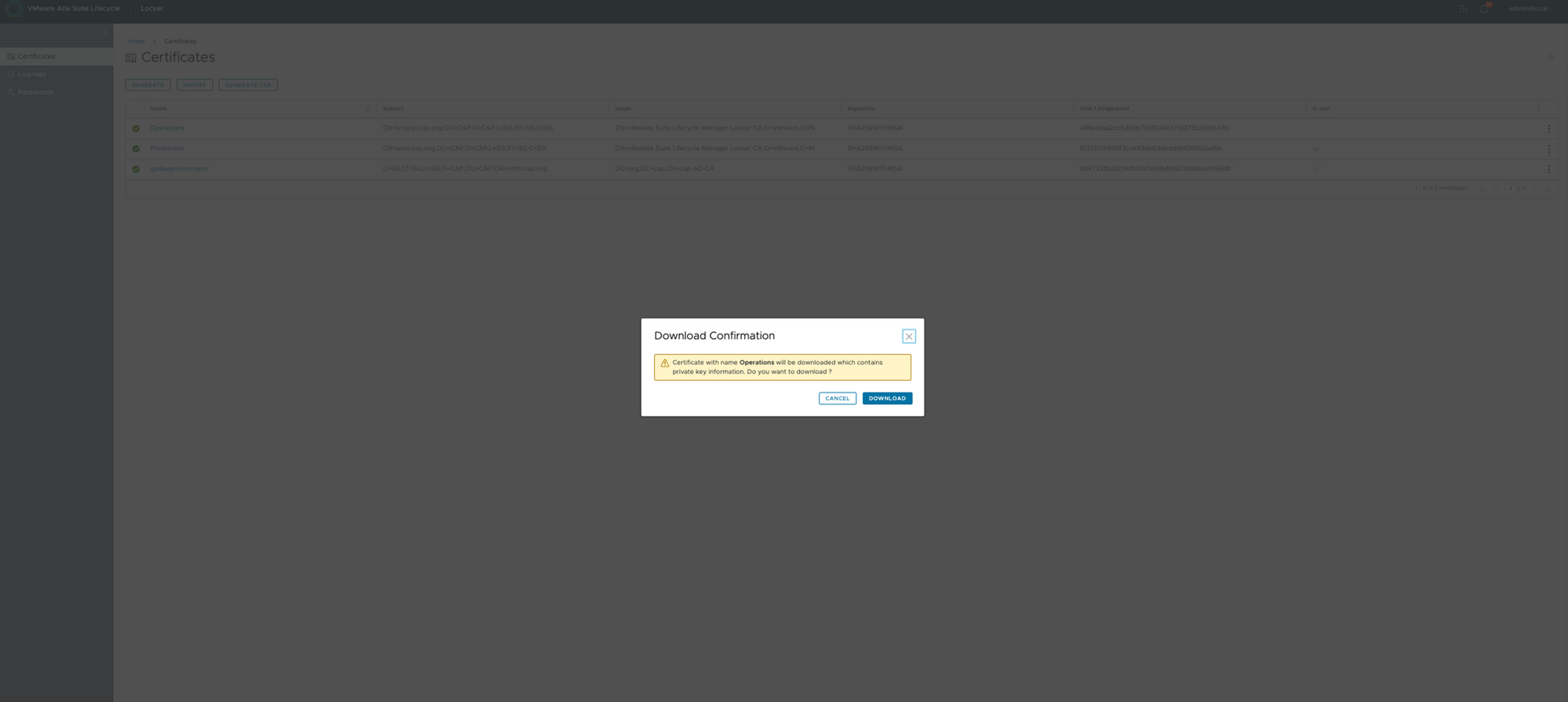
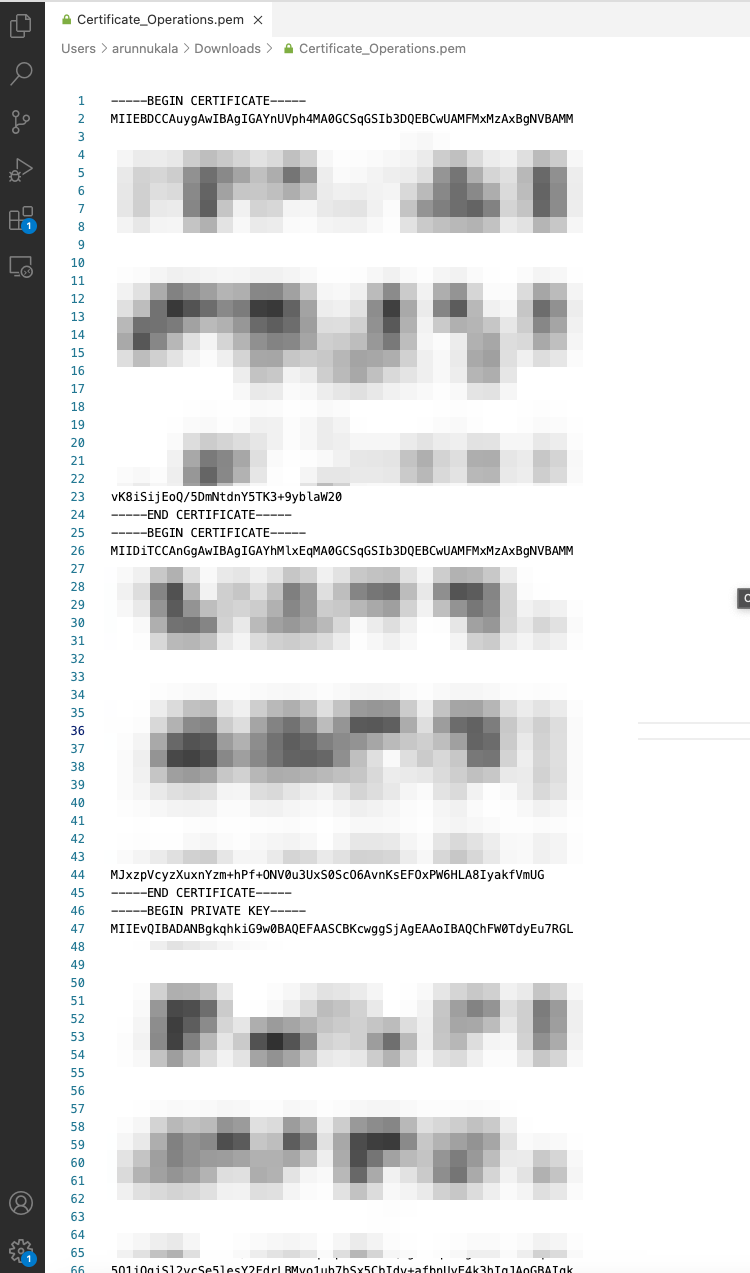
- Using this information we shall import this key into the destination Suite Lifecycle before we import the Operations product into it. So that when the product is imported , the certificate mapping is perfect.
Phase-2 : Importing to Destination VMware Aria Suite Lifecycle
- Let's import the certificate into Suite Lifecycle first. This is the Operations certificate we downloaded just few steps before
- Al i did was to point to the downloaded pem file and it automatically detects the cert and it's private key to import
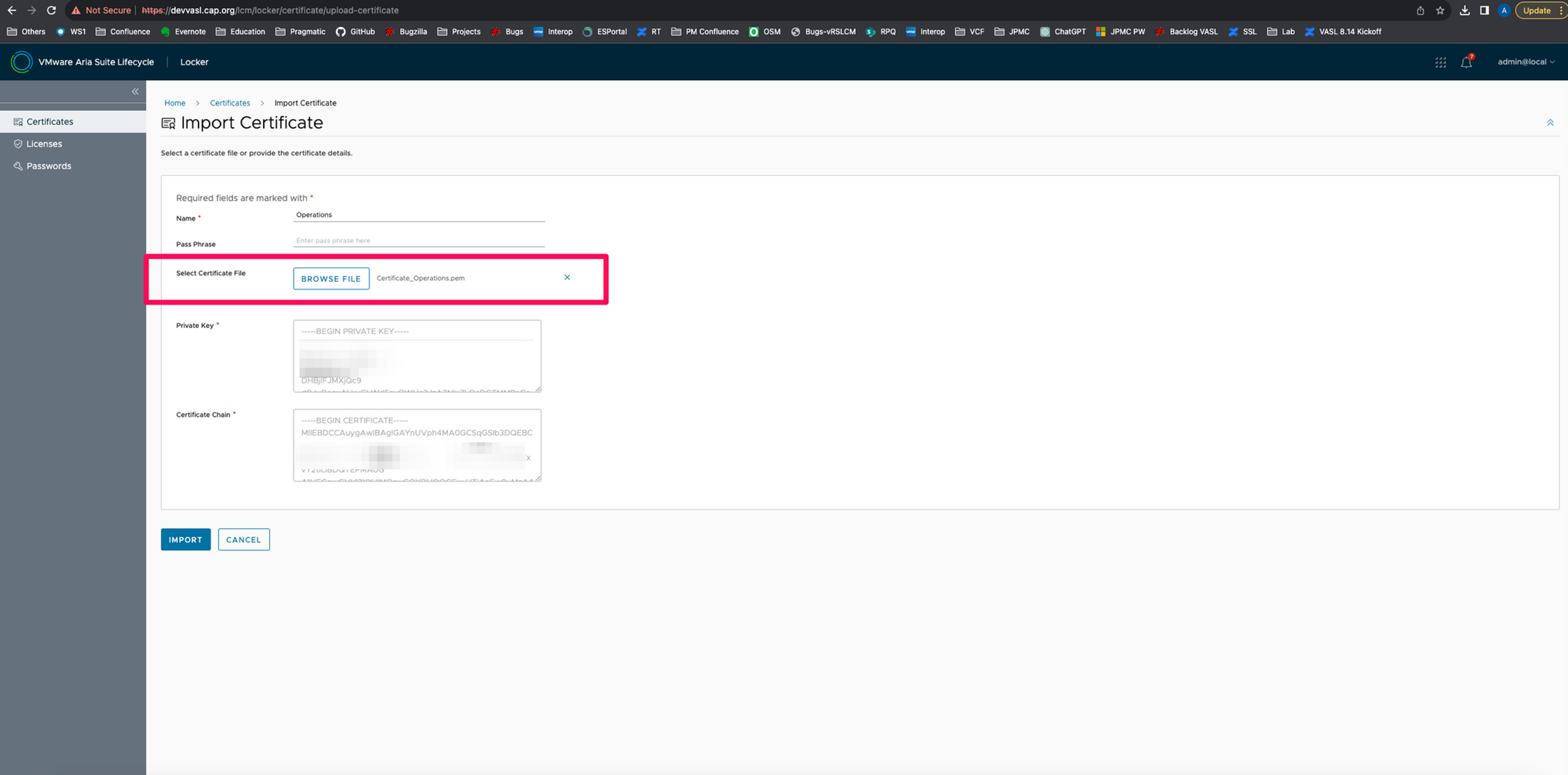
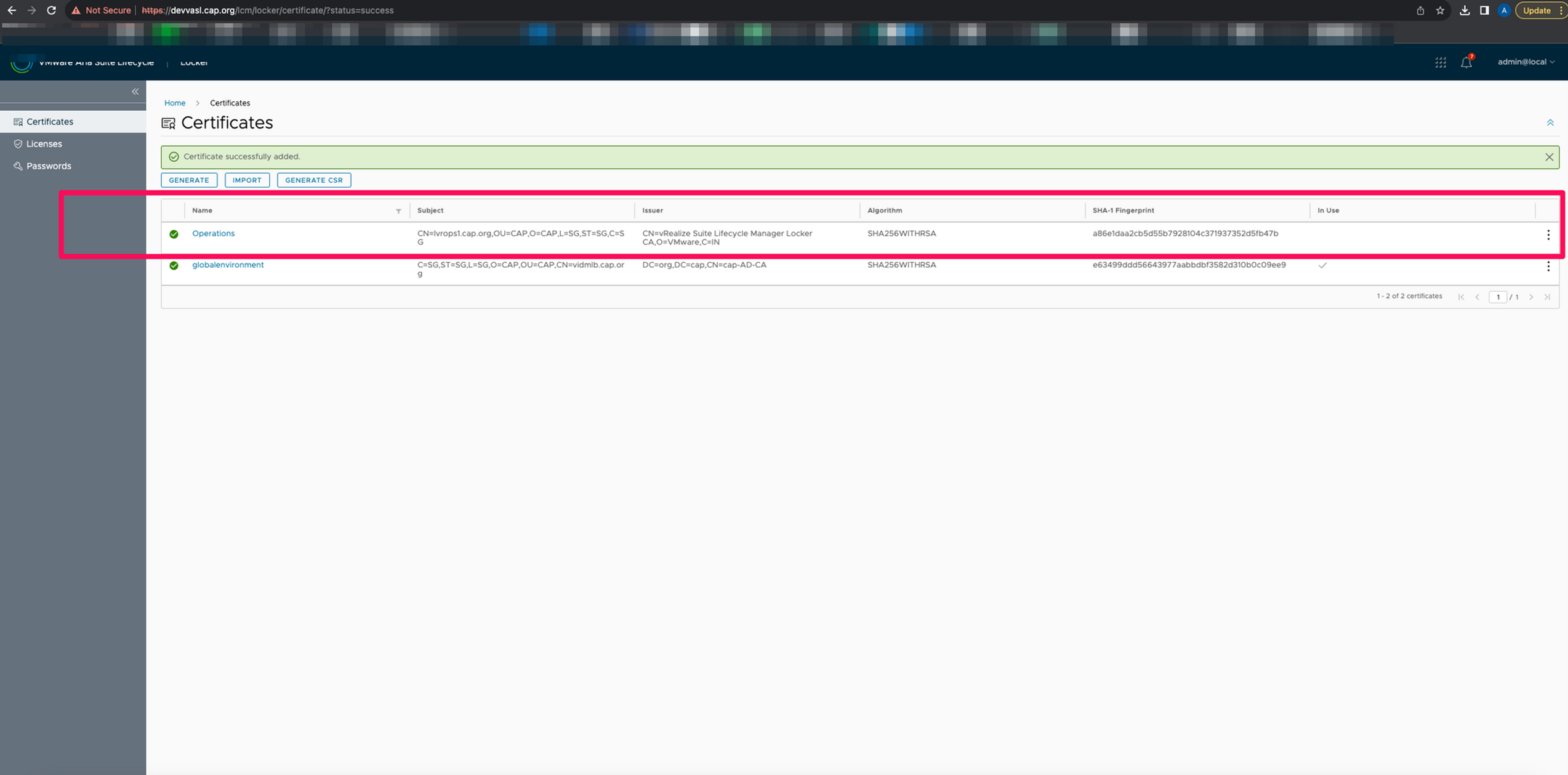
- Once we click on import the certificate is now imported
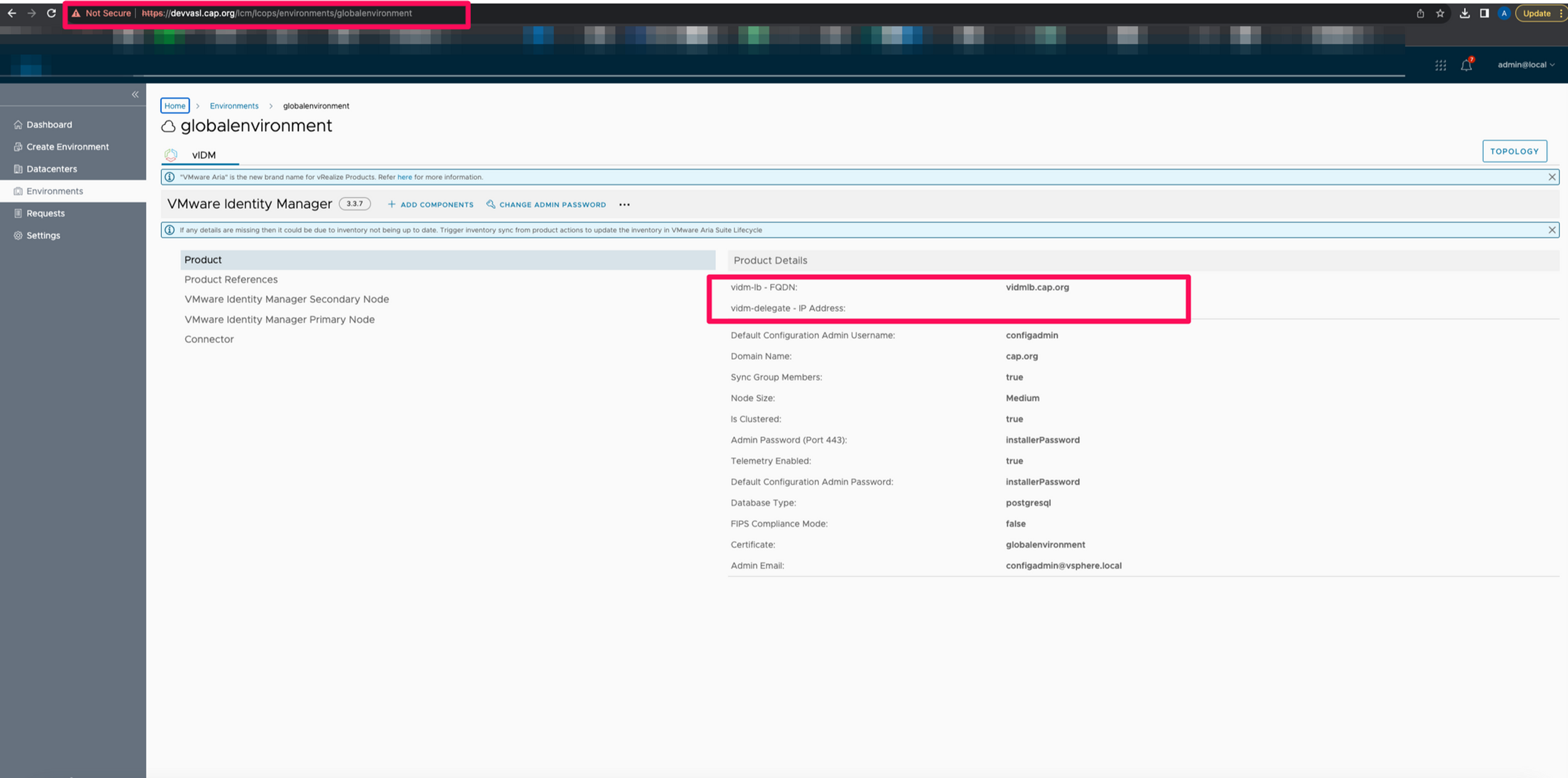
- globalenvironment or VMware Identity Manager on the destination is a distributed node
- Let's import the product into destination Suite Lifecycle
- Click on "Create Environment" to start the import process
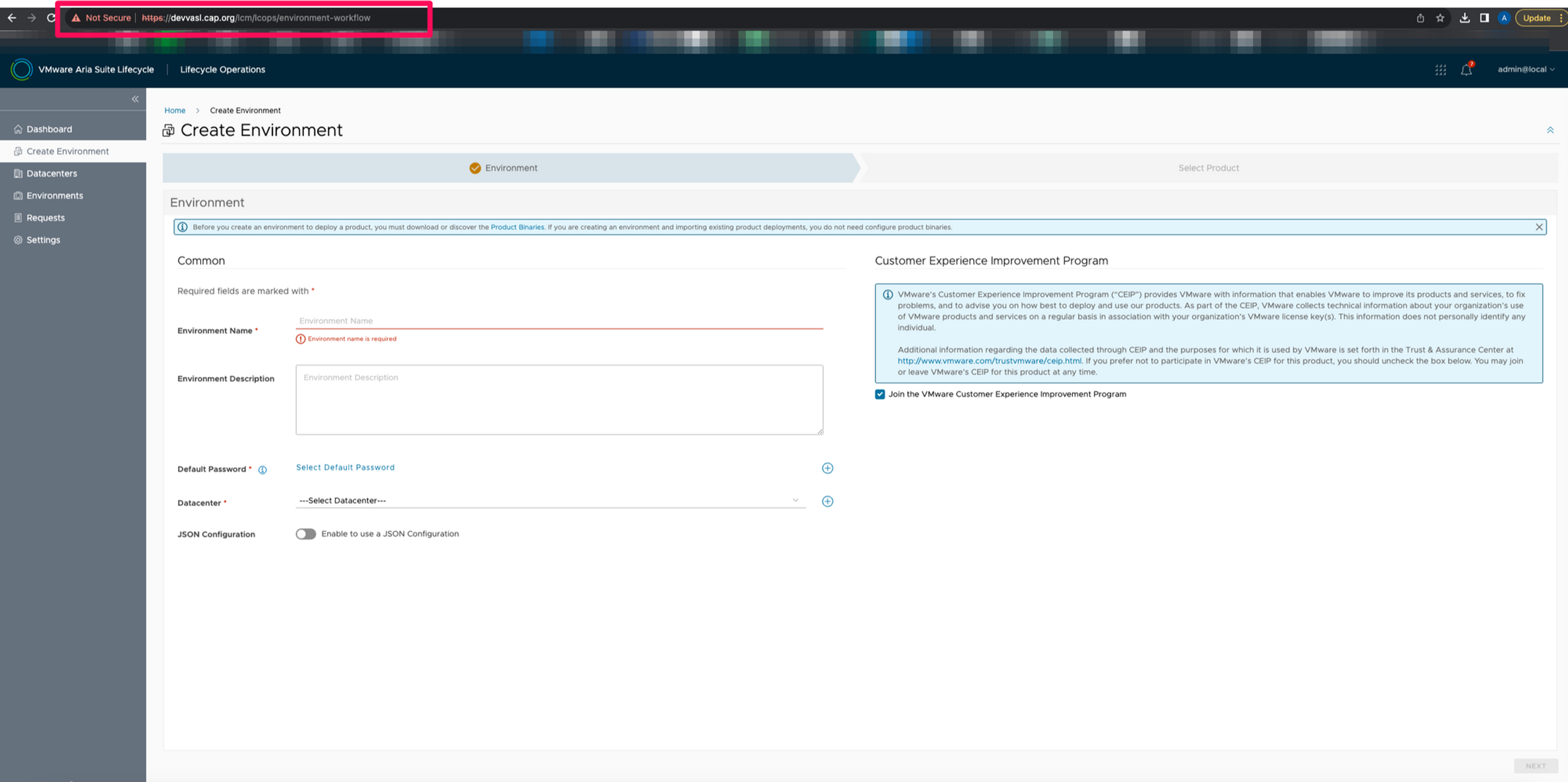
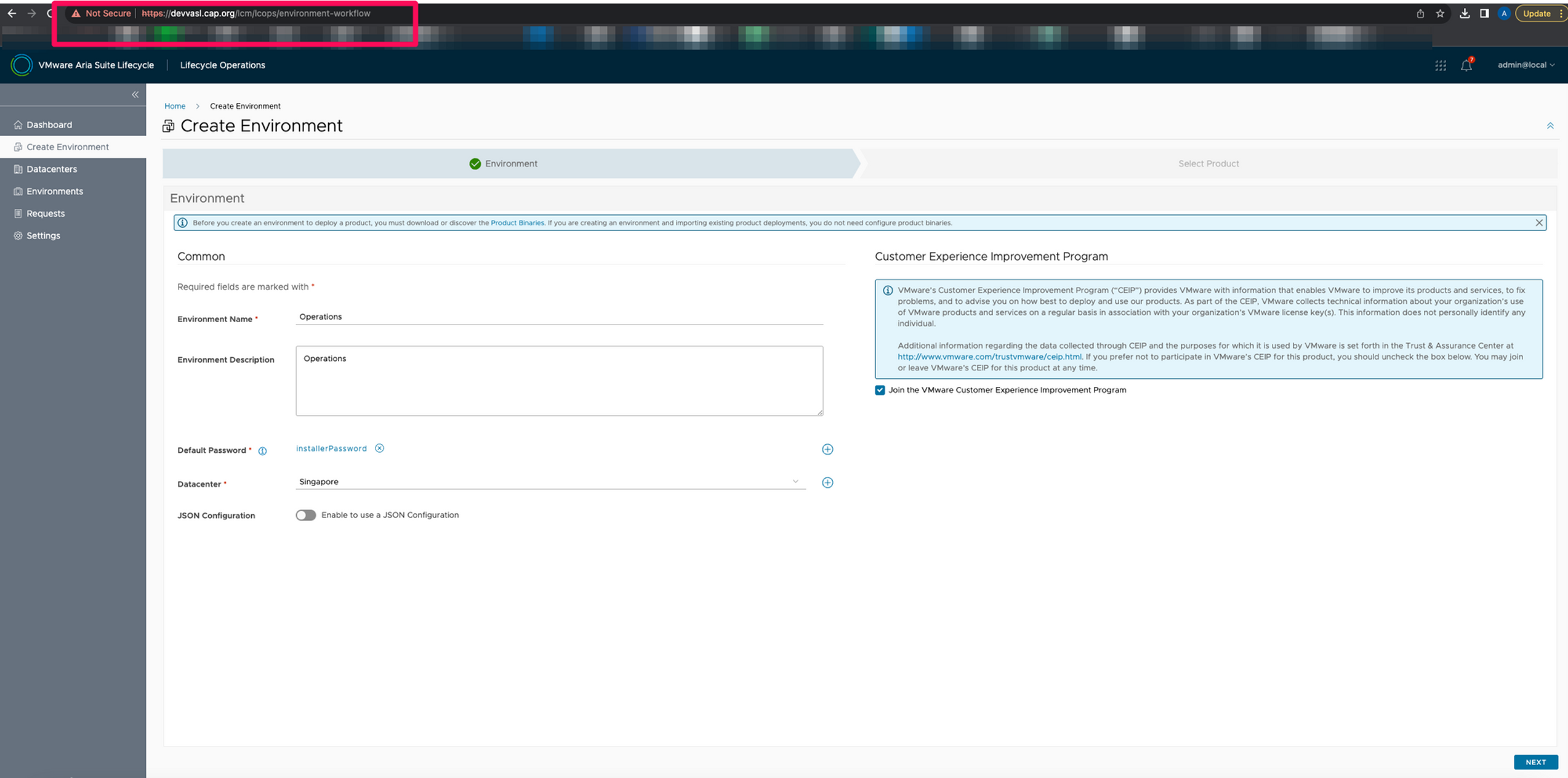
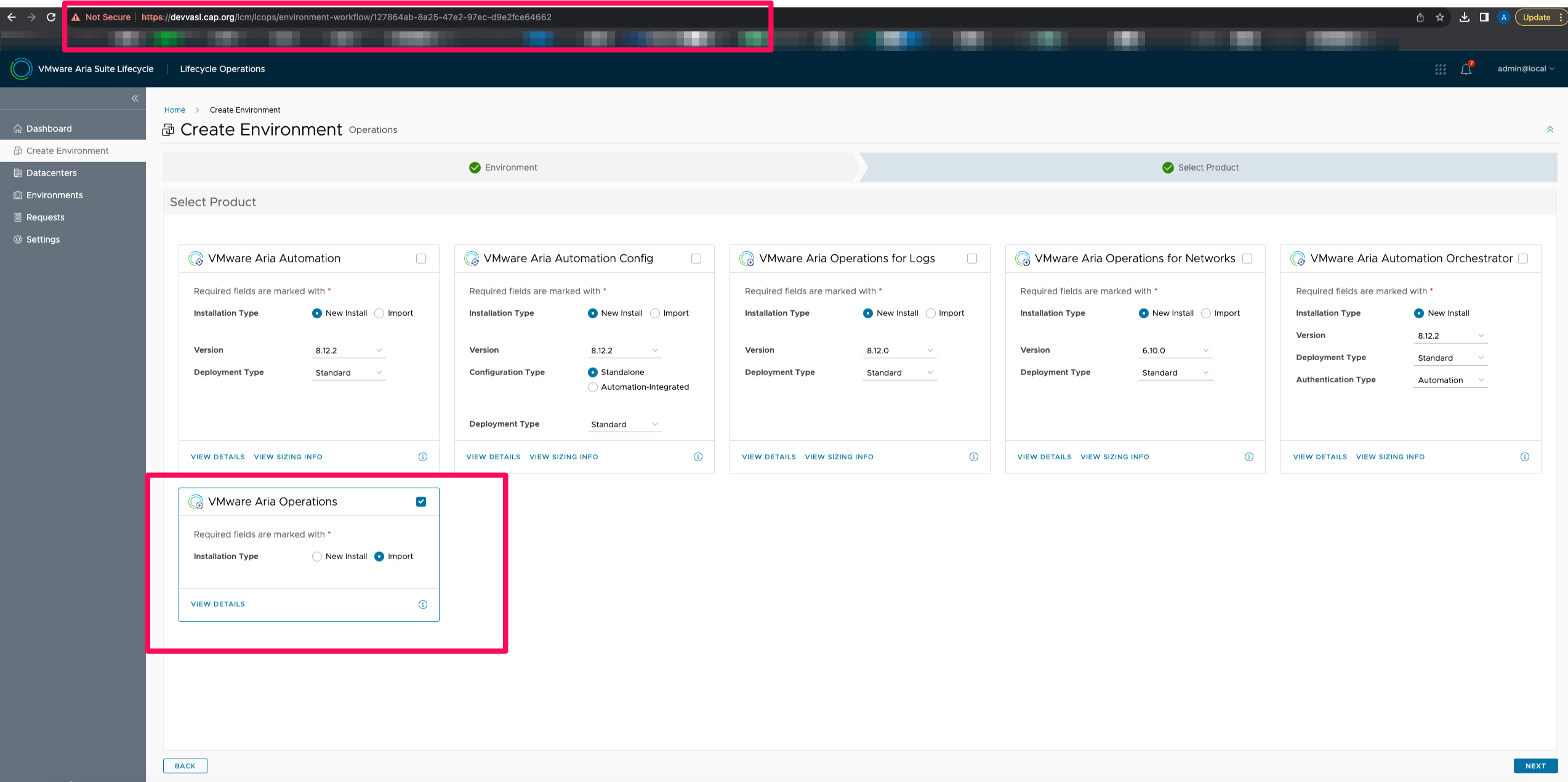
- Select VMware Aria Operations as a product to import and then click next
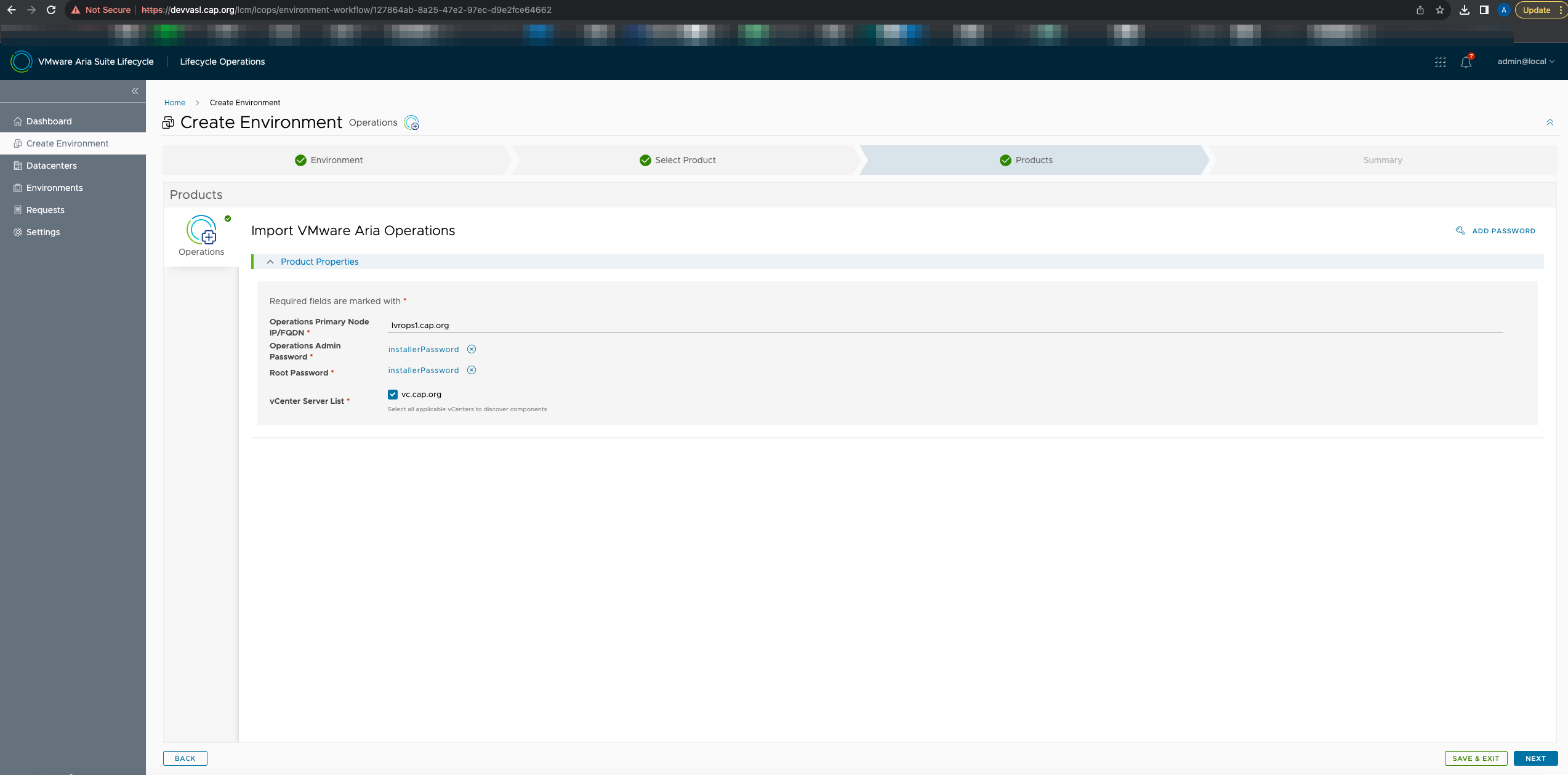
- Because i am importing an existing product , there not much of information i need to enter in the next pane . All i need to enter is the master node's fqdn , select passwords and then choose the vCenter it's located on
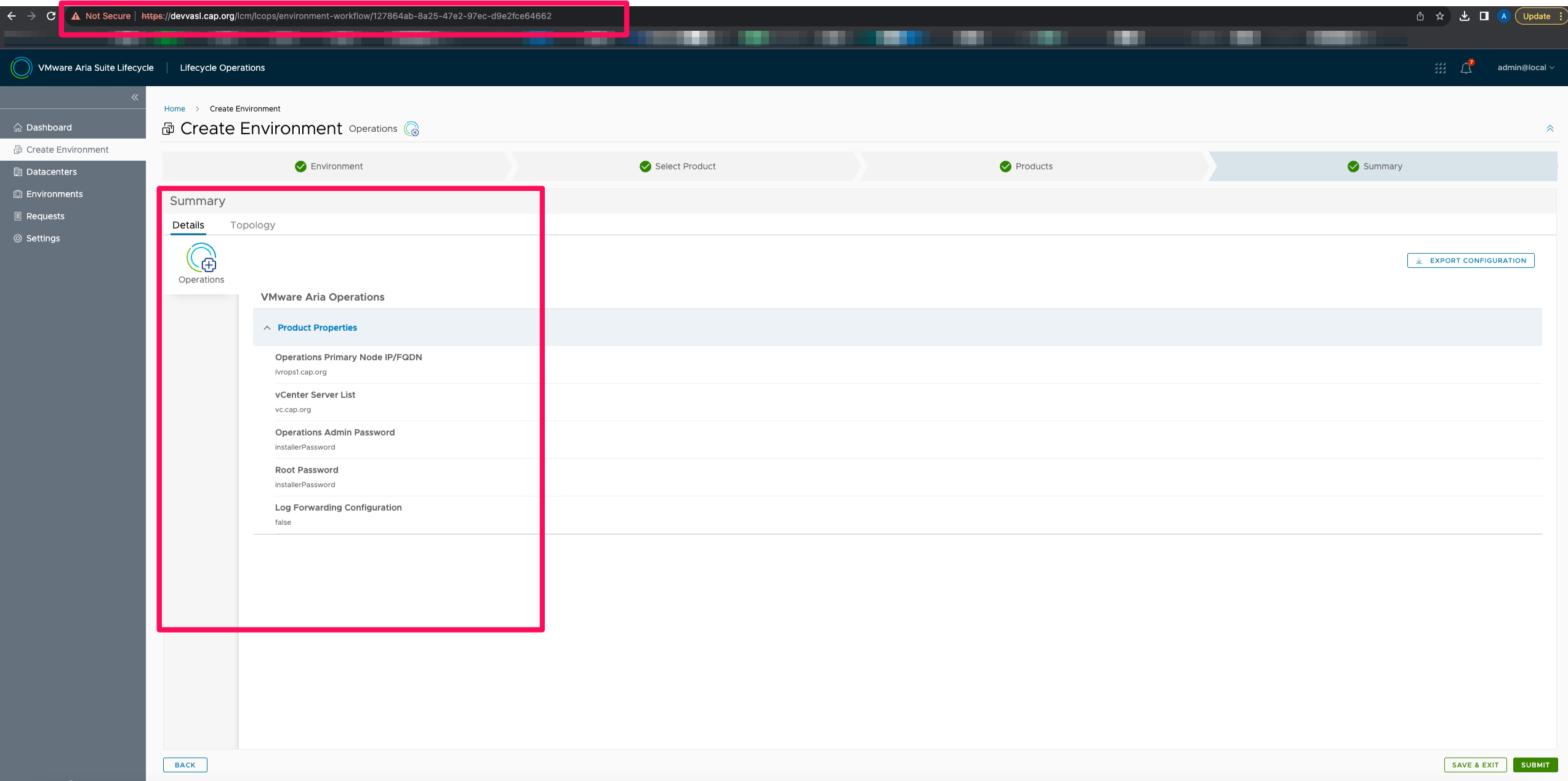
- Click on next to review the summary and then submit the request
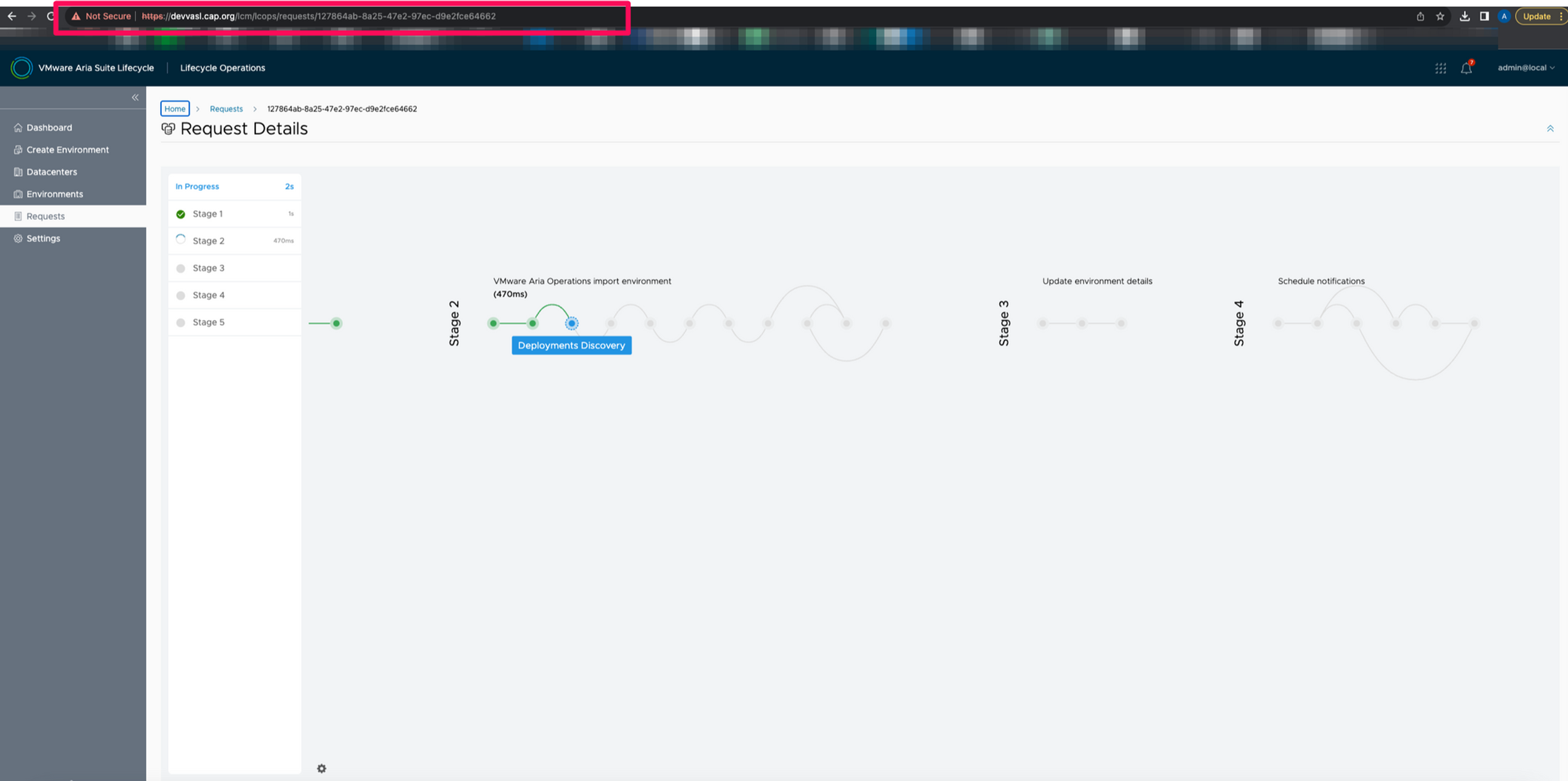
- Request is submitted
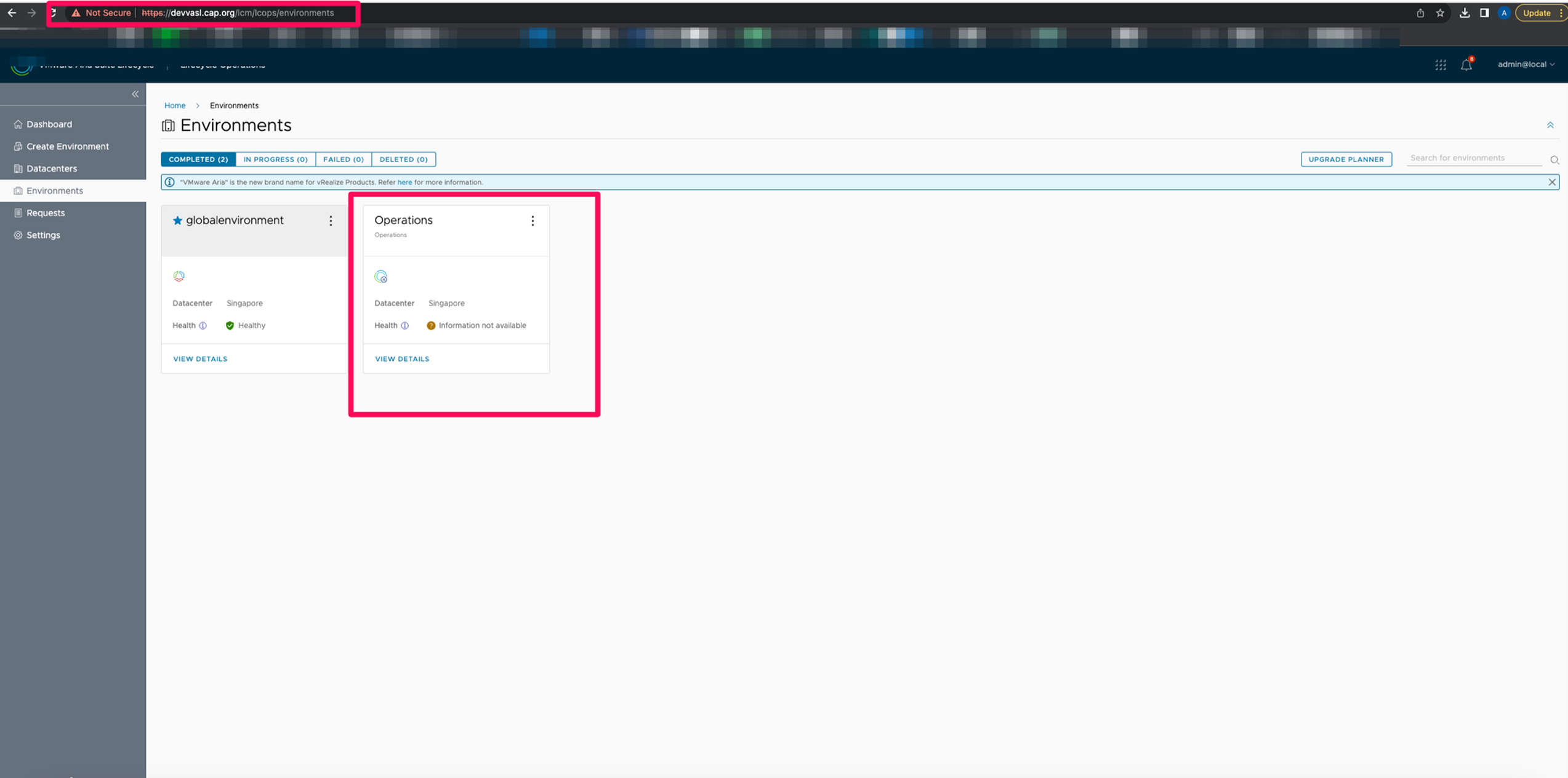
- Import request is now complete and now we can see the new environment in the destination Suite Lifecycle
- Remember the certificate we imported just before the product import. It is now marked as used it is mapped to the imported product
- If you clearly observe , the imported Operations instance is still pointing to the source VMware Identity Manager
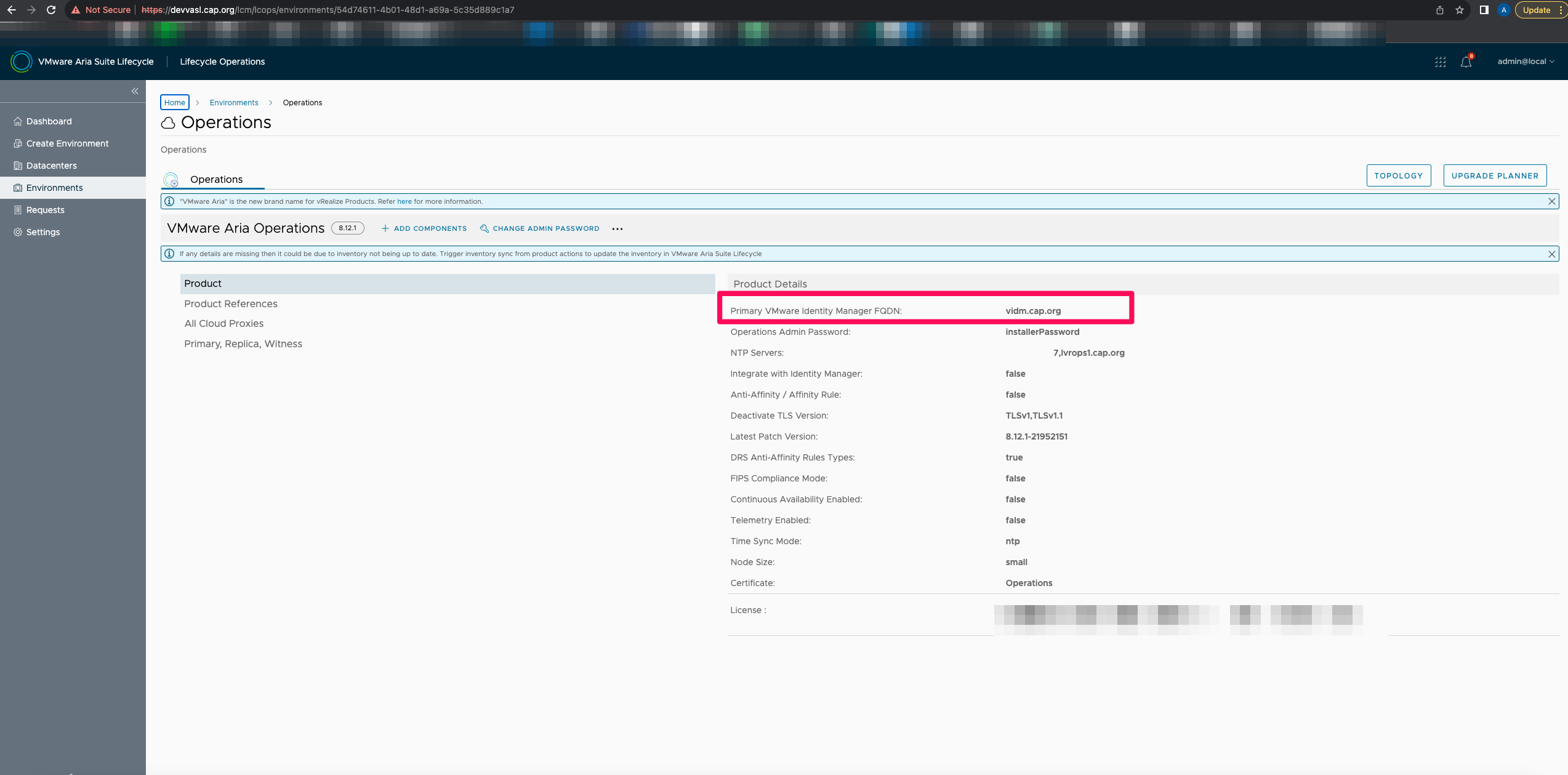
- If we clearly observe the vIDM integration is set to false as it is not integrated with the vIDM in this Suite Lifecycle
- In the next phase we will add the new vIDM as an auth source and then remove existing vIDM auth source
- This should be done from VMware Aria Operations UI
Phase 3: Replacing Auth Source in VMware Aria Operations
- Before making any changes take a snapshot
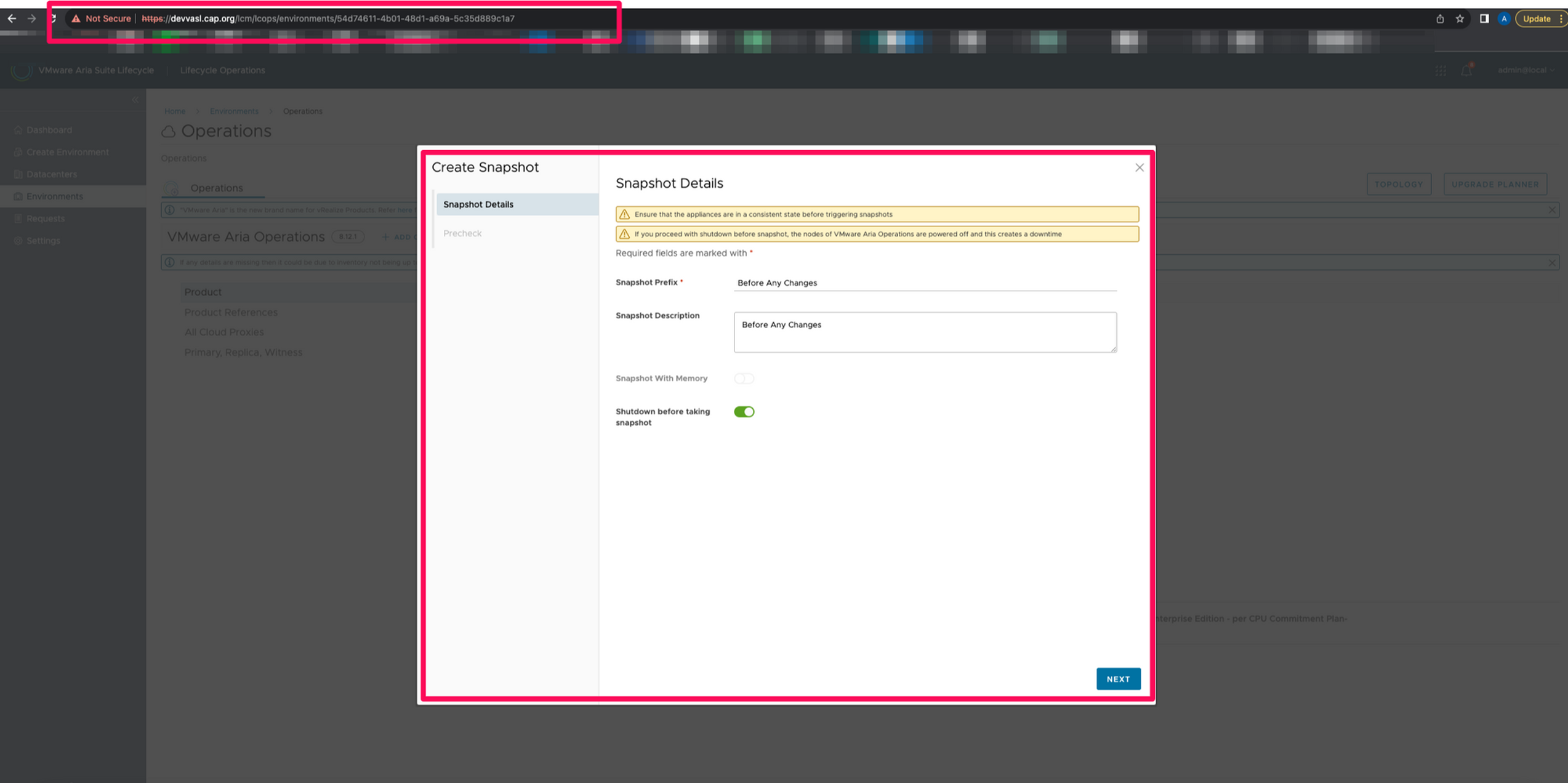
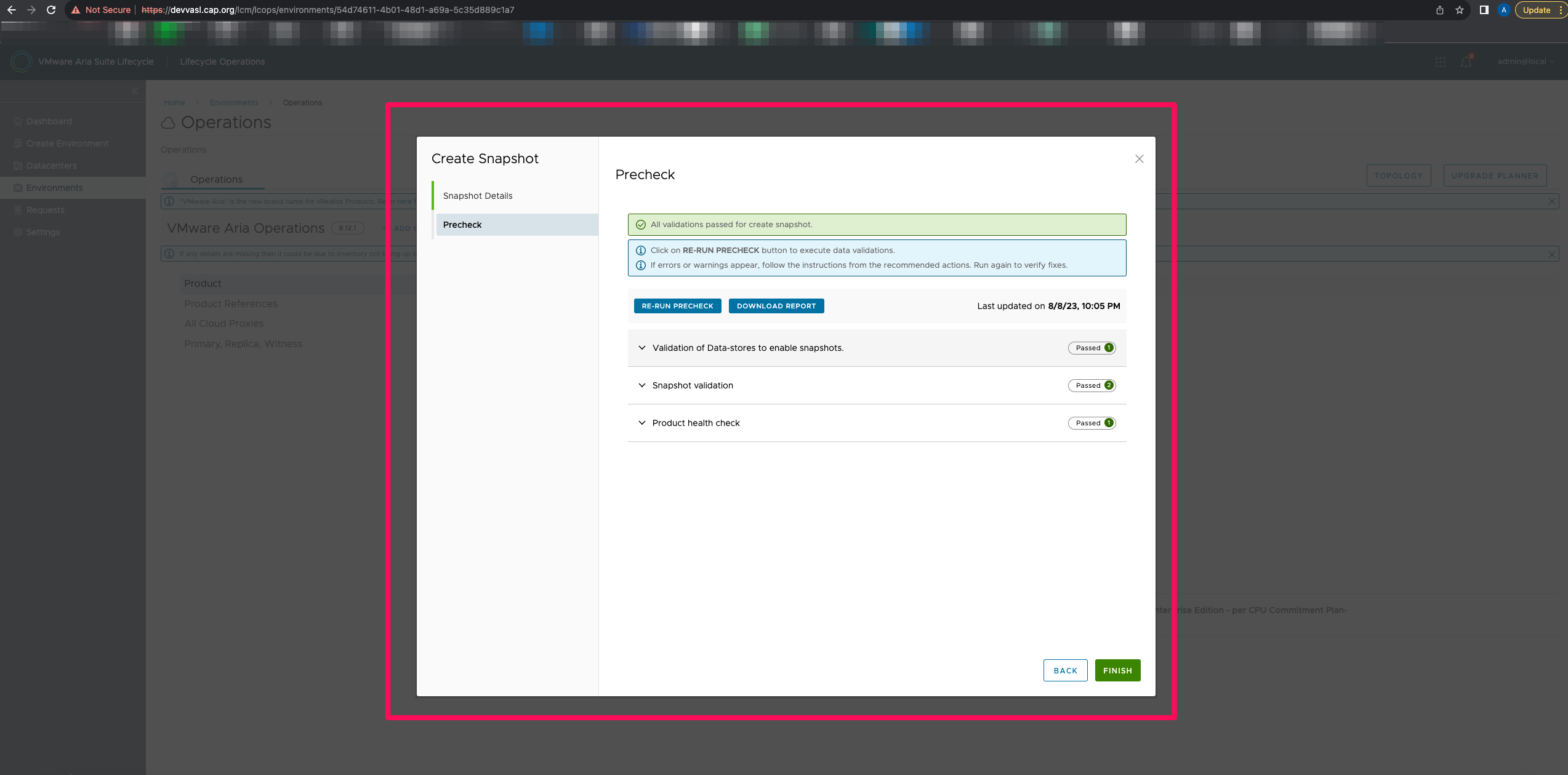
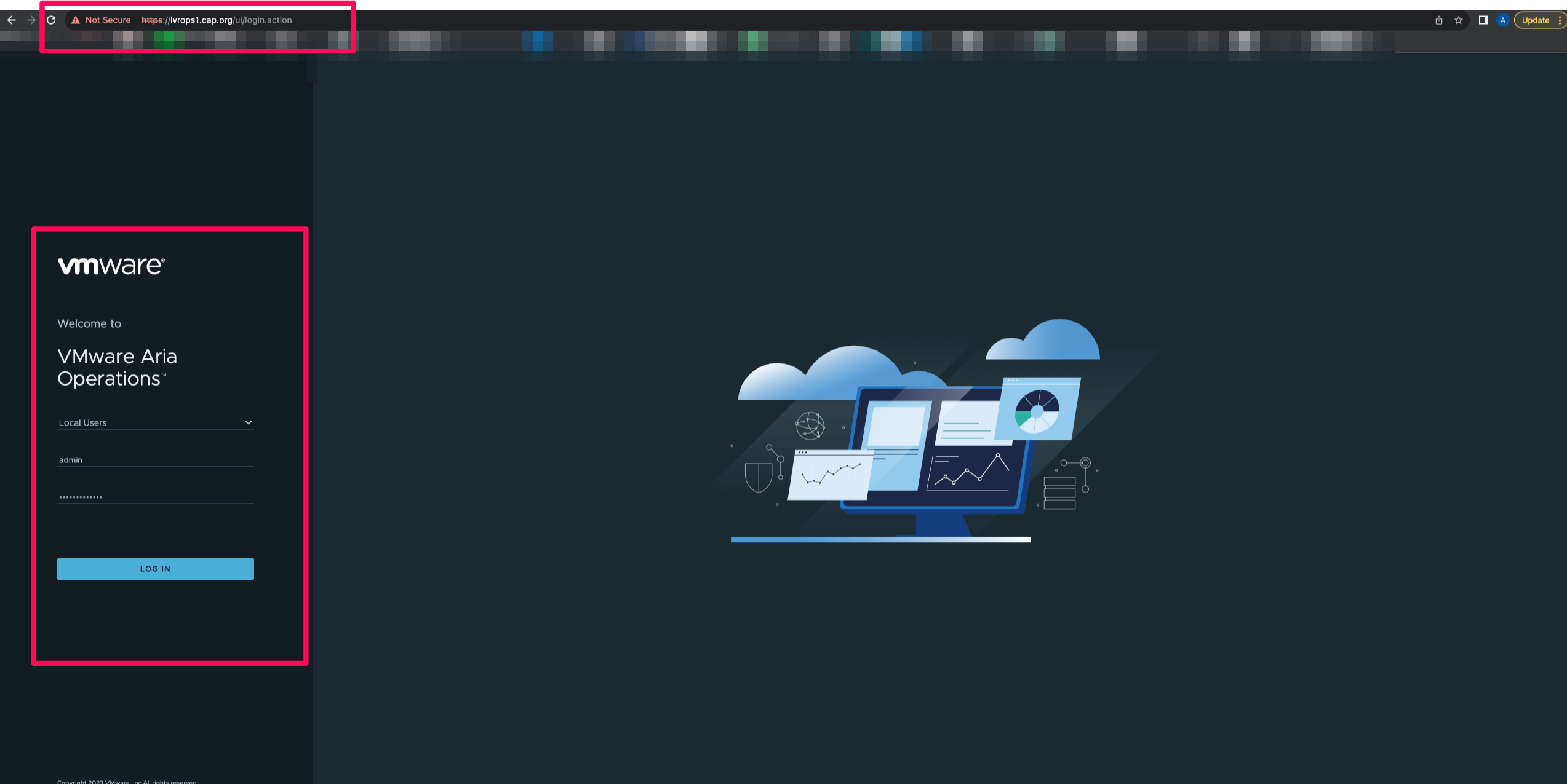
- Login into VMware Aria Operations as admin
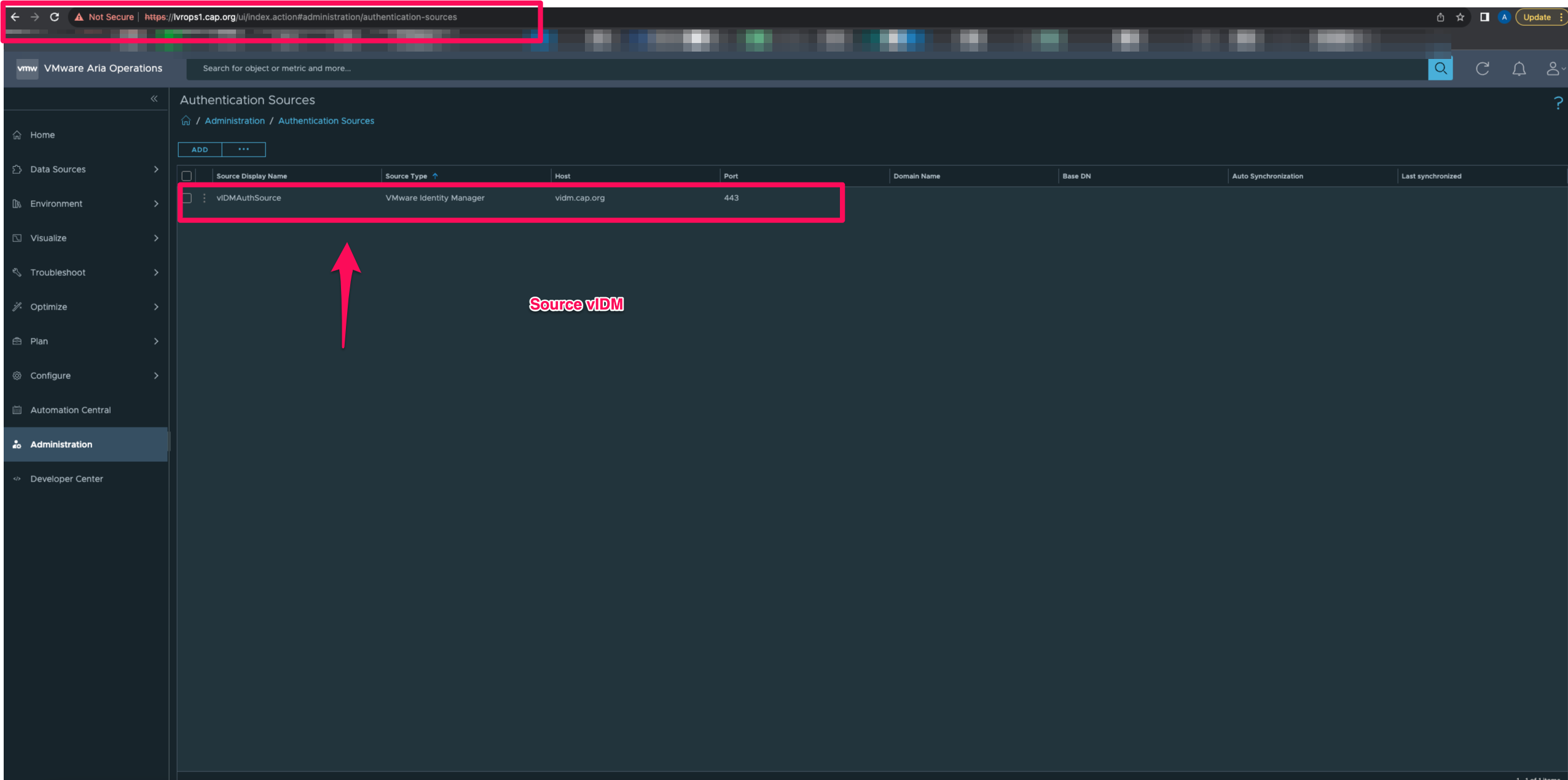
- Browse to Administration and Authentication sources
- As you can see it's currently pointing to source vIDM
- Make sure the roles and the groups to which the roles are given are taken down. So that the same groups can be readded again
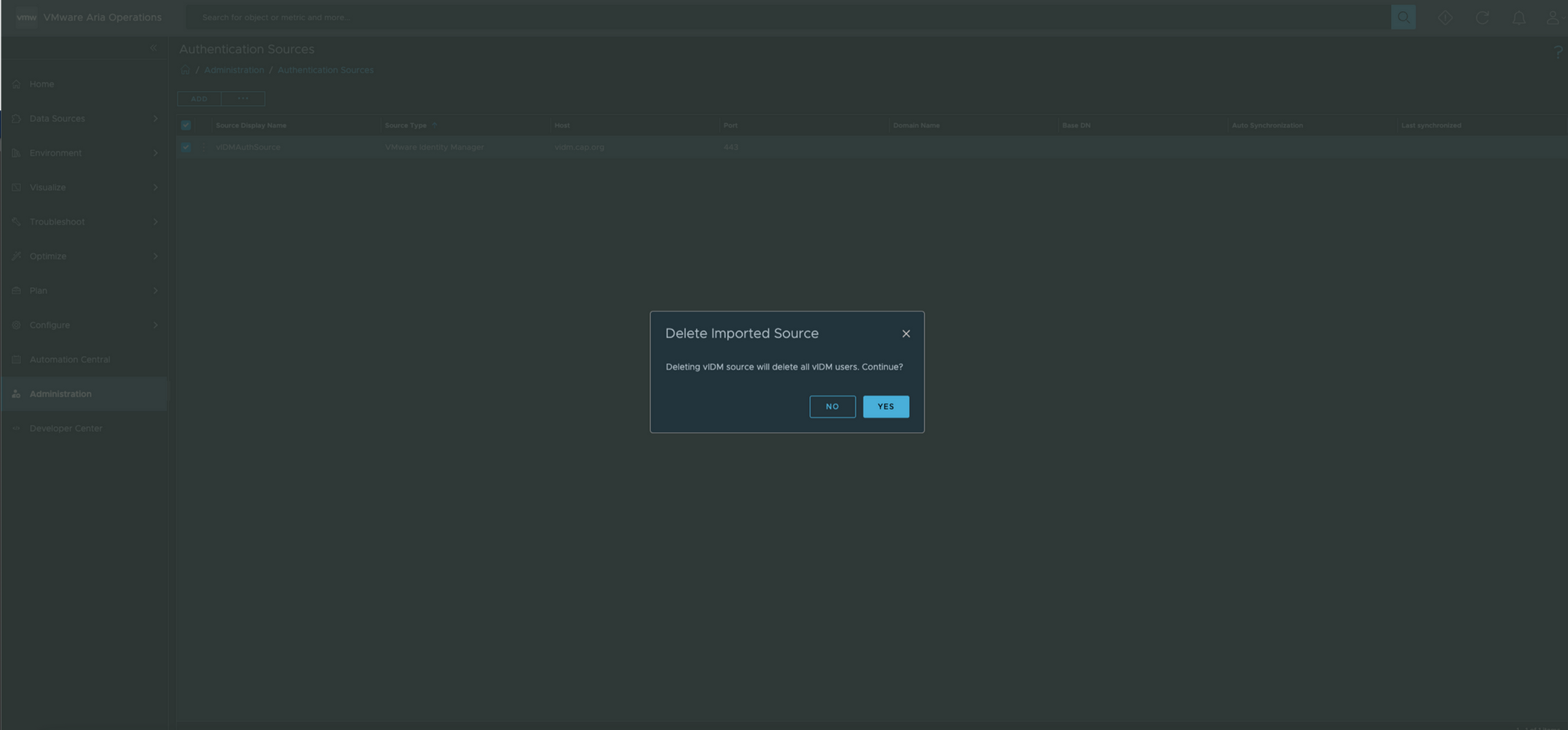
- Delete the authentication source
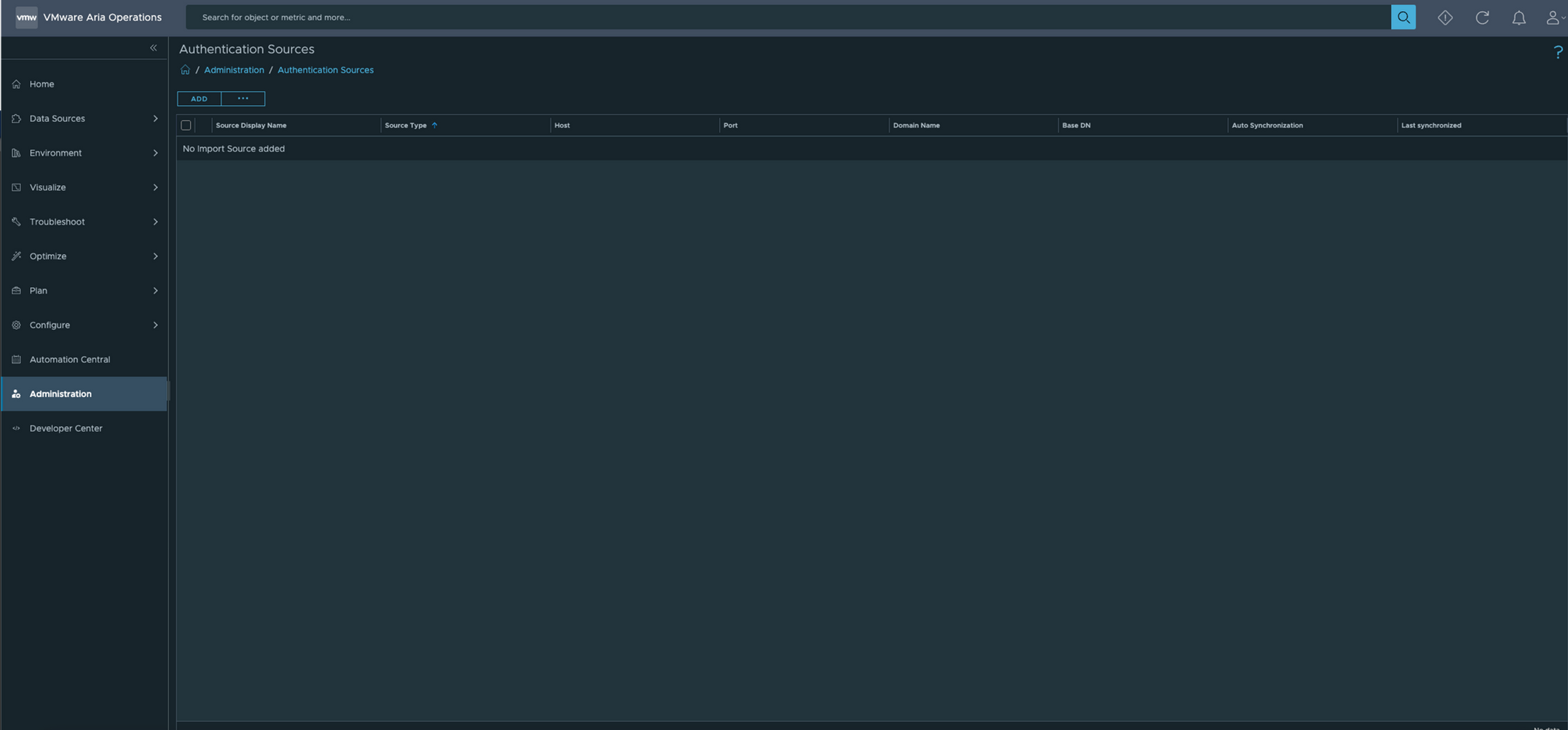
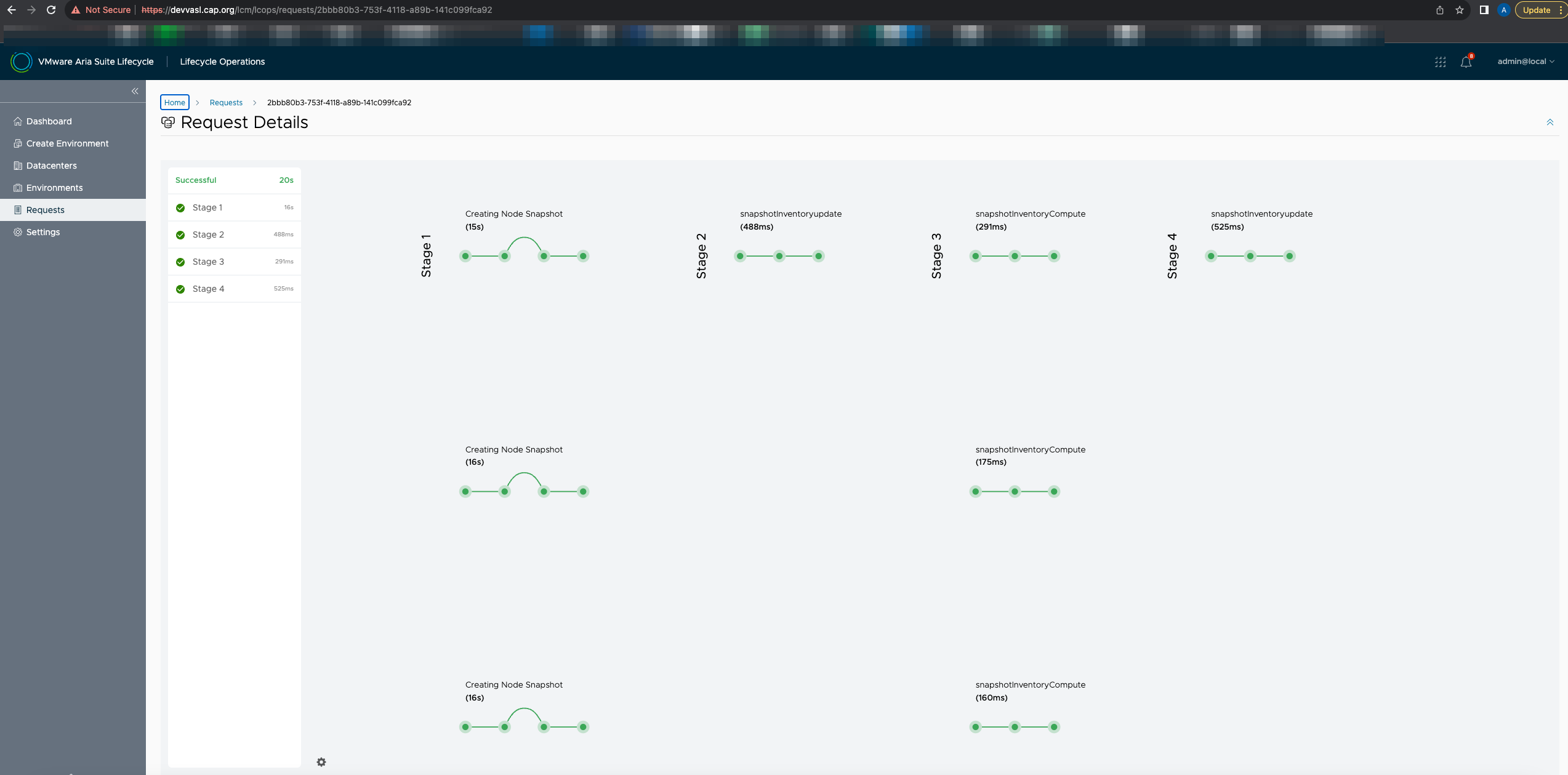
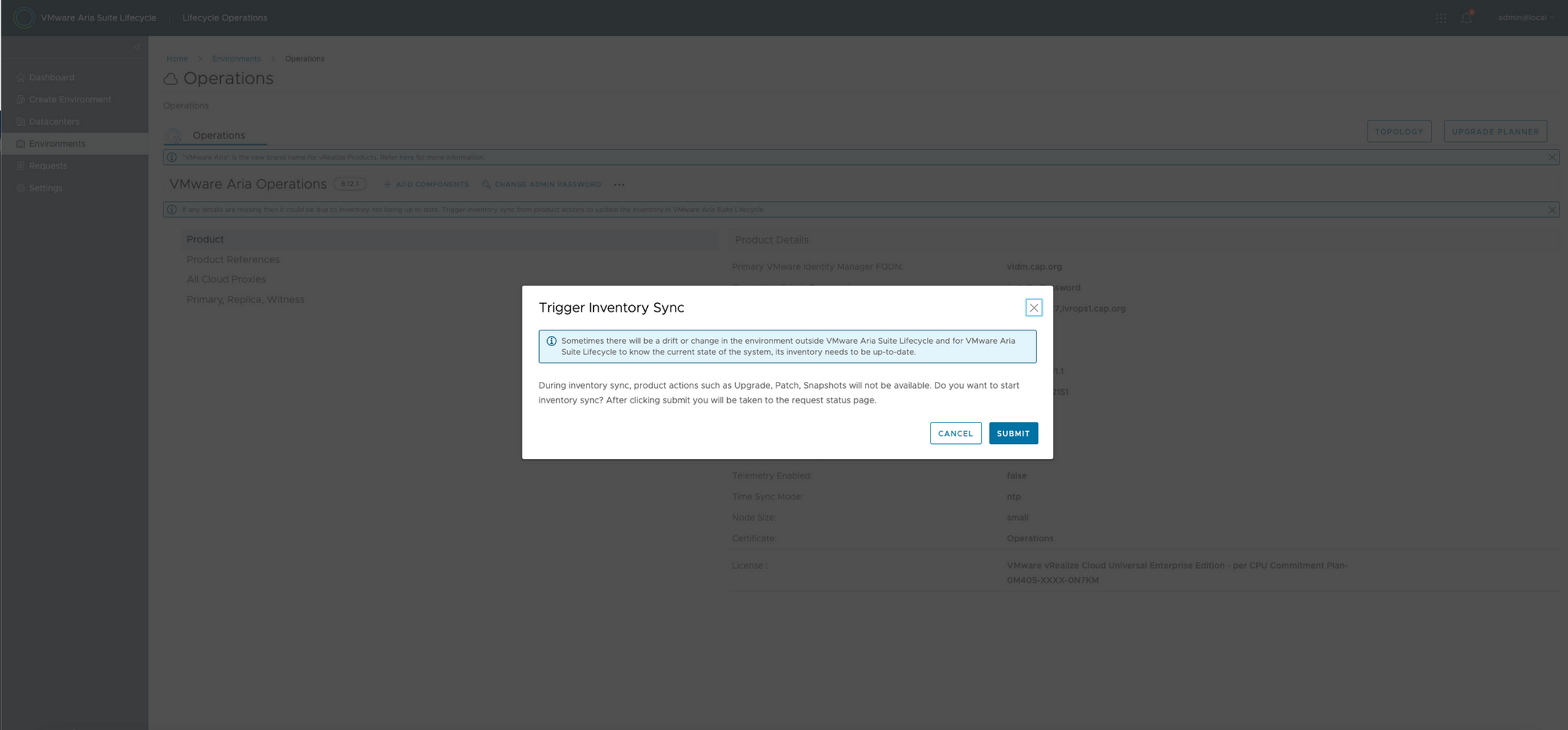
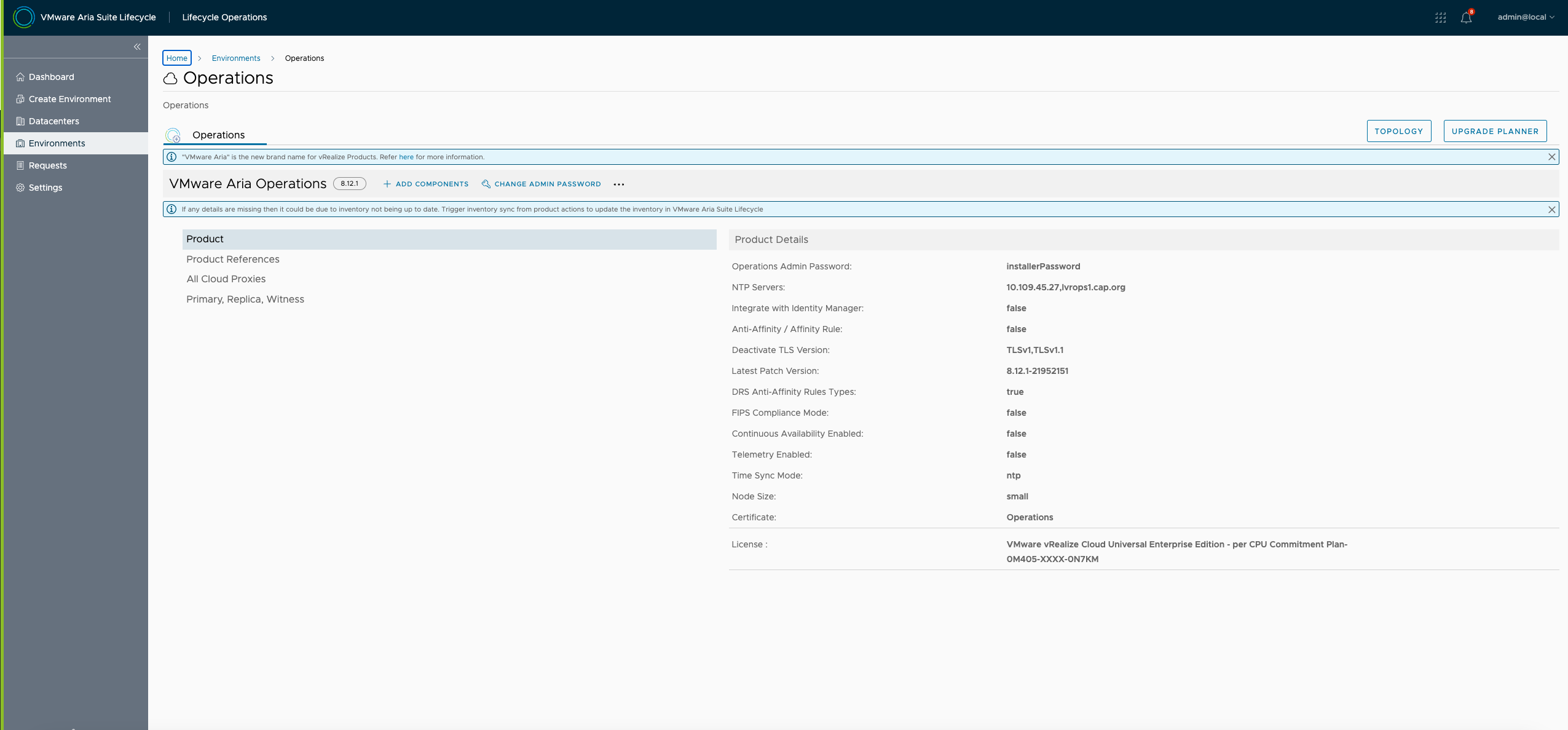
- Go back to Suite Lifecycle and perform an inventory sync
- As one can see the vIDM information is now gone
- Now let's go and add a new auth source in Operations as shown below. This will be pointing to the new globalenvironment on the destination Suite Lifecycle
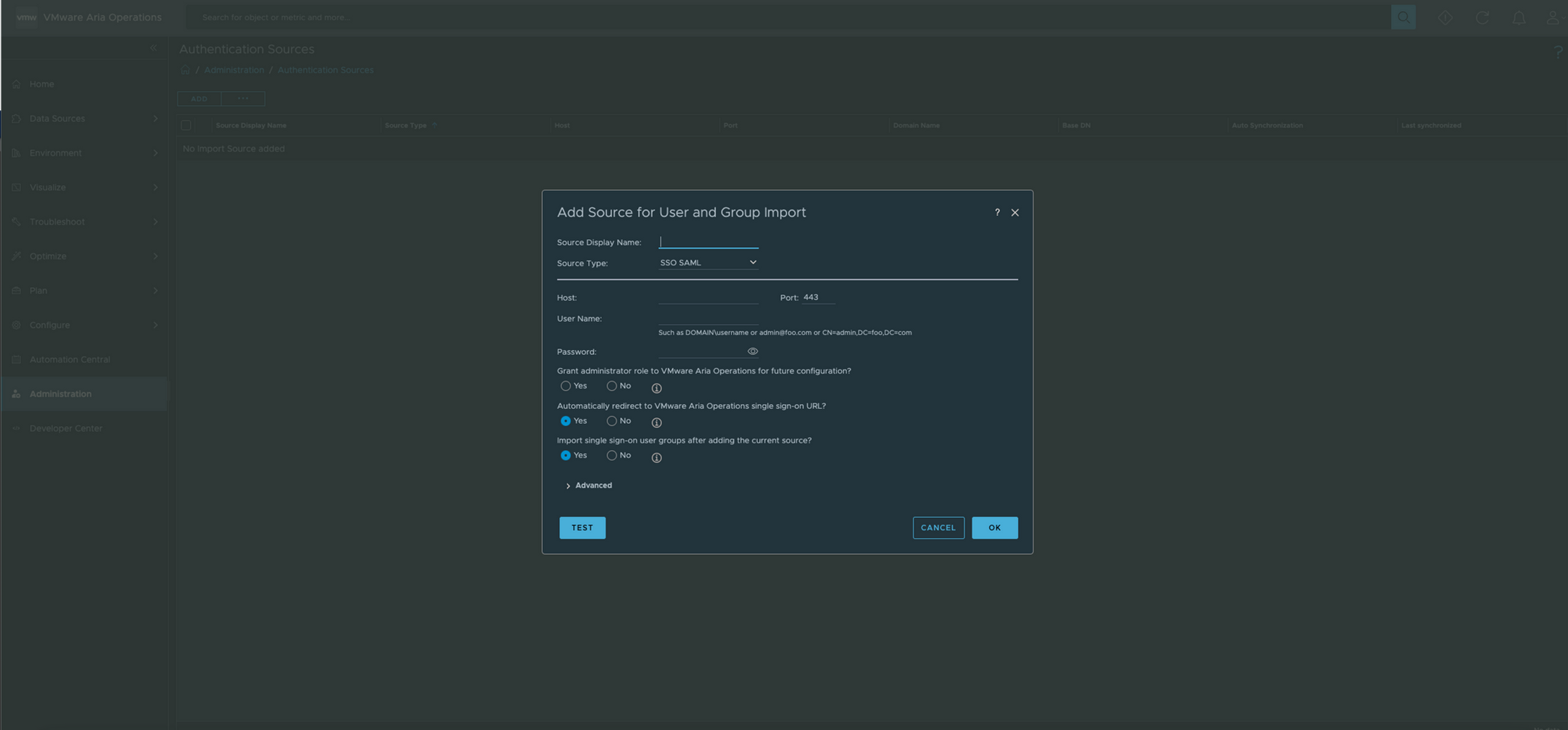
- Enter appropriate information and then click on test
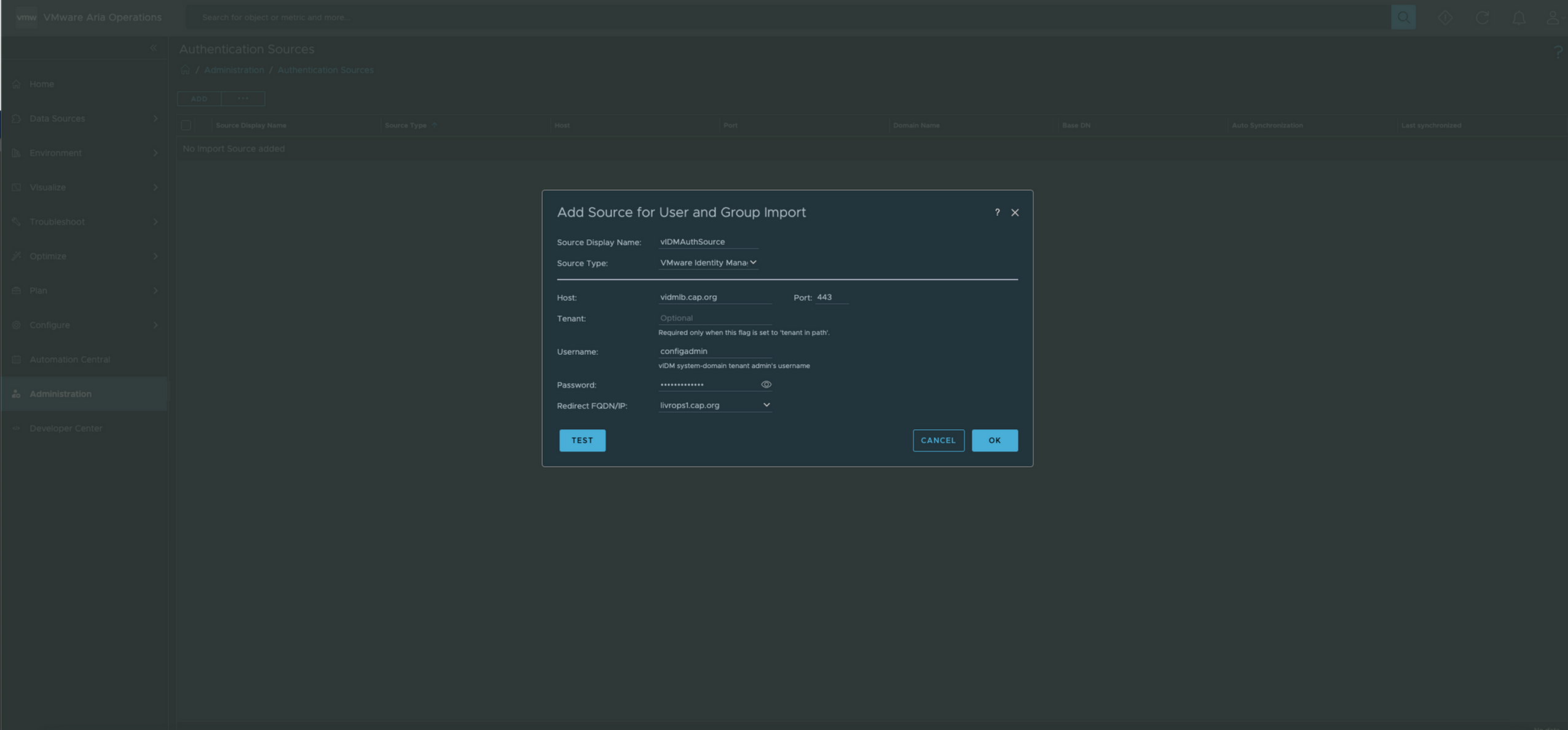
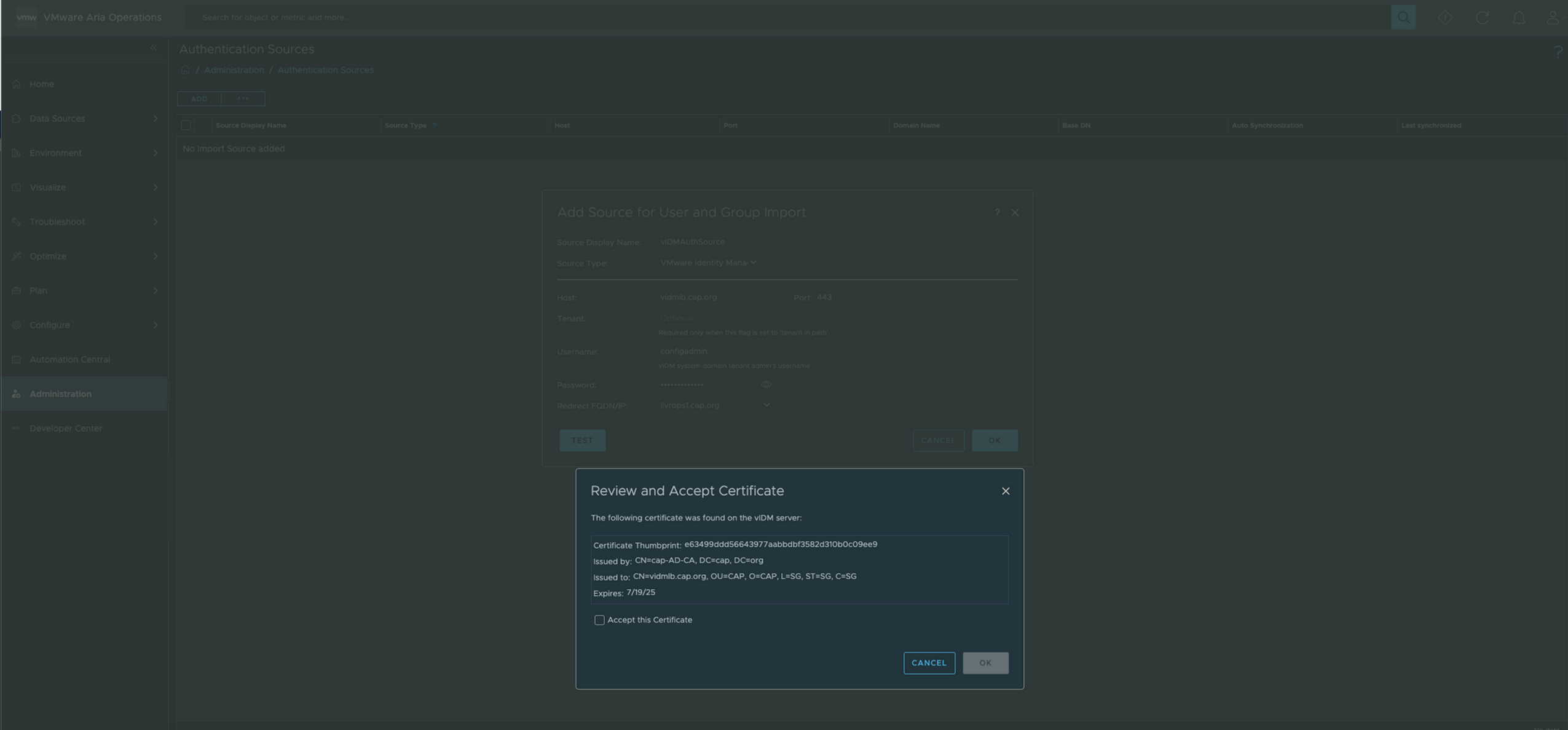
- Accept Certificate , once test connection is successful. Click on OK to save the config
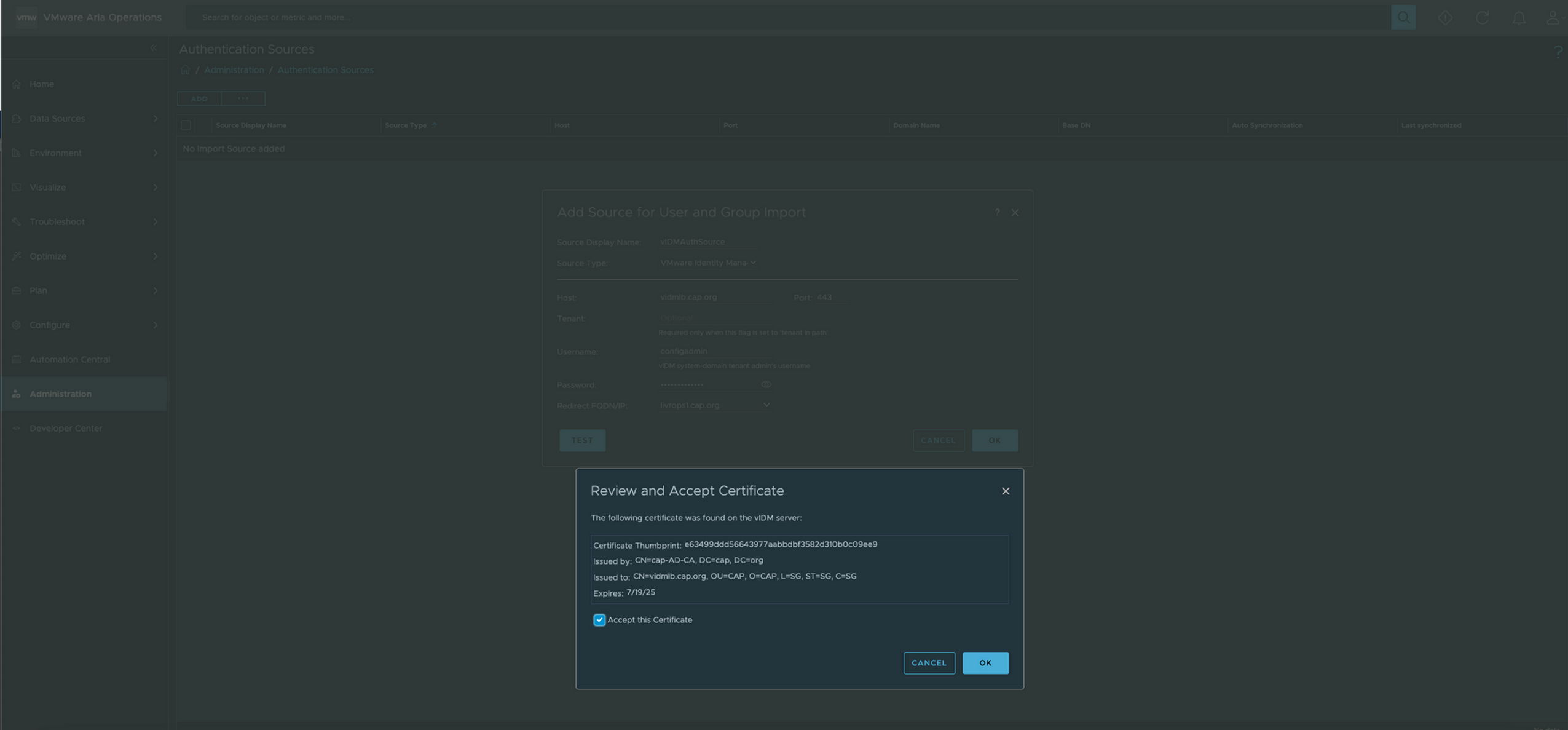
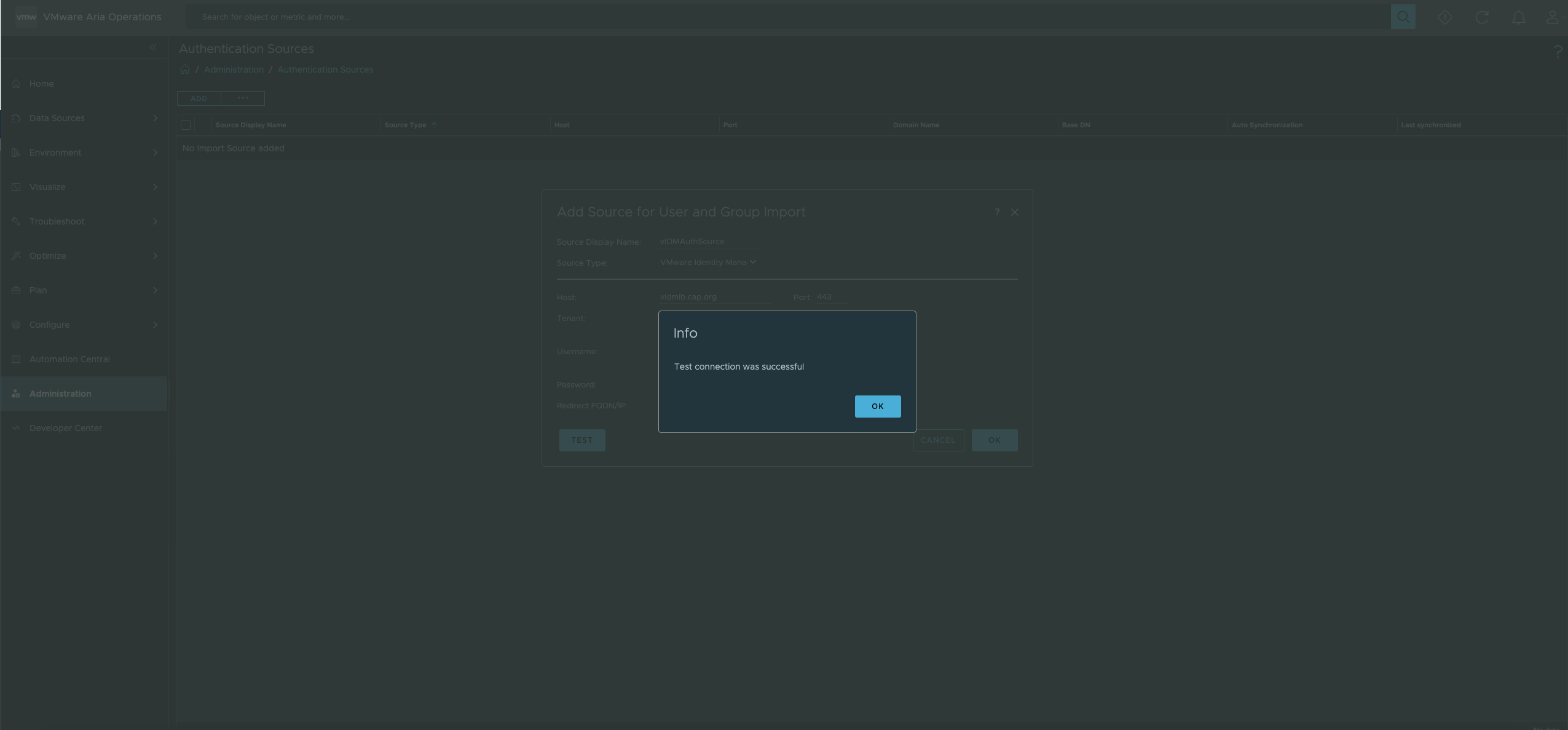
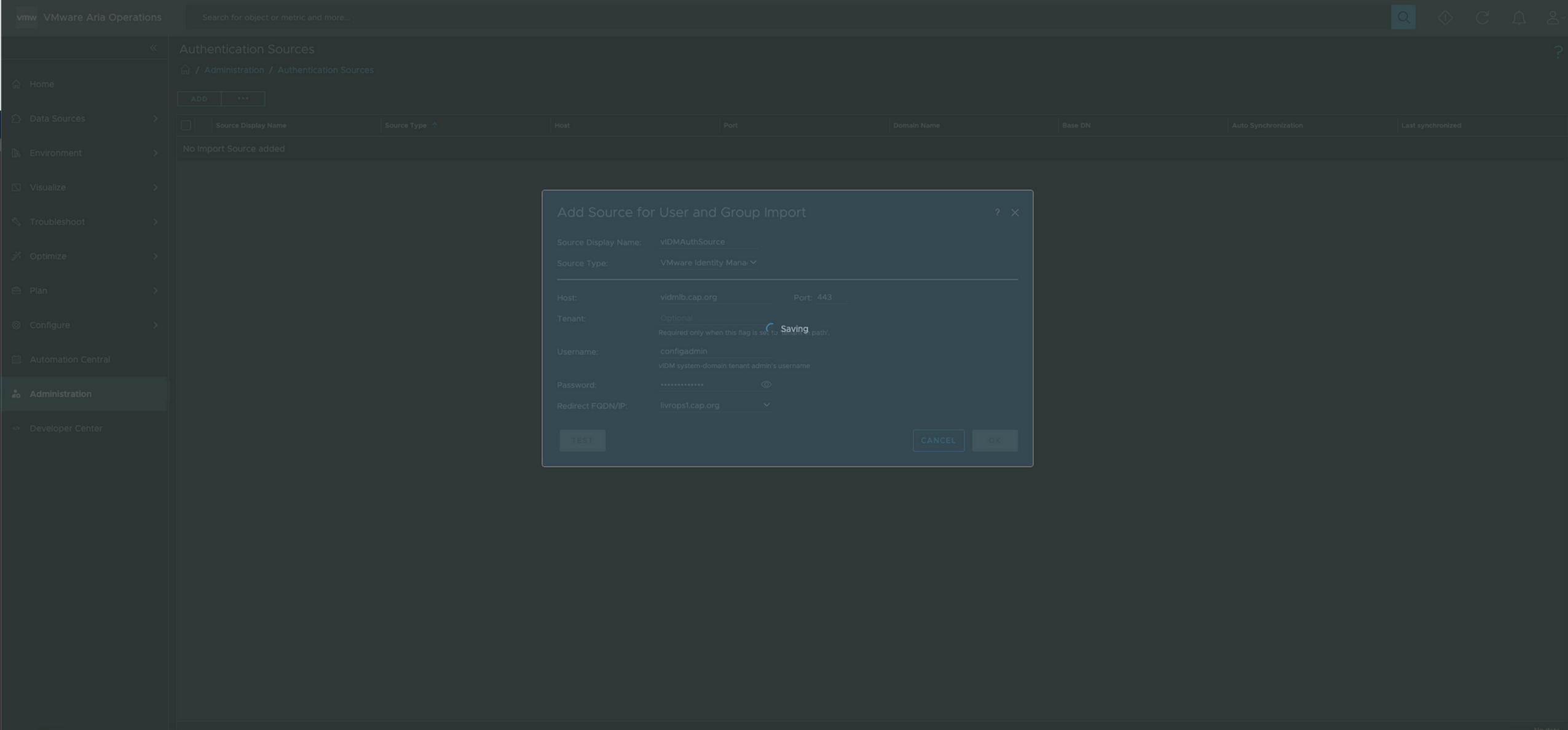
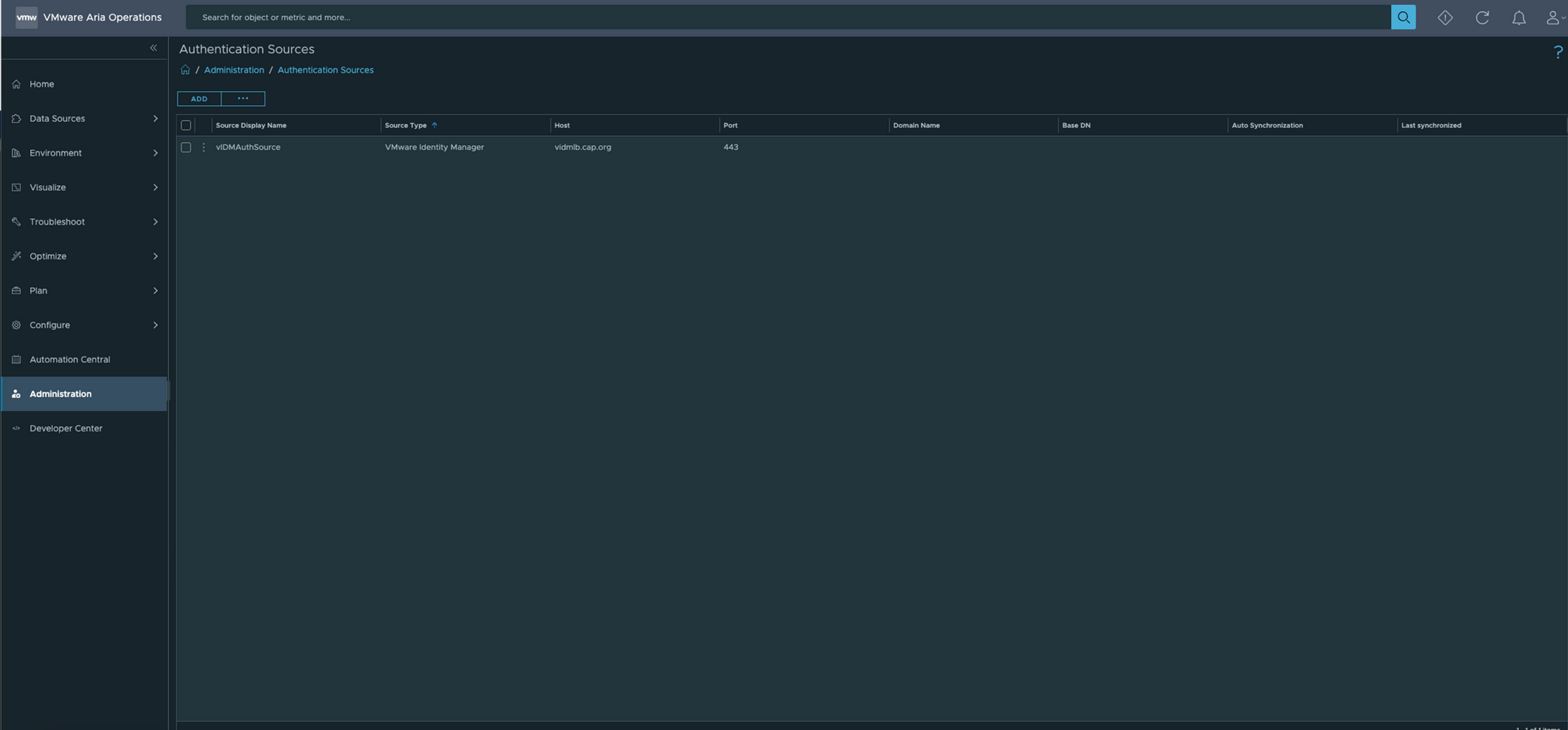
- Now the auth is pointing to the new vIDM
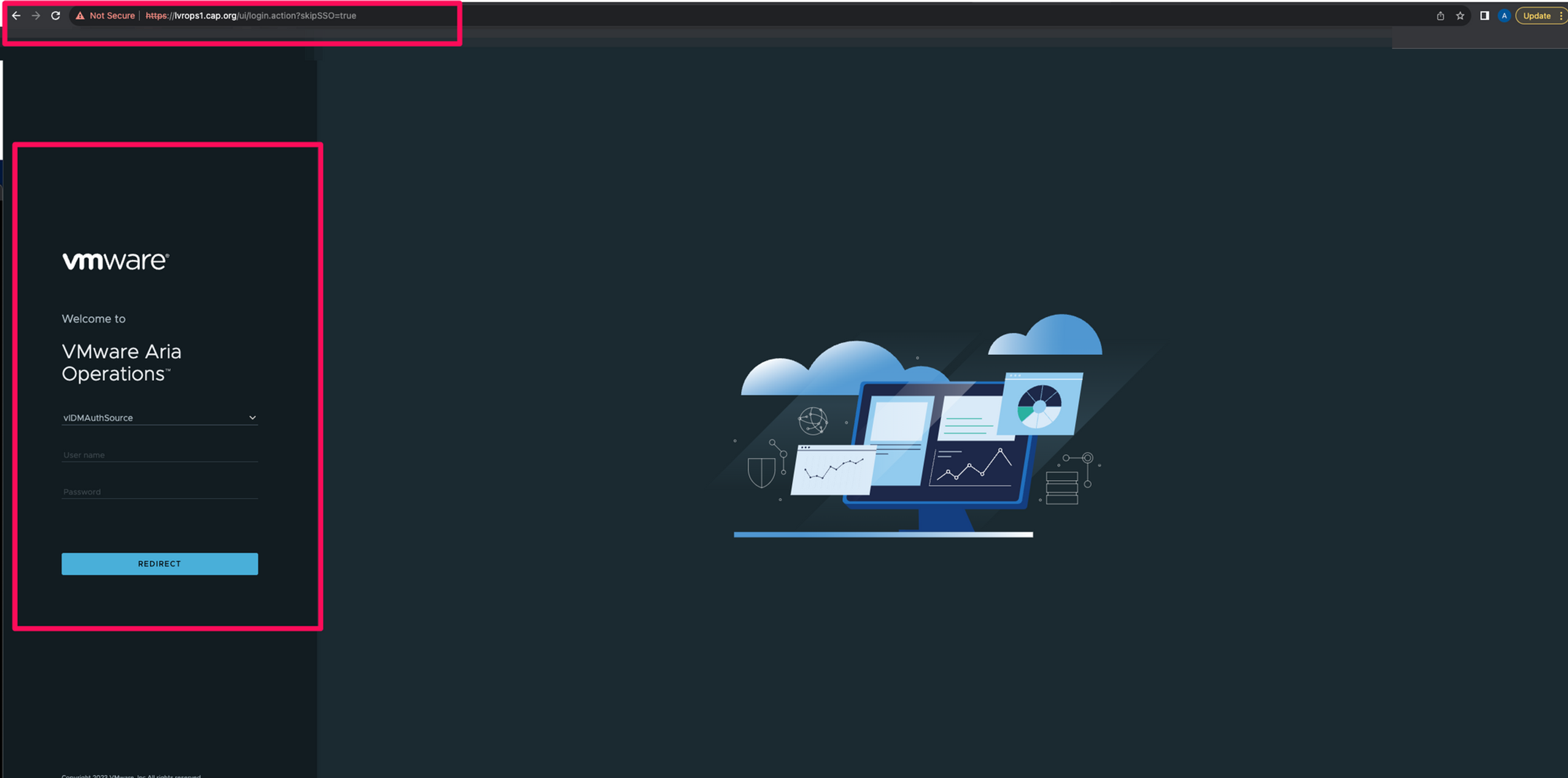
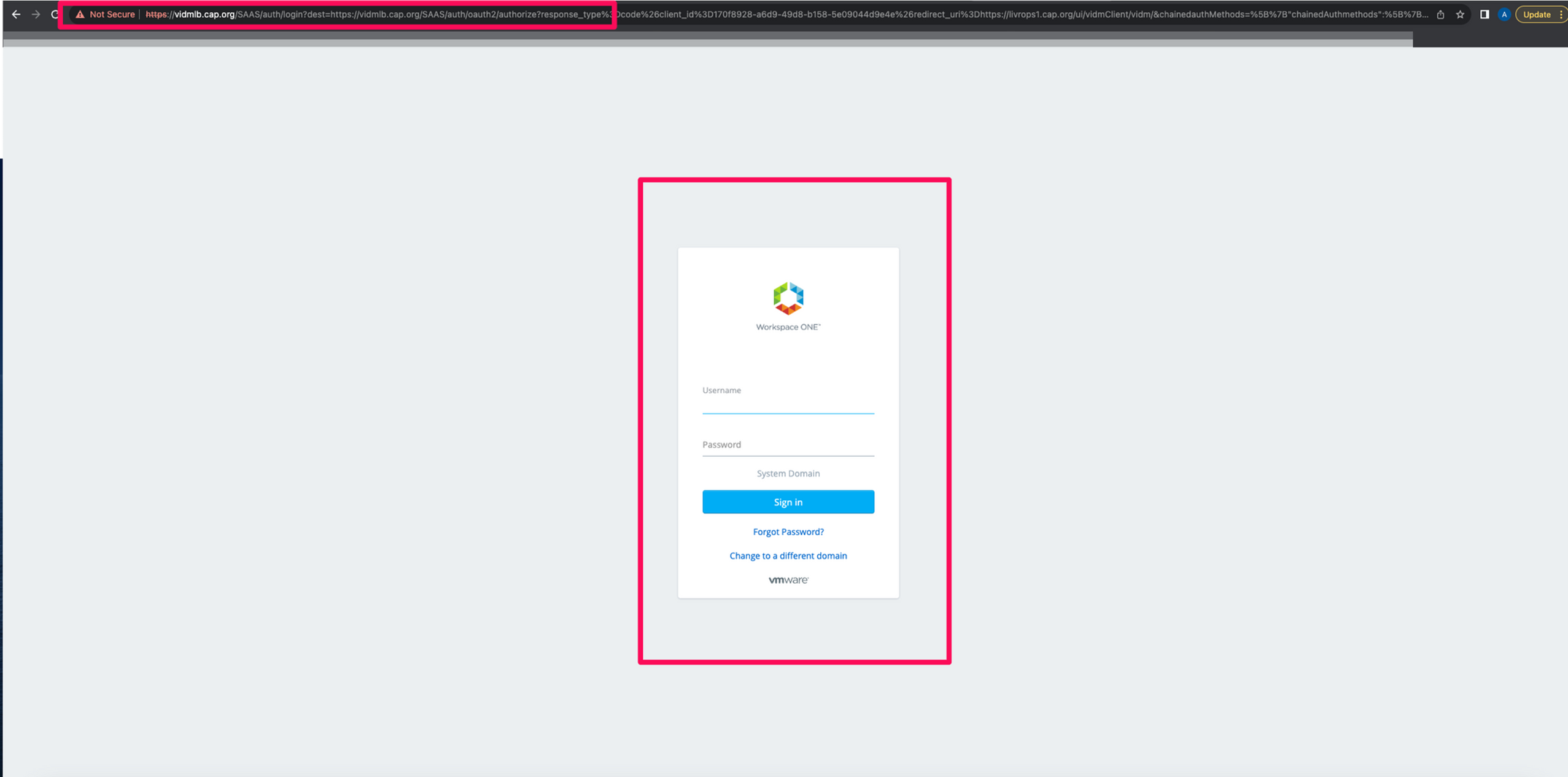
- When i logout and check for the vIDMAuthSource now , it points to the new vIDM
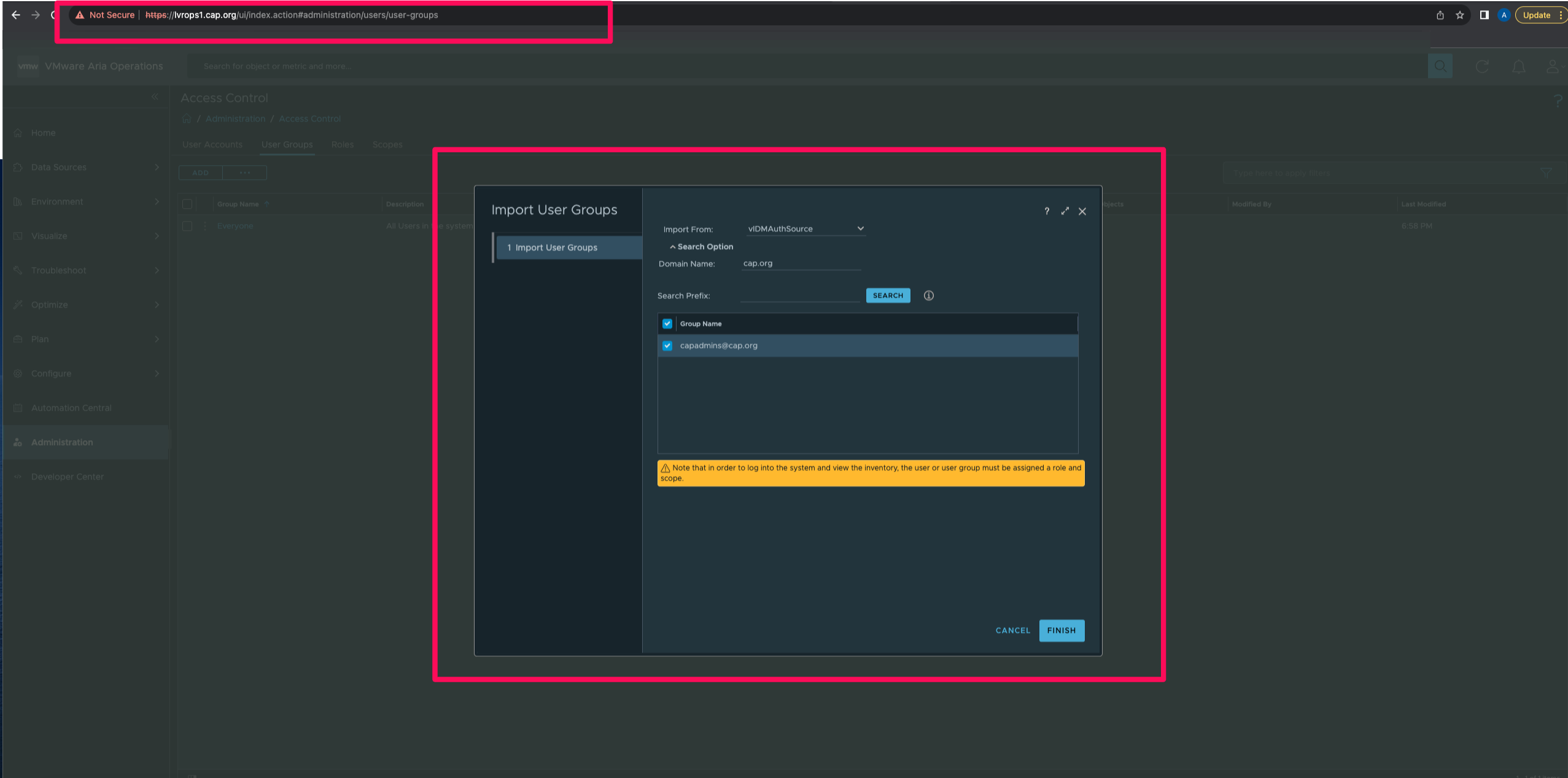
- I'd now map the group back in Operations and then give the same role or access to the user
Phase 4: Inventory Sync to reflect appropriate properties in Suite Lifecycle
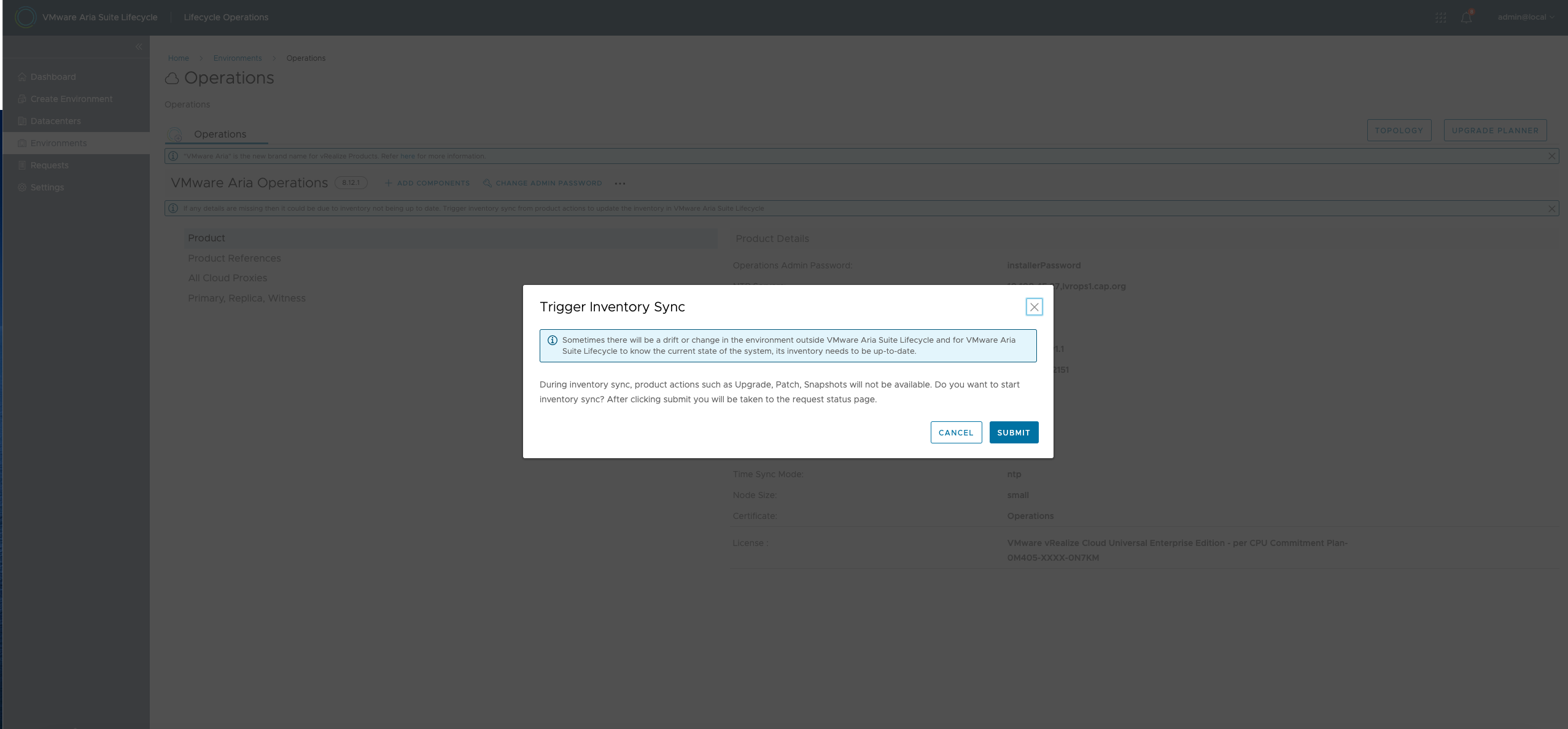
- Get back to Suite Lifecycle and perform inventory sync.
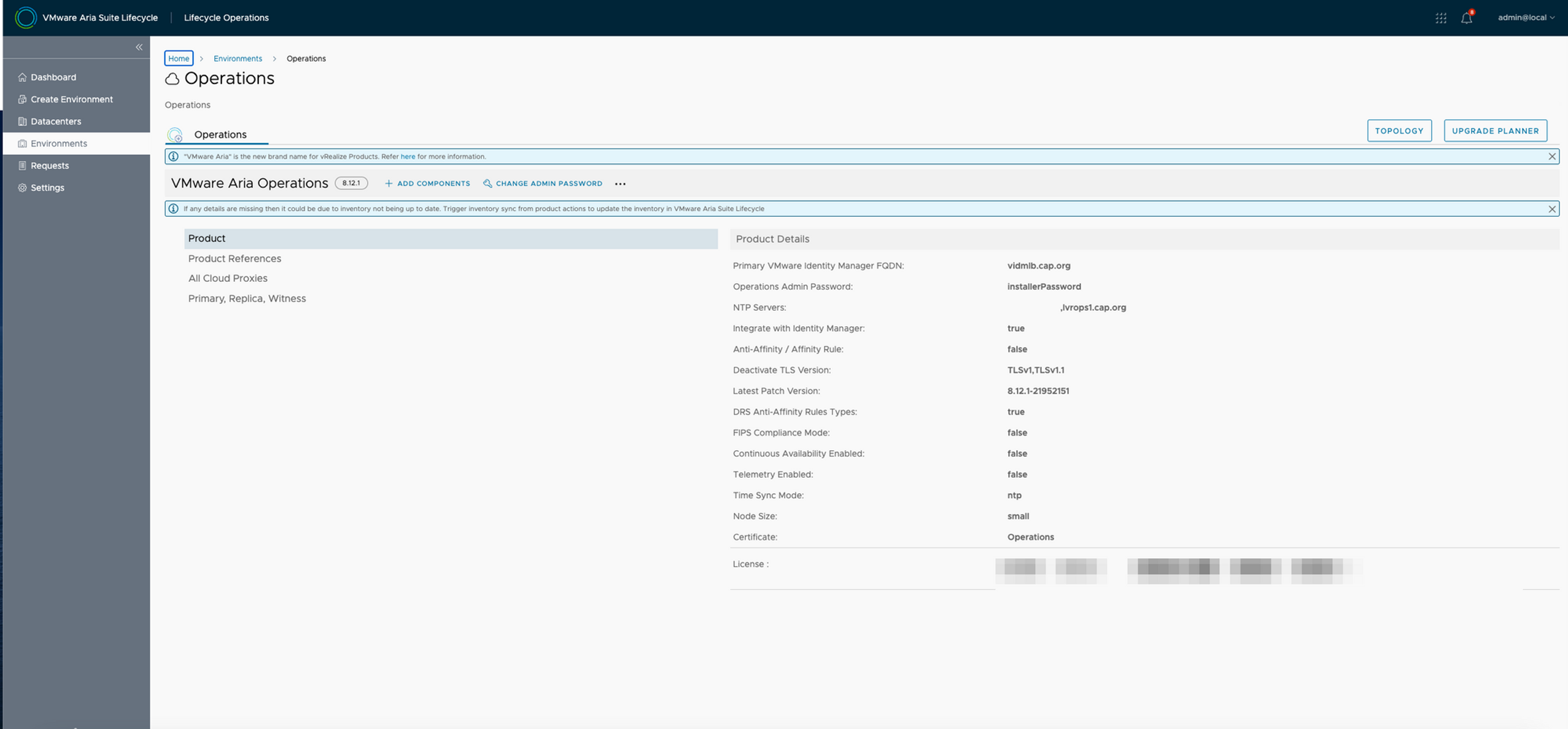
- After performing inventory sync the properties are now updated
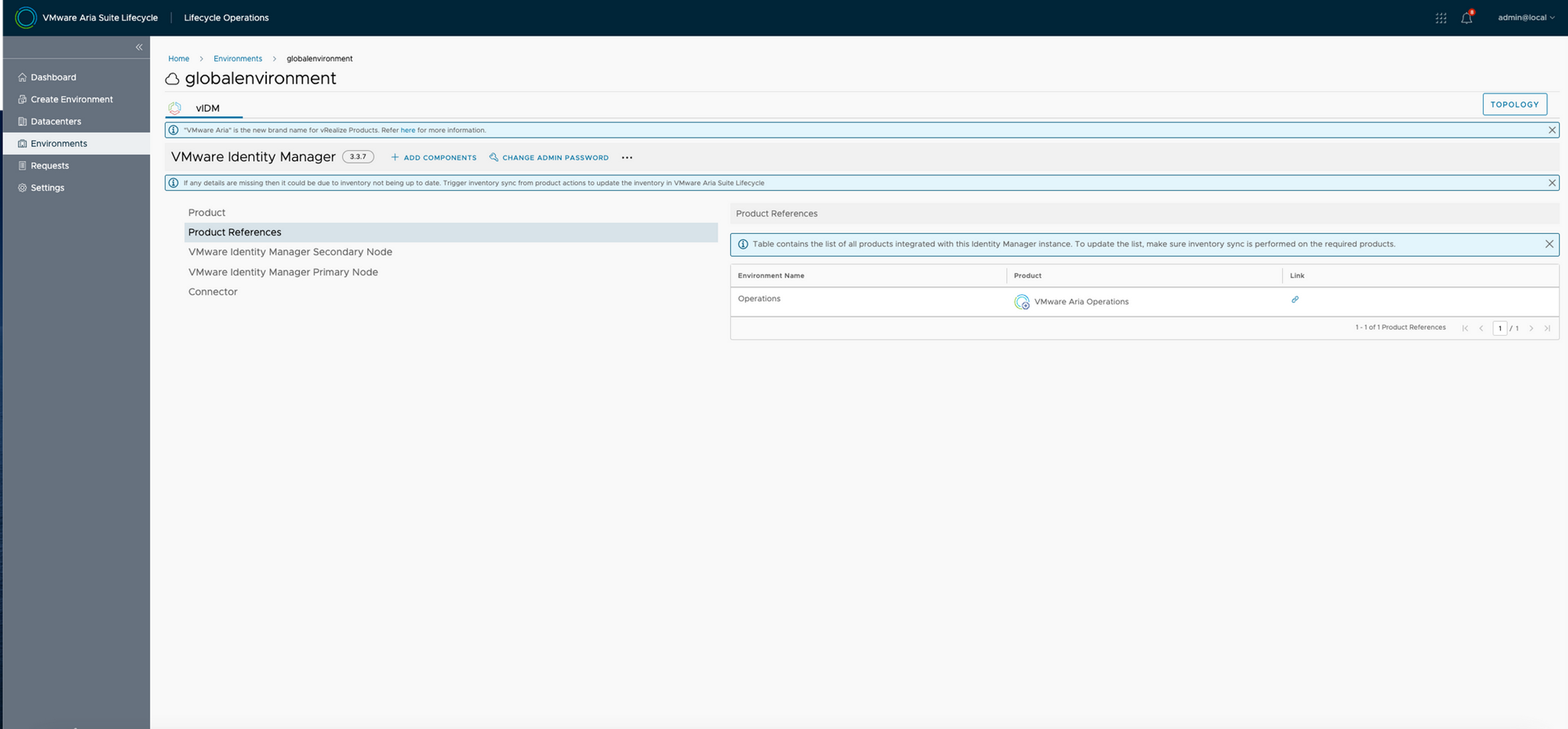
- The reference is shown as well
-
This concludes the blog
Never miss a post
New guides on VMware Cloud Foundation, Aria Suite, and infrastructure automation. Follow the blog in your feed reader and new posts show up as soon as they are published.
Using a different reader? Copy the feed URL and add it there.