Removing an existing vRA License

Came across a situation where even though the product was licensed , it was stating that it's not found in the database.
Re-applying same license was not working and it was stating that it's invalid
While going through /var/log/vmware/vcac/catalina.log found that there jdbc connection errors while trying to access database entry where licensed assets were present. Also, /var/log/vmware/messages was clearly stating that the license is missing or not found
Follow below steps to delete an existing license in vRA
** Before Attempting these steps take a snapshot and a valid backup of vRA database ( vPostgres ) **
- SSH or putty into the vRealize Automation appliance as root
- Take a backup of vRealize Automation Database
- Stop vRealize automation service
- service vcac-server stop
- Change directory using below command
- cd /tmp
- Run this command to create a copy of the database in /tmp
- su -m -c "/opt/vmware/vpostgres/current/bin/pg_dumpall -c -f /tmp/vcac.sql" postgres
- Run this command to compress database
- bzip2 -z /tmp/vcac.sql
- Connect to vPostgres database
- su -postgres psql vcac
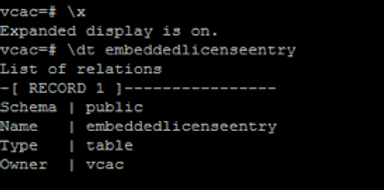
- Verify if embeddedlicenseentry table is present in database
- \dt embeddedlicenseentry
-
Review how many rows are present inside the table
-
SELECT * FROM embeddedlicenseentry;
-
There should be 36 ~ 37 entries
-
Delete all information from embeddedlicenseentry table
-
delete FROM embeddedlicenseentry;
-
Verify if the table is now empty
-
SELECT * FROM embeddedlicenseentry;
-
Exit from Database
-
\q
-
Restart services on appliance
-
vcacvami servicemanage stop vcoserver vcacserver horizonworkspace elasticsearch
-
vcacvami servicemanage start vcoserver vcacserver horizonworkspace elasticsearch
Once the Services are back , if we go back to VAMI portal , under vRA Settings --> Licensing , you should not see your previous license present
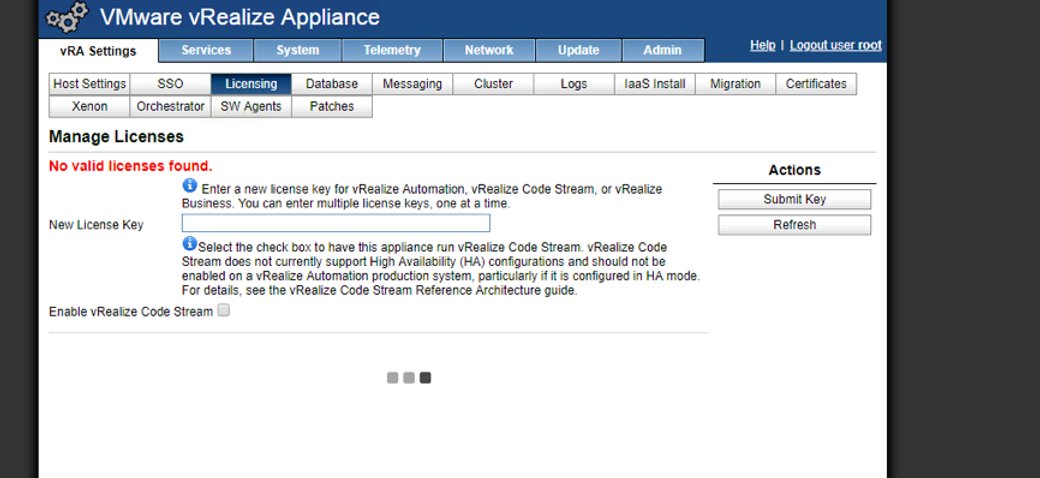
Re-Apply your existing license it should be successful.

For distributed environments
2 vRA appliances scenario:-
Perform database on the Master node , you can get to know the MASTER from vRA Settings --> Database
Restart services on both the nodes
3 vRA appliance scenario:-
Change database to ASYNCHRONOUS mode
Once done , shutdown both the non-MASTER applainces
Since your left only with the MASTER node now , follow same steps as above
Once the key is accepted , bring the other nodes online
Once all services are registered , go ahead and change the database mode to SYNCHRONOUS
Ensure , there are proper backups before performing any of these steps.
#vRealizeAutomation
Never miss a post
New guides on VMware Cloud Foundation, Aria Suite, and infrastructure automation. Follow the blog in your feed reader and new posts show up as soon as they are published.
Using a different reader? Copy the feed URL and add it there.